7 Quick Fixes For SPF Authentication Failure In Microsoft 365 And Exchange Online

Quick Answer
Fix SPF authentication failures in Microsoft 365 and Exchange Online by correcting SPF syntax, removing duplicate records, updating IP addresses, checking DNS propagation, and verifying Microsoft include records to improve email delivery and prevent spoofing.
SPF authentication failures in Microsoft 365 and Exchange Online usually come down to one issue: the receiving mail server cannot confirm that the sending source is authorized to send mail for your domain. The Sender Policy Framework is designed to prevent email spoofing by comparing the sending host against the domain’s published SPF record in public DNS records. When the SPF check fails, recipients such as Gmail, Yahoo Mail, ProtonMail, FastMail, or enterprise gateways like Mimecast, Proofpoint, Barracuda Networks, Cisco Email Security, Symantec Email Security, and SonicWall may mark the message as suspicious, route it to quarantine, or reject it outright.
A failed SPF validation can appear as SPF softfail, SPF hardfail, SPF neutral, SPF permerror, or SPF temperror in email header analysis. These results affect email authentication, DMARC evaluation, domain reputation, and overall email deliverability. The fixes below focus on Microsoft 365, formerly Office 365, but the same Sender Policy Framework principles apply when your domain also uses Google Workspace, Zoho Mail, Amazon SES, Mailgun, SendGrid, Mailjet, Mailchimp, Constant Contact, or another email relay.
Fix #1: Verify Your SPF TXT Record Exists in Public DNS
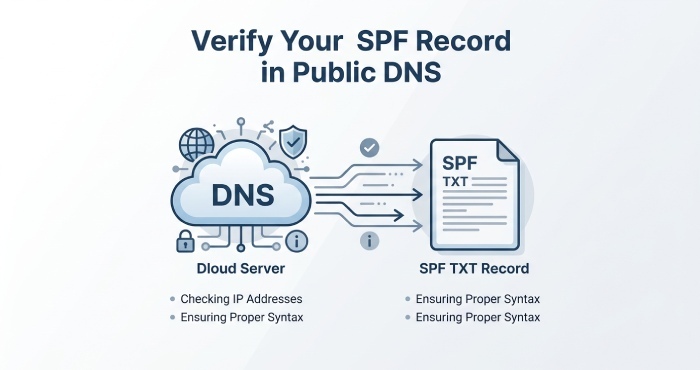
The first quick fix is to confirm that your domain actually has a valid SPF record published as a TXT record in public DNS records. In Microsoft 365, SPF validation depends on external DNS, not just settings inside the Exchange admin center.
A basic Microsoft 365 SPF record usually looks like this:
v=spf1 include:spf.protection.outlook.com -all
You can check the SPF record in your DNS provider, such as Cloudflare, GoDaddy, or Namecheap. Look specifically for a TXT record at the root domain, such as example.com. Do not place the Sender Policy Framework value only under mail.example.com unless that subdomain is the actual envelope sender domain.
Use an SPF testing tool such as MXToolbox, DMARC Analyzer, Valimail, or command-line tools like dig, nslookup, and spfquery to confirm that the public DNS records are visible. If the SPF lookup returns no record, receivers cannot complete an SPF check, and SPF validation will fail or return SPF neutral.
Also remember that SPF does not use MX records to authorize senders by default. MX records define where inbound mail is delivered, while the SPF record defines which outbound mail server, email relay, or authorized IP address may send mail for the domain.
Fix #2: Correct the Microsoft 365 SPF Include Statement
One of the most common causes of SPF authentication failure is a missing or incorrect Microsoft 365 include mechanism. For Exchange Online, the correct include mechanism is:
include:spf.protection.outlook.com
If your SPF record references an outdated Office 365 value, has a typo, or uses incorrect SPF syntax, the receiving mail server may return SPF permerror. That can lead to mail delivery failure, a bounce message, or filtering by security providers such as Cloudmark, Spamhaus, or Proofpoint.
A correct Microsoft 365-only SPF policy may be:
v=spf1 include:spf.protection.outlook.com -all
The final -all is the all mechanism and creates an SPF hardfail for unauthorized sources. If you are still testing, you may use ~all, which causes SPF softfail instead of SPF hardfail. An SPF softfail tells recipients the sender is probably not authorized but gives them room to accept, quarantine, or score the message. An SPF hardfail is stricter and can trigger a reject policy at Gmail, Yahoo Mail, or corporate gateways.
Use ?all only with caution because it produces SPF neutral and weakens your email authentication posture. In production, your Sender Policy Framework configuration should reflect a clear email security policy.
Fix #3: Remove Duplicate SPF Records for the Same Domain
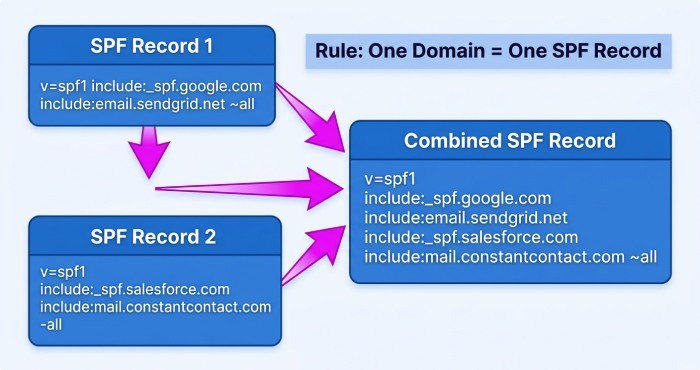
A domain must have only one SPF record. Multiple SPF TXT records for the same authenticated domain cause SPF validation problems and often result in SPF permerror. For example, this is invalid:
v=spf1 include:spf.protection.outlook.com -all
v=spf1 include:sendgrid.net -all
Instead, combine all authorized services into a single SPF record:
v=spf1 include:spf.protection.outlook.com include:sendgrid.net -all
Duplicate DNS records are especially common after migrations from Google Workspace, Zoho Mail, or legacy Office 365 tenants into Microsoft 365. They also happen when marketing platforms such as Mailchimp, Constant Contact, Mailgun, Mailjet, Amazon SES, or SendGrid are added without reviewing the existing SPF record.
During troubleshooting, do not confuse SPF problems with Outlook profile or PST corruption issues; the Inbox Repair Tool will not fix Sender Policy Framework failures. The problem is in public DNS records and email authentication, not the local mailbox database.
After removing duplicates, run another SPF check and review the message headers. A clean SPF validation result should show SPF pass for the correct return-path domain.
Fix #4: Keep SPF Lookups Under the 10-DNS-Lookup Limit
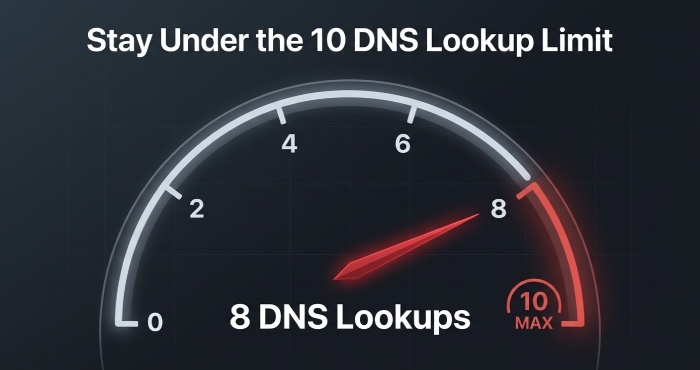 Sender Policy Framework has a strict mechanism limit: an SPF lookup may trigger no more than 10 DNS lookups. This includes mechanisms such as include, a, mx, redirect, exists, and nested includes. If the SPF lookup exceeds the limit, the SPF check returns SPF permerror, and email authentication may fail.
This is common in organizations using Microsoft 365 plus several third-party senders. For example:
v=spf1 include:spf.protection.outlook.com include:sendgrid.net include:mailgun.org include:amazonses.com include:servers.mcsv.net -all
Each include mechanism may trigger additional SPF lookup operations. Too many nested references can break SPF validation even if every provider is legitimate.
To fix this:
- Remove unused third-party senders.
- Avoid unnecessary mx or a mechanisms.
- Use the ip4 mechanism or ip6 mechanism for stable dedicated sending sources.
- Consider SPF flattening only when necessary and maintain it carefully.
- Use MXToolbox, Valimail, DMARC Analyzer, or spfquery to count SPF lookup depth.
SPF flattening replaces includes with direct IP ranges, but it can become stale if providers change infrastructure. If an authorized IP address changes and your SPF record is not updated, you may see SPF softfail, SPF hardfail, or intermittent SPF temperror depending on DNS behavior and receiver policy.
Fix #5: Add All Authorized Third-Party Senders to Your SPF Record
 Many SPF authentication failures occur because Microsoft 365 is configured correctly, but other legitimate senders are missing from the SPF record. Common third-party senders include Amazon SES, Mailgun, SendGrid, Mailjet, Mailchimp, Constant Contact, CRM systems, helpdesk platforms, billing tools, and security appliances such as Mimecast, Barracuda Networks, Proofpoint, Cisco Email Security, Symantec Email Security, and SonicWall.
If these systems send mail using your domain in the envelope sender or return-path, they must be represented in the SPF policy. Otherwise, the receiving mail server may produce SPF softfail or SPF hardfail. Repeated SPF hardfail results can damage domain reputation and increase the chance of being placed on a blacklist. In some environments, administrators may whitelist trusted systems temporarily, but a whitelist should not replace proper email authentication. A combined SPF record might look like this:
v=spf1 include:spf.protection.outlook.com include:sendgrid.net include:mailgun.org -all
If a vendor gives you a dedicated sending IP, use the ip4 mechanism or ip6 mechanism:
v=spf1 include:spf.protection.outlook.com ip4:203.0.113.25 ip6:2001:db8::25 -all
Always verify the vendor’s documentation. Google Workspace, Zoho Mail, Amazon SES, and SendGrid each publish specific Sender Policy Framework guidance. Adding the wrong include mechanism can cause SPF validation errors, while omitting a provider can lead to mail delivery failure and poor email deliverability.
Fix #6: Check Domain Alignment and Envelope-From Settings in Exchange Online
SPF alignment matters because DMARC does not evaluate SPF against the visible From address alone. DMARC checks whether the authenticated SPF domain aligns with the visible From domain. In practice, SPF alignment depends on the envelope sender, also called the MAIL FROM or return-path domain in SMTP.
A message can receive SPF pass but still fail DMARC if SPF alignment is broken. For example, if your visible From address is user@example.com, but the return-path uses bounce.vendor-mail.com, the SPF check may pass for the vendor domain while failing SPF alignment for example.com.
In Exchange Online, review connectors, accepted domains, outbound routing, and any email relay configuration. If your organization routes outbound mail through Mimecast, Proofpoint, Barracuda Networks, Cisco Email Security, or another smart host, ensure the relay is authorized in your SPF record and that the envelope sender is aligned where required.
Forwarding issues can also break Sender Policy Framework. When a message is forwarded, the forwarding server may become the connecting IP, causing the original SPF check to fail. DKIM can help preserve email authentication in forwarding scenarios, and DMARC alignment can still pass if DKIM is aligned even when SPF alignment fails.
Use email header analysis to inspect:
- Authentication-Results
- Received-SPF
- Return-Path
- smtp.mailfrom
- header.from
- DKIM signatures
- DMARC results
Google Postmaster Tools can also help identify authentication and reputation trends for Gmail-bound traffic. If you see frequent SPF softfail or SPF hardfail results, investigate whether the envelope sender domain and authenticated domain are properly aligned.
Fix #7: Test SPF Authentication After DNS Propagation
After changing DNS records, allow time for DNS propagation. Depending on TTL values and DNS provider behavior, SPF record updates may appear within minutes or take several hours. During this period, SPF check results can vary between receivers, and some may return SPF temperror if DNS resolution is temporarily unavailable.
Once propagation is complete, send test messages from every legitimate outbound mail server and third-party platform. Test Microsoft 365, Exchange Online, marketing systems, application servers, SMTP relays, and any failover route. A failover mail path that is not included in the SPF record can trigger SPF hardfail during an outage, even if normal mail flow shows SPF pass.
Use an SPF testing tool such as MXToolbox, DMARC Analyzer, Valimail, or spfquery to confirm:
- The SPF record is visible in public DNS records.
- SPF syntax is valid.
- The SPF lookup count is under 10.
- Microsoft 365 is authorized through include:spf.protection.outlook.com.
- Third-party senders are included.
- SPF validation returns SPF pass for legitimate sources.
- Unauthorized systems return SPF softfail or SPF hardfail based on your chosen all mechanism.
- SPF alignment works with DMARC for the authenticated domain.
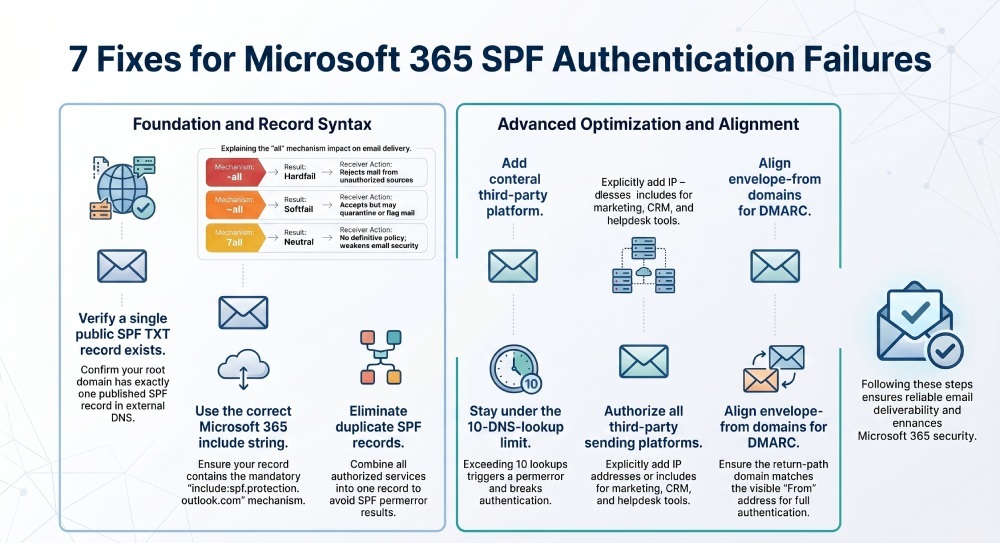 Finally, compare results across Gmail, Yahoo Mail, Microsoft 365, and other mailbox providers. If your email authentication is correct, headers should show a clean SPF check, proper SPF validation, and aligned DMARC results. If not, continue reviewing DNS records, return-path behavior, and Exchange Online routing until Sender Policy Framework results are consistent.
General Manager
General Manager at DuoCircle. Product strategy and commercial lead across the email security portfolio.
Secure your email infrastructure
Protect, authenticate, and deliver. Contact our team to find the right solution.