10 Steps to Validate Your Qualtrics SPF Record Before Launch

Quick Answer
Validating your Qualtrics SPF record before launch helps prevent email authentication failures, spoofing, and delivery issues. Check your DNS record, syntax, authorized sending sources, lookup limits, and SPF alignment to ensure reliable email security and deliverability.
When you use Qualtrics to send surveys, customer feedback requests, employee communications, or other email campaigns from your organization’s domain, email authentication should be part of your launch checklist. A properly configured Sender Policy Framework (SPF) record helps receiving mail servers determine whether Qualtrics is authorized to send email on behalf of your domain.
Qualtrics supports custom From domains, allowing organizations to send messages using their own branded email addresses. For custom domains, Qualtrics documents an SPF entry using include:_spf.qualtrics.com, although SPF verification itself is optional for activating a custom From domain.
But simply adding an SPF record to DNS does not mean the configuration is ready for production. A typo, duplicate SPF record, excessive DNS lookups, incorrect domain, or conflict with an existing email provider can cause authentication problems and potentially affect deliverability.
Before you start sending real Qualtrics emails, it is worth validating the record from several angles.
Understand Qualtrics SPF Requirements and Identify the Correct Sending Domain
1. Confirm whether you are using a default or custom FROM address
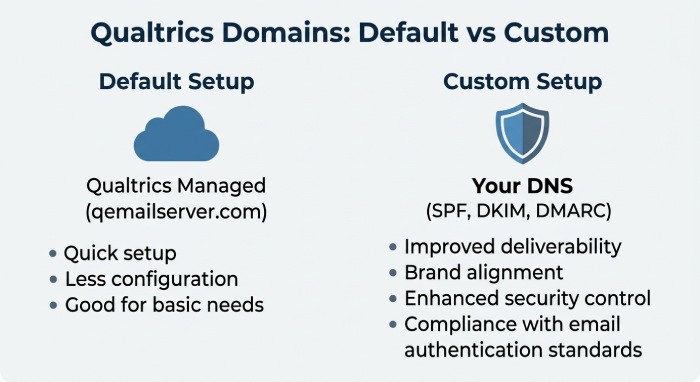
Start by identifying how your Qualtrics emails will be sent. If your brand uses the default FROM address, messages may appear from addresses such as noreply@qemailserver.com, with bounce handling through bounces@bounces.qemailserver.com. In that setup, Qualtrics-managed infrastructure such as qemailserver.com handles much of the sending identity.
However, if you want recipients to see your organization’s domain, such as research@demodomain.com, you need a custom FROM address and usually a custom from domain. This changes the domain authentication requirements because your organization’s DNS must authorize Qualtrics to send mail on your behalf.
The first validation step is to confirm the exact domain or subdomain used for sending. For example, your brand administrator may configure:
* surveys.demodomain.com
research.demodomain.comfeedback.demodomain.com
A custom from domain should be chosen carefully because it affects SPF record alignment, DKIM, DMARC, Return-Path handling, and recipient trust.
2. Review the Qualtrics sending domain guidance in your admin settings
Next, check the Qualtrics Admin page, particularly Organization Settings and the Messaging section, where domain authentication options may be managed by a brand administrator or domain administrators. Depending on your license and brand ID, Qualtrics may provide specific values for SPF record, DKIM, and DMARC setup.
Qualtrics commonly references domains such as:
- qemailserver.com
- qualtrics-survey.com
- qualtrics-research.com
Your exact configuration may vary based on your region, brand ID, product area, or security requirements. If you are unsure, involve your IT team, Security team, or Account Executive, and consult Qualtrics Support or the Experience Community.
The key point: do not assume the same SPF record applies to every Qualtrics deployment. A custom FROM address, custom from domain, SMTP relay, or specialized Employee Experience distribution pattern may require a different DNS configuration.
Audit Your Current DNS SPF Record to Avoid Duplicates and Lookup Limit Issues
3. Locate the existing SPF TXT record at your domain provider
SPF is published as a TXT record in DNS. Although administrators sometimes refer to it as an SPF-type DNS record, modern Sender Policy Framework publishing uses a TXT record. Your organization’s domain provider may be Google Cloud DNS, Cloudflare, GoDaddy, Route 53, or another DNS host.
Look for a public TXT record at the top-level domain or selected subdomain. For example:
*demodomain.com* TXT "v=spf1 include:_spf.*google*.com ~all"If you are using a custom from domain such as surveys.*demodomain.com*, the SPF record may need to exist on that subdomain instead of the root domain.
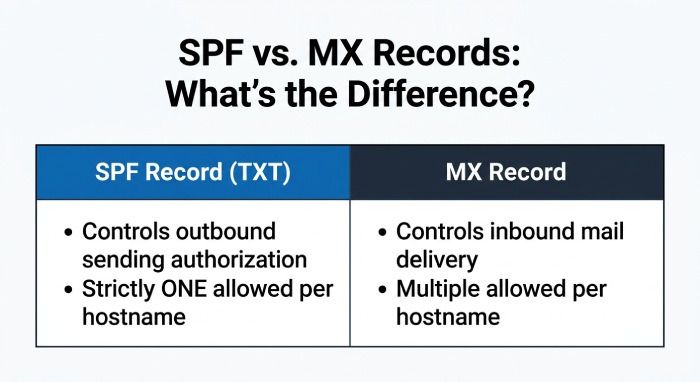
Be careful not to confuse SPF with an MX record. An MX record controls where inbound mail is delivered; the SPF record controls which servers are authorized to send mail. You may have multiple MX record entries for Google Workspace or Microsoft 365, but you should not create multiple SPF record entries for the same hostname.
4. Check for duplicate SPF records and excessive DNS lookups
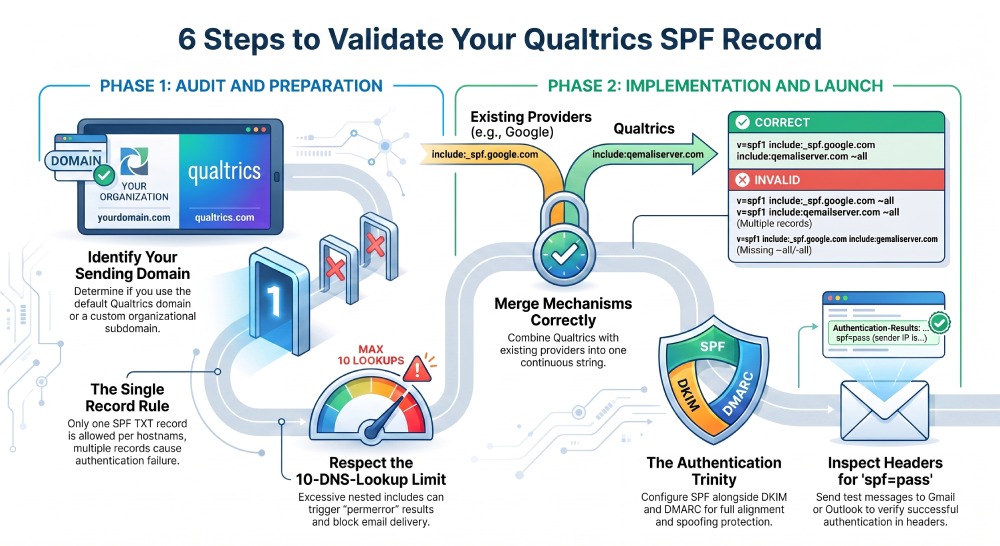
A valid Sender Policy Framework setup allows only one SPF record per hostname. Multiple SPF TXT records at the same domain can cause email security and authentication failures, along with confusing error messages from Gmail, Yahoo, or other email providers.
For example, this is invalid:
*demodomain.com* TXT "v=spf1 include:_spf.*google*.com ~all"
*demodomain.com* TXT "v=spf1 include:*qemailserver.com* ~all"
Instead, the mechanisms must be combined into a single SPF record.
You also need to audit the SPF 10-DNS-lookup limit. Each include, a, mx, ptr, exists, or redirect can trigger DNS lookups. An mx mechanism can expand through each MX record, so avoid using mx casually in a Sender Policy Framework record. Too many nested includes can cause SPF permerror results.
Use MX Toolbox, Google Admin Toolbox, or another DNS checker to review the public TXT record, lookup count, and DNS record visibility. MX Toolbox can also help identify whether your DNS configuration has propagated globally.
Validate the current mail flow before changing DNS
Before editing the SPF record, document your current mail sources. Include Google Workspace, Microsoft 365, marketing automation tools, CRM systems, payroll platforms, support desk software, SMTP relay servers, and Qualtrics. Your IT team should understand all distribution patterns before changing the Sender Policy Framework policy.
This protects legitimate email distribution and avoids accidentally blocking internal systems that depend on the same DNS record.
Add or Update the Qualtrics Include Mechanism Using SPF Syntax Best Practices
5. Add the Qualtrics include to the existing SPF record
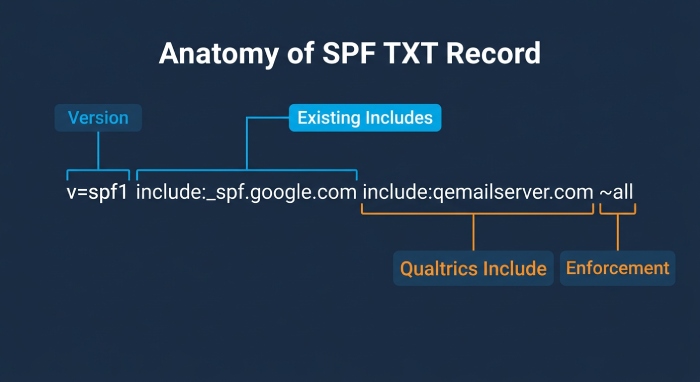
Once you know the correct sending domain, add the Qualtrics include mechanism to the existing SPF record using proper syntax. The exact include value should come from Qualtrics documentation, your Qualtrics Admin page, or Qualtrics Support. A simplified example may look like:
*demodomain.com* TXT "v=spf1 include:_spf.*google*.com include:*qemailserver.com* ~all"Do not copy this blindly. Some Qualtrics configurations may reference qemailserver.com, while others may involve infrastructure associated with qualtrics-survey.com or qualtrics-research.com. Always verify the unique value provided for your brand ID and custom from domain.
The SPF record must begin with v=spf1 and end with an enforcement mechanism such as ~all, -all, or ?all. Many organizations use ~all during verification and move to stricter policies later, depending on DMARC posture and security requirements.
6. Preserve one SPF TXT record per hostname
When your organization’s domain provider is updated, ensure the final result is still a single TXT record for Sender Policy Framework. Do not create a second TXT record just for Qualtrics.
Correct:
"v=spf1 include_spf.*google*.com include:*qemailserver.com* include:mail.example.net ~all"Incorrect:
"v=spf1 include:_spf.*google*.com ~all"
"v=spf1 include:*qemailserver.com* ~all"
Also check formatting rules. Many DNS systems automatically add quotes in TXT records, while others require manual quotation. Incorrect quotes in TXT records can break SPF parsing. If your DNS interface splits long TXT record values into multiple strings, confirm that the public TXT record resolves as one continuous SPF record.
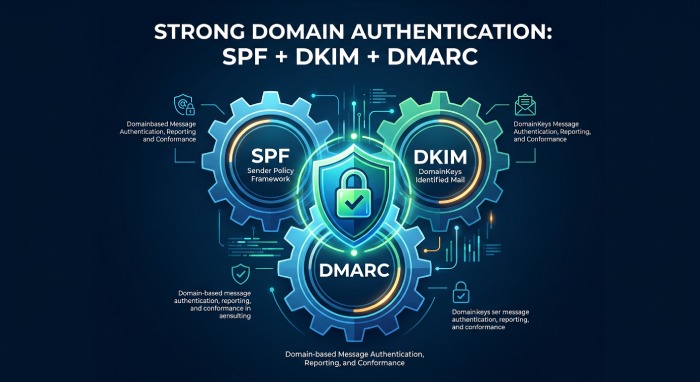
7. Configure DKIM and DMARC alongside SPF
SPF alone is not enough. For strong domain authentication, configure DKIM and DMARC in addition to the SPF record. DKIM uses a cryptographic signature and a DNS TXT record containing a public key. In Qualtrics, DKIM configuration may involve a selector and key size requirements, depending on your brand and platform settings.
DMARC evaluates SPF alignment and DKIM alignment against the visible From domain. If your custom FROM address is survey@*demodomain.com*, DMARC checks whether SPF or DKIM aligns with *demodomain.com* or an approved subdomain.
A basic DMARC TXT record might look like:
_dmarc.*demodomain.com* TXT "v=DMARC1; p=none; rua=mailto:*dmarc*-reports@*demodomain.com*"Start with monitoring if needed, then move toward stronger enforcement after verification. DKIM, DMARC, and Sender Policy Framework work together to satisfy email providers and reduce spoofing risk.
Test SPF Alignment, DNS Propagation, and Authentication Results Before Launch
8. Verify DNS propagation and Qualtrics domain status
After publishing the DNS record, allow time for DNS propagation. Some changes appear within minutes, while others may take several hours depending on TTL settings at the domain provider.
Use MX Toolbox to confirm:
- The SPF record is visible publicly.
- There is only one Sender Policy Framework TXT record.
- The Qualtrics include appears correctly.
- No lookup limit errors are present.
- The related MX record configuration is not accidentally altered.
Then return to the Qualtrics Admin page and complete any verification step. In some environments, the brand administrator must click verify, activate, or complete a domain authentication workflow inside Organization Settings.
If verification fails, review exact error messages. Common causes include publishing the TXT record on the wrong subdomain, missing the Qualtrics include, malformed quotes in TXT records, using the wrong brand ID value, or waiting too little time for DNS propagation.
9. Send controlled test messages and inspect headers
Before going live, send test email distribution messages from the Qualtrics email editor using the intended custom FROM address. Include internal recipients, Gmail accounts, Yahoo accounts, and enterprise mailboxes.
Inspect the message headers and look for authentication results such as:
spf=pass
*dkim*=pass
*dmarc*=pass
Also review the envelope-sender, Mail-From, and Return-Path values. Depending on the Qualtrics configuration, you may see bounce domains such as bounces@bounces.qemailserver.com or other Qualtrics-managed infrastructure. This is normal if the authentication alignment is configured correctly.
If SPF passes but DMARC fails, the issue may be alignment rather than authorization. In that case, DKIM alignment may be required for your custom from domain. If DKIM fails, confirm the selector, public TXT record, and key size.
Google Postmaster Tools can also provide insight into domain reputation, spam rate, authentication status, and delivery trends once volume increases.
Monitor Deliverability After Go-Live and Maintain the SPF Record Over Time
10. Track authentication, open rates, and ongoing deliverability
After launch, monitor deliverability, open rates, bounce patterns, and spam complaint trends. Qualtrics campaigns can change over time, especially when new teams begin using the platform for surveys, research, or Employee Experience programs.
 Your IT team and brand administrator should periodically review:
- SPF record validity
- DKIM status
- DMARC aggregate reports
- MX record integrity
- TXT record formatting
- SMTP relay dependencies
- Qualtrics custom FROM address usage
- Custom from domain ownership
- Distribution patterns by department or region
If your organization adds new email providers, migrates from one domain provider to another, changes DNS hosting, or introduces a new SMTP relay, the SPF record may need to be updated. Likewise, if Qualtrics provides a new unique value for your brand ID, domain administrators should update the DNS record and repeat verification.
Maintain documentation for the domain authentication setup, including the custom from domain, DKIM selector, DMARC policy, Qualtrics Support references, and the final SPF record. This makes future troubleshooting easier for experts, the Security team, and domain administrators responsible for protecting your organization’s email identity.
General Manager
General Manager at DuoCircle. Product strategy and commercial lead across the email security portfolio.
Secure your email infrastructure
Protect, authenticate, and deliver. Contact our team to find the right solution.