How To Configure Qualtrics SPF: A Step-By-Step Guide To Setting Up Your SPF Record

Quick Answer
Learn how to configure Qualtrics SPF correctly with this step-by-step guide. Discover how to create, publish, and verify your SPF record to authorize Qualtrics email servers, improve email deliverability, prevent spoofing, and strengthen your domain’s email security.
Qualtrics relies on email communication for survey invitations, notifications, project distributions, and other important messages, making proper email authentication essential for reliable deliverability. Sender Policy Framework (SPF) helps receiving mail servers verify that Qualtrics is authorized to send emails on behalf of your domain. A correctly configured SPF record can reduce authentication issues, support spam prevention, and improve delivery performance. This guide explains how to configure Qualtrics SPF, add the required Qualtrics include mechanism to your existing SPF record, avoid common DNS configuration mistakes, and validate SPF alongside DKIM and DMARC for a more reliable email authentication setup.
What Is Qualtrics SPF?
Sender Policy Framework (SPF) is an email authentication mechanism that allows domain owners to specify which mail servers and services are authorized to send email on behalf of their domain. Receiving mail servers can compare the sending server against the domain’s published SPF policy.
For Qualtrics users, SPF can be used when sending emails through Qualtrics with a custom domain. According to Qualtrics documentation, the SPF entry that can authorize Qualtrics is:
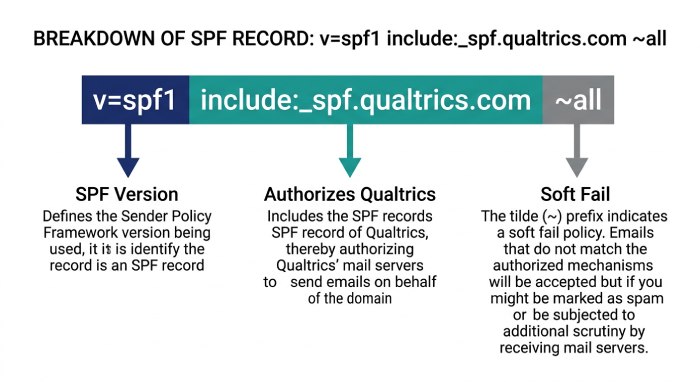
v=spf1 include:_spf.qualtrics.com ~allThe SPF record is published as a DNS TXT record for your domain. Qualtrics notes that adding this SPF entry is optional for activating a custom From domain, although it can authorize Qualtrics to send using the custom domain.
Why Is SPF Important for Qualtrics Emails?
Configuring SPF can help organizations establish a consistent email authentication setup when Qualtrics is used as a sending platform.
Key benefits include:
- Helps authorize Qualtrics as an approved email sender.
- Reduces the risk of SPF authentication failures.
- Supports a stronger email authentication strategy.
- Helps receiving mail servers identify authorized senders.
- Works alongside DKIM and DMARC.
- Supports more consistent email deliverability practices.
- Helps protect your domain from unauthorized email use.
SPF is only one part of email authentication. For a comprehensive setup, organizations should also consider DKIM and DMARC.
How Does Qualtrics SPF Work?
When you send an email through Qualtrics, the receiving mail server can perform an SPF check against the domain associated with the envelope sender.
Qualtrics explains that SPF verifies whether Qualtrics IP addresses are authorized to send emails from the relevant address. For its Qualtrics mailer, the envelope sender uses bounces@bounces.qemailserver.com mailto:bounces@bounces.qemailserver.com.
The basic process looks like this:
- Your domain publishes an SPF TXT record.
- The record includes Qualtrics’ SPF authorization.
- Qualtrics sends an email.
- The recipient’s mail server checks the sending infrastructure.
- The receiving server evaluates the SPF record.
- The message receives an SPF result such as Pass, Fail, SoftFail, or another result.
A properly configured SPF record therefore tells receiving systems that Qualtrics is an authorized sending service.
Prerequisites Before Creating or Updating Your SPF Record
Access, ownership, and DNS planning
Before modifying a DNS record, verify the ownership of DNS settings for the email domain. Typically, the domain administrator manages the public DNS while the brand administrator handles Qualtrics configurations. The IT team should ascertain if the domain is a root (e.g., example.com) or a subdomain (e.g., surveys.example.com). Additionally, determine if Qualtrics employs a default or custom from address, domain, or SMTP relay, as this impacts the necessary SPF, DKIM, and DMARC configurations. To confirm domain ownership in Qualtrics, collect the Brand ID and identify the pertinent brand in the Admin page.
Information to collect before making changes
Before updating the TXT record, collect:
- The current SPF record for the from domain.
- The current MX record for the domain.
- Any existing DKIM or custom DKIM key records.
- Your DMARC record and DMARC policy, including
p=noneandruaif used. - Whether Qualtrics sends through native Email Distribution or SMTP Relay.
- Whether the envelope-sender, return-path, and mail-from are handled by Qualtrics or your email provider.
- Any SMTP relay details, such as smtp user, smtp password, smtp credentials, TLS encryption, server port, OAuth2 settings, or allowed IP address ranges.
Why you should not create multiple SPF records
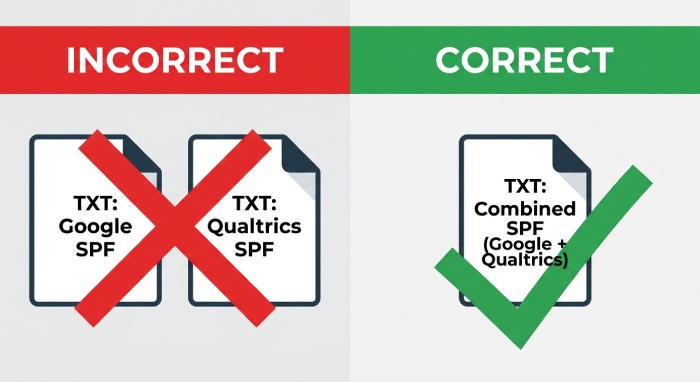
A domain must have only one SPF record. Having multiple SPF records as separate TXT values can lead to validation failures. Combine all authorized senders into a single TXT record that begins with v=spf1, which may include providers like Google, Microsoft, Qualtrics, or others. If both Qualtrics and another server send emails for the same domain, ensure both are in one SPF record. Watch for DNS lookup limits, as each ‘include’ can increase lookups. Use tools like MX Toolbox to diagnose SPF, MX, TXT issues, and verify public DNS records.
Finding Your Current SPF Record in DNS
Check your DNS provider or public DNS tools
To locate your current SPF record, log into your DNS provider and examine the TXT entries for your domain. Unlike MX records, SPF records are published as TXT records, which authorize outbound servers to send mail for your domain, while MX records manage inbound mail delivery. If you lack access to your DNS provider, utilize a public lookup tool like MX Toolbox to search for the domain’s TXT record, looking for a string that begins with v=spf1. Alternatively, command-line tools such as dig TXT example.com or nslookup -type=TXT example.com can also be used.
Validate the from domain and subdomain separately
SPF checks are performed on the domain specified in the envelope-sender, return-path, or mail-from fields, not automatically across all related domains. For instance, if your custom from address is surveys@example.com mailto:surveys@example.com, the visible domain is example.com, while the SPF record might need to reside on the subdomain bounces.surveys.example.com if that’s your mail-from address.
Understanding Qualtrics configuration is crucial. In native Qualtrics email distributions, the envelope-sender may point to Qualtrics-managed bounces (e.g., bounces@bounces.qemailserver.com). In custom setups, your organization may use its own domains for return-path or mail-from. Additionally, the behavior of these fields in SMTP relay could be influenced by your SMTP server or email provider.
The Correct Qualtrics SPF Include Mechanism to Use
Add the Qualtrics include mechanism to your SPF record
The standard Qualtrics SPF include mechanism is:
include:_spf.qualtrics.comA basic SPF record that authorizes Qualtrics may look like this:
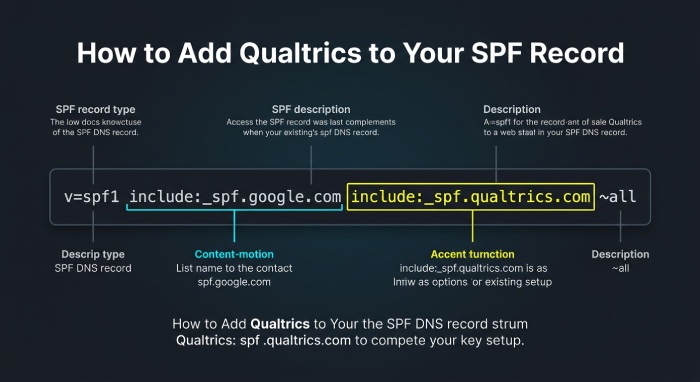
v=spf1 include:_spf.qualtrics.com ~allIf your domain already has an SPF record, do not create a second TXT record. Instead, add include:_spf.qualtrics.com to the existing SPF record. For example:
v=spf1 include:_spf.*google*.com include:_spf.qualtrics.com ~allThe v=spf1 tag identifies the TXT record as an SPF record. The include:_spf.qualtrics.com mechanism authorizes Qualtrics sending infrastructure. The ~all mechanism means a soft fail for senders not listed in the SPF record. Some organizations eventually use stricter enforcement, but ~all is common during rollout and testing.
Confirm SPF, DKIM, and DMARC after publishing
After publishing the TXT record, allow time for DNS propagation. Use MX Toolbox or a similar service to verify the visibility of your SPF record in public DNS. Ensure your MX record remains unchanged; adding an SPF record shouldn’t necessitate changes to it.
Test actual Qualtrics email invitations and check the message headers in Gmail, Yahoo, or other providers for SPF, DKIM, and DMARC results. Confirm the envelope-sender, return-path, and mail-from values align with the authenticated domain. If DKIM fails, re-examine your DKIM settings and domain key records. If DMARC fails, assess your DMARC policy and alignment requirements.
To enhance Qualtrics email deliverability, coordinate the SPF record with DKIM and DMARC, rather than treating SPF as a standalone solution. A proper SPF record certifies Qualtrics, but effective email delivery also relies on the custom from address, domain alignment, SMTP relay, bounce handling, and the reputation of the sending domain.
Step-by-Step: Adding Qualtrics to Your SPF Record
Adding Qualtrics to your SPF record allows receiving mail systems to recognize Qualtrics as an approved sender for your email domain. This is especially important when using a custom from address for survey invitations, email triggers, collaboration emails, and project distributions sent from the Qualtrics Survey Platform.
1. Identify the from domain used in Qualtrics
Begin by verifying the “from” domain listed in your Qualtrics email distribution. For instance, if your custom address is research@company.com mailto:research@company.com, the domain is company.com. If you are using a subdomain like surveys.company.com, you must update your DNS settings for that subdomain.
In the Qualtrics Admin section, a Brand Administrator can examine the valid email domains, the default “from” address, and the brand ID linked to your organization. In larger organizations, the Domain Administrator or IT team typically handles the DNS records, including TXT, MX, DKIM, and DMARC configurations.
2. Locate your existing SPF record
The SPF is found as a public TXT record in DNS. Contact your DNS provider or domain administrator to identify the current SPF record for your email domain or subdomain, which typically starts with “v=spf1.”
Each domain should have a single SPF record. Having multiple SPF TXT entries can lead to evaluation failures and negatively impact email deliverability. If you are already using Google Workspace, Microsoft 365, or another email service, integrate Qualtrics into your existing SPF record rather than adding a new one.
3. Add the Qualtrics include mechanism
To authorize Qualtrics, add the following mechanism to your SPF record:
include:_spf.*qualtrics*.comA common updated SPF record may look like this:
v=spf1 include:_spf.*qualtrics*.com ~allThe ~all mechanism signifies a soft fail for unauthorized senders, commonly used in sender policy frameworks during initial setup. However, many organizations adopt stricter policies after analyzing email authentication outcomes.
4. Confirm the envelope-sender and return-path behavior
Qualtrics often utilizes infrastructure like qemailserver.com for sending messages, which may result in discrepancies between the visible sender address and the envelope-sender, return-path, and mail-from addresses. For instance, bounce management might involve bounces@bounces.qemailserver.com mailto:bounces@bounces.qemailserver.com. This is typical; recipients see the visible domain, while the others assist with bounce handling, spam reduction, and delivery tracking.
If your organization mandates DMARC compliance, ensure that the from domain, mail-from, return-path, and DKIM domain align with your DMARC policy. Depending on your configuration and region, Qualtrics may also employ domains such as qualtrics-survey.com or qualtrics-research.com.
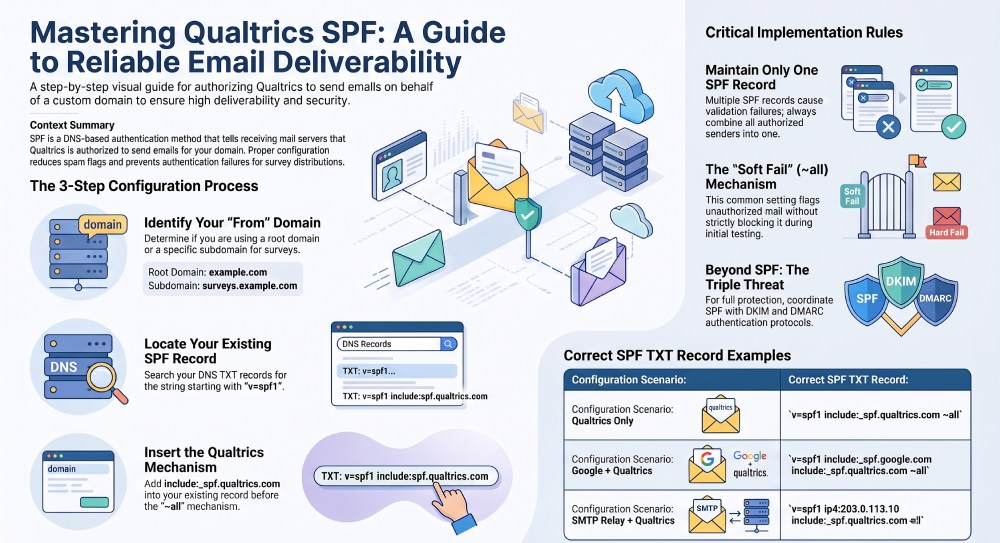
Common SPF Configuration Examples for Qualtrics
Basic Qualtrics-only SPF record
If Qualtrics is the only authorized sender for a subdomain, the SPF record can be simple:
v=spf1 include:_spf.*qualtrics*.com ~allThis works well for a dedicated custom from domain such as surveys.company.com, where email distribution is isolated from your corporate email domain. A dedicated subdomain can also simplify SPF, DKIM, DMARC, mx record planning, and email deliverability monitoring.
SPF record with Google Workspace and Qualtrics
If your organization uses Google Workspace and sends through both Gmail and Qualtrics, your txt record may look like this:
v=spf1 include:_spf.*google*.com include:_spf.*qualtrics*.com ~allThis allows Google and Qualtrics to send using the same from domain. Monitor results in Google Postmaster Tools, especially if high-volume survey invitations are sent to Gmail or Yahoo recipients.
SPF record with an SMTP relay
Some organizations prefer an smtp relay setup so Qualtrics sends through the company’s own SMTP Relay instead of Qualtrics-managed delivery. In this case, the SPF record must authorize the relay infrastructure, not necessarily only Qualtrics. Your SPF record may include the ip address of the relay, the smtp server hostname, or the email service provider include mechanism.
For example:
v=spf1 ip4:203.0.113.10 include:_spf.*qualtrics*.com ~allIf your email distribution relies on an SMTP relay, please work with the Security and Support Teams to verify the connection details, including server port, authentication requirements, and TLS encryption. Depending on your authentication type, the SMTP Relay may necessitate OAuth2 or basic authentication, with OAuth2 setups possibly requiring a client ID, client secret, token and authorization endpoints, scopes, and a redirect endpoint via an OAuth Client Service.
How to Validate and Test Your Qualtrics SPF Record
Check the public DNS record
Once the DNS record is updated, verify propagation using a tool like MX Toolbox. Check the domain’s TXT record to ensure it includes the SPF record: include:_spf.*qualtrics*.com. MX Toolbox also detects duplicate SPF entries, syntax issues, and invalid mechanisms.
Note that DNS propagation times can differ by provider, potentially causing delays of minutes to hours. During this time, Qualtrics email deliverability may fluctuate, especially if receiving servers cache the old SPF record.
Send controlled test distributions
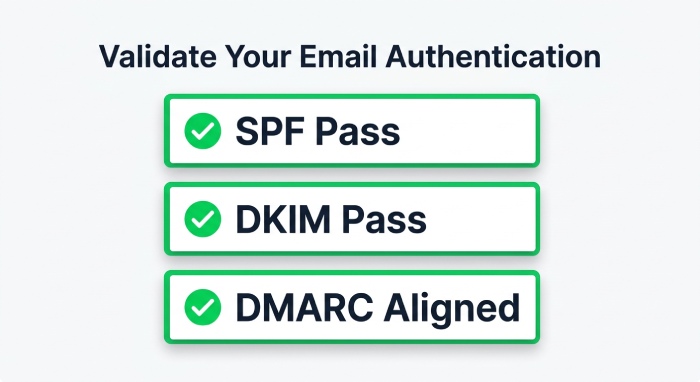
Prior to initiating a large email distribution, conduct tests by sending survey invitations from the Distributions Module to both internal and external email accounts. Include Gmail, Yahoo, Microsoft, and corporate addresses when feasible. Examine message headers to verify SPF, DKIM, and DMARC authentication outcomes. These checks help strengthen email security and identify authentication issues before a campaign reaches a wider audience.
Review the envelope-sender, return-path, and mail-from values. The visible sender address may reflect your domain, while the return-path could indicate qemailserver.com or another Qualtrics-managed bounce domain. Confirm that SPF passes and that DMARC alignment complies with your organization’s policy.
Verify the domain inside Qualtrics
Utilize Qualtrics tools to confirm domain ownership and set up email authentication as needed. A Brand Administrator may need to check settings in the Qualtrics Admin page, while a Domain Administrator should publish the necessary TXT record, MX record, or custom DKIM key.
When configuring a custom “from” domain, Qualtrics may supply a DKIM domain key. Publishing the DKIM TXT record enhances email deliverability by allowing receiving systems to validate message authenticity and integrity.
General Manager
General Manager at DuoCircle. Product strategy and commercial lead across the email security portfolio.
Secure your email infrastructure
Protect, authenticate, and deliver. Contact our team to find the right solution.