9 Backup and Recovery Tips Before Public Folder Migration

Quick Answer
Before migrating Exchange Online public folders, create secure backups, verify data integrity, test recovery, document permissions, and perform a final incremental backup. These nine backup and recovery tips help prevent data loss, reduce downtime, and ensure a smooth, reliable migration.
Migrating public folders to Exchange Online (Microsoft 365) is an essential process for organizations looking to modernize their email systems. These public folders often house critical information, including years’ worth of emails, calendars, contacts, documents, and collaborative resources vital for everyday business functions. Failing to secure this data during the transition could lead to significant operational interruptions, regulatory compliance risks, and irreversible data loss.
To ensure a seamless migration, preparation must commence well in advance of transferring any mailboxes. A key aspect of this preparatory phase is the establishment of a robust backup and recovery plan. Adequate backups serve as a vital safeguard, empowering administrators to swiftly retrieve information in the event of migration errors, synchronization issues, or accidental deletions.
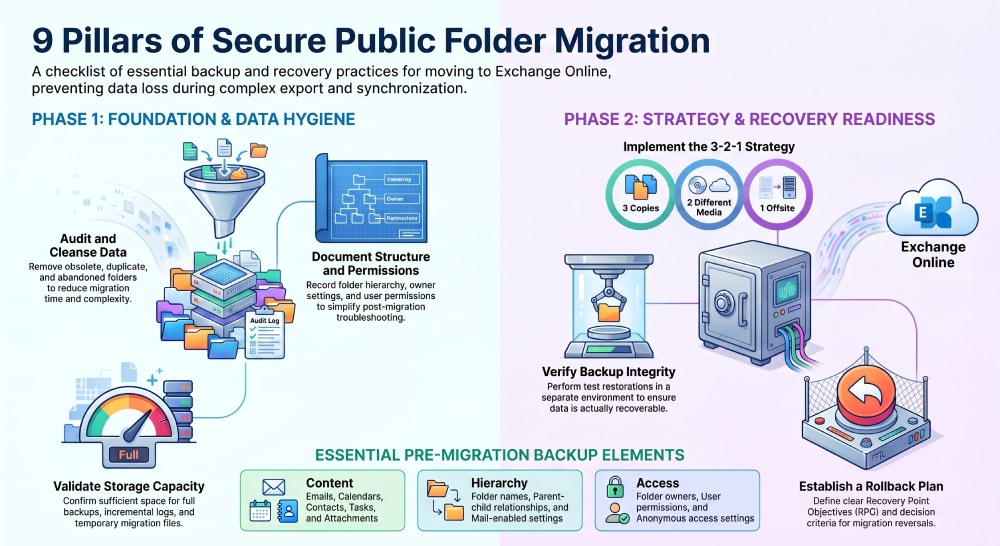
This checklist offers nine essential backup and recovery best practices that all organizations should adhere to prior to migrating their public folders to Exchange Online.
Why Backup Matters Before Public Folder Migration
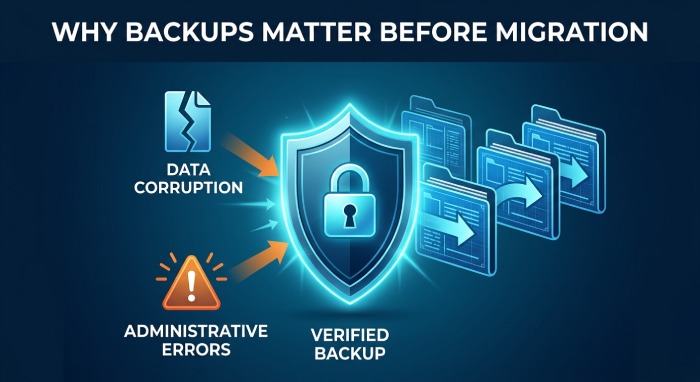
While Microsoft offers robust high availability and redundancy for Exchange Online, these safeguards do not substitute for a thorough backup strategy. Migration projects typically require the export, duplication, synchronization, and alteration of substantial amounts of data. During such activities, unforeseen problems, including data corruption, migration interruptions, permission conflicts, or administrative errors, may arise.
Establishing verified backups allows for the restoration of missing folders, retrieval of deleted items, and reversal of changes, all of which can prevent delays in your migration efforts.
1. Perform a Complete Public Folder Backup
The first step is creating a comprehensive backup of every public folder before beginning the migration.
Your backup should include:
- Emails
- Calendar items
- Contacts
- Tasks
- Notes
- Folder hierarchy
- Permissions
- Mail-enabled public folders
- Attachments
Avoid relying solely on migration tools as your only copy of the data. A dedicated backup provides an independent recovery point if the migration fails.
For larger organizations, schedule the backup during periods of low user activity to reduce the possibility of capturing partially updated data.
2. Verify Backup Integrity Before Migration
Creating backups is only half the process. Equally important is verifying that those backups are usable.
Administrators should validate:
- Backup completion status
- File integrity Monitoring
- Backup logs
- Item counts
- Folder structure
- Permissions
- Recoverability
Whenever possible, perform a test restoration in a separate environment. A backup that cannot be restored offers little protection during a production migration.
Verification helps identify problems before they become costly during migration.
3. Document Public Folder Structure and Permissions
One of the biggest migration challenges is recreating folder hierarchy and user permissions accurately.
Before migration, document:
- Folder names
- Parent-child relationships
- Mail-enabled folders
- Folder sizes
- Folder owners
- User permissions
- Distribution groups
- Anonymous access settings
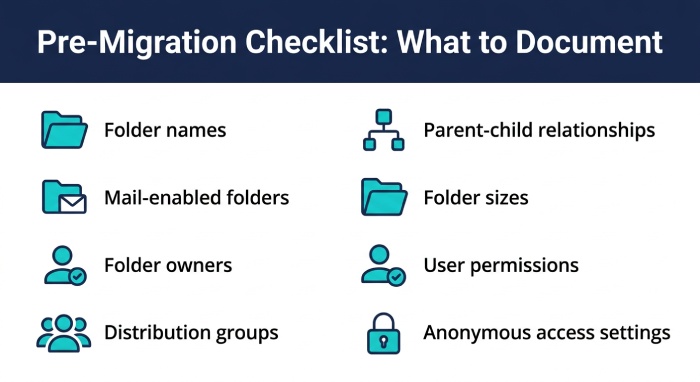 Maintaining detailed documentation allows administrators to compare the migrated environment with the original configuration and quickly identify discrepancies.
This documentation also simplifies troubleshooting after migration.
4. Remove Obsolete and Unnecessary Data
Migrating outdated information increases migration time, storage consumption, and complexity.
Before creating your final backup:
- Archive old folders
- Delete duplicate content
- Remove abandoned folders
- Eliminate expired calendar items
- Delete unnecessary attachments
- Clean up unused permissions
Reducing unnecessary data minimizes the migration workload and decreases the likelihood of migration errors.
Smaller datasets are also easier to validate and recover if required.
5. Test Your Recovery Process
A backup strategy is incomplete without a tested recovery plan.
Before migration, restore sample public folders to verify:
- Emails restore correctly
- Attachments remain intact
- Calendar entries display properly
- Permissions are preserved
- Folder hierarchy is maintained
- Recovery time meets business requirements
Testing ensures administrators understand the recovery process before an emergency occurs. If issues are discovered during testing, they can be corrected before the migration begins.
6. Maintain Multiple Backup Copies
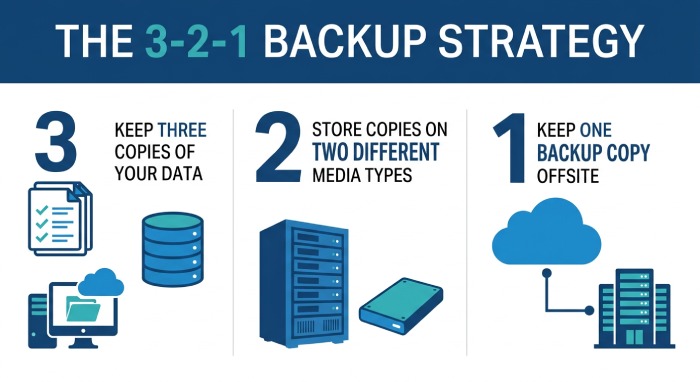
Following the 3-2-1 backup Strategy greatly reduces risk.
A recommended strategy includes:
- Three copies of your data
- Two different storage media
- One offsite or cloud backup
Having multiple backup copies protects against hardware failures, ransomware attacks, accidental deletion, and backup corruption.
For Exchange migrations, organizations often maintain:
- Local backup
- Secondary backup server
- Cloud backup repository
Multiple recovery points provide additional protection if one backup becomes unusable.
7. Verify Available Storage for Backup and Recovery
Large public folder environments often require significant storage capacity.
Before migration, confirm there is enough space for:
- Full backups
- Incremental backups
- Temporary migration files
- Recovery operations
- Log files
Running out of storage during backup or recovery can interrupt both processes and increase migration downtime.
Storage planning should include future growth as well as current public folder size.
8. Schedule a Backup Immediately Before Final Migration
Organizations frequently perform initial backups weeks before migration. However, users continue adding emails and documents during that period, making it important to maintain both email security and data protection throughout the migration process.
To avoid missing recent changes:
- Perform one final backup immediately before the migration cutover.
- Notify users about the maintenance window.
- Pause unnecessary public folder activity if possible.
- Verify that the latest backup completed successfully.
This final recovery point captures the most recent data and minimizes the risk of losing information created after the original backup.
9. Create a Detailed Recovery and Rollback Plan
Even well-planned migrations can encounter unexpected issues. Having a documented rollback plan enables faster recovery and reduces business impact.
Your recovery plan should define:
- Recovery objectives (RPO and RTO)
- Recovery responsibilities
- Backup locations
- Restoration procedures
- Validation checklist
- Communication plan
- Escalation contacts
- Rollback decision criteria
Clearly documenting these procedures ensures every team member knows what actions to take if migration problems occur.
A tested rollback strategy provides confidence throughout the migration process.
Common Backup Mistakes to Avoid
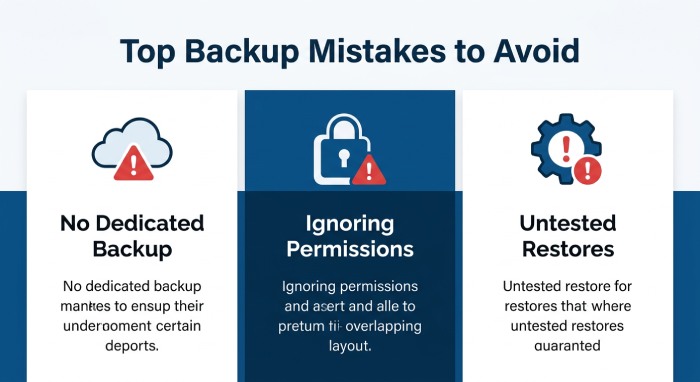
Many public folder migration failures occur because organizations overlook critical backup and recovery practices. Avoid these common mistakes before starting your migration:
- Assuming Microsoft 365 Eliminates the Need for Backups: Do not rely solely on Microsoft 365 data retention policies or native recovery features. A dedicated backup provides additional protection against accidental deletion, corruption, and ransomware.
- Skipping Backup Verification: Creating a backup is not enough. Always verify that the backup completed successfully and that the data can be accessed when needed.
- Ignoring Public Folder Permissions: Back up all folder permissions, access rights, and mailbox mappings. Missing permissions can lead to user access issues after migration.
- Not Documenting the Folder Structure: Record the existing public folder hierarchy, folder names, and content organization. This makes it easier to validate the migration and restore data accurately if required.
- Keeping Only One Backup Copy: Store multiple backup copies in separate locations to protect against hardware failures, accidental deletion, or cyberattacks.
- Failing to Test Backup Restoration: Perform a test restore before migration to confirm that backup files are complete and can be recovered without errors.
- Insufficient Backup Storage Capacity: Ensure adequate storage space for full backups, incremental backups, and retained recovery points throughout the migration process.
- Backing Up Unnecessary or Obsolete Data: Clean up outdated folders, duplicate content, and inactive data before creating backups to reduce migration time and storage requirements.
- Not Preparing a Rollback Plan: Define a clear recovery strategy so you can quickly restore the original environment if unexpected migration issues occur.
Addressing these common mistakes before migration helps reduce risks, minimize downtime, and improve the overall success of your public folder migration.
Benefits of Following These Backup Best Practices
Implementing effective backup and recovery practices before a public folder migration helps reduce risk, protect business-critical data, and ensure a successful transition to Exchange Online. Here are five key benefits in detail:
1. Protects Critical Business Data
A comprehensive backup protects vital organizational data, including emails, public folders, permissions, and contacts. It guarantees that critical information stays accessible, even if unexpected issues arise during migration. Additionally, these backup copies serve as a safeguard against inadvertent deletions or data corruption that may occur during the process. This capability enables administrators to recover any lost data efficiently, minimizing delays. Consequently, organizations significantly lower the likelihood of irreversible data loss.
2. Minimizes Downtime and Business Disruption
Dependable backups allow IT teams to swiftly address any migration problems that disrupt regular operations. Rather than having to recreate data from scratch, administrators can quickly restore information from a trusted backup. This expedited recovery process ensures that employees can quickly access essential business resources, leading to minimal downtime. As a result, productivity losses are mitigated, and extended service interruptions are avoided. Consequently, business activities can proceed with fewer disruptions during the migration phase.
3. Improves Migration Reliability
Before migrating, it’s crucial to test backups to ensure recovery can be achieved in case of any issues. This process also uncovers potential backup problems before they escalate during the migration. Administrators feel more secure with a rollback option in place if necessary. Adequate preparation minimizes the chances of migration setbacks due to incomplete or corrupted data. In summary, adhering to backup best practices leads to a more seamless and successful migration.
4. Simplifies Recovery and Troubleshooting
Confirmed backups serve as a reliable reference for recovery when unforeseen problems occur. Backup records and documentation assist administrators in swiftly pinpointing the cause of migration issues. This accelerates the troubleshooting process and minimizes the duration required to fix errors. When recovery methods are pre-tested, they become more streamlined and consistent. As a result, IT teams can restore services more rapidly and ensure system stability.
5. Supports Compliance and Long-Term Data Protection
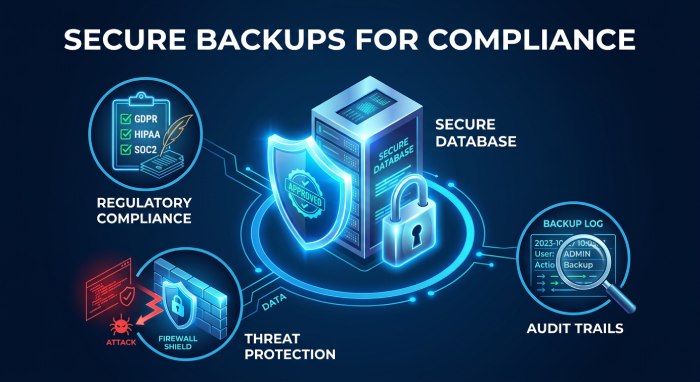
Numerous organizations are required to keep business information to adhere to legal, regulatory, or industry standards. Secure backups are essential for maintaining this data during migration. They also create an audit trail beneficial for compliance assessments or internal audits. Having multiple backup copies enhances long-term safeguards against hardware malfunctions, cyber threats, or unintentional data loss. Adhering to these best practices guarantees regulatory compliance and strengthens business resilience.
 Migrating public folders to Exchange Online (Microsoft 365) is a critical project that necessitates meticulous planning and robust safeguards. Achieving this involves complete backups, validating recovery protocols, documenting folder structures, eliminating unnecessary data, maintaining multiple backups, and formulating a rollback strategy to mitigate migration risks.
By adhering to these nine best practices for backup and recovery, organizations can safeguard vital business information during the migration. A validated plan enables IT teams to execute the migration confidently, minimizing downtime, maintaining data integrity, and ensuring business continuity.
General Manager
General Manager at DuoCircle. Product strategy and commercial lead across the email security portfolio.
Secure your email infrastructure
Protect, authenticate, and deliver. Contact our team to find the right solution.