Hotmail DNS Records: SPF, DKIM & DMARC Setup Guide

Quick Answer
Learn how to configure Hotmail DNS records for SPF, DKIM, and DMARC. This guide explains the required DNS records, setup steps, validation methods, and common issues to help improve email authentication, prevent spoofing, and protect your domain reputation.
Configuring the right DNS settings is essential for reliable Microsoft email delivery when using a custom domain with Hotmail, Outlook, or Microsoft 365. DNS records such as MX, SPF, DKIM, and DMARC help route incoming messages, authorize legitimate senders, verify domain ownership, and protect against spoofing and phishing. In this guide, we’ll explain the key Hotmail DNS records, show how to configure them with common DNS providers, and cover practical steps for testing and troubleshooting email authentication issues.
What “DNS Setting Hotmail” Means for Email Delivery
The term “DNS setting Hotmail” pertains to the DNS records necessary for sending and receiving Microsoft email using a custom domain, rather than standard @hotmail.com or @outlook.com addresses. These records specify which email services are authorized for your domain, how receiving servers should verify messages, and the routing of inbound mail in Outlook or Exchange Online.
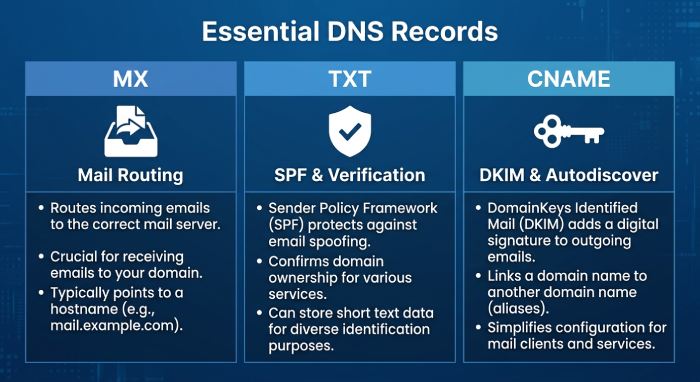
Key DNS records for Microsoft email include MX, TXT, and CNAME records. MX records determine the destination for incoming emails, while TXT records are typically used for SPF and domain verification. CNAME records facilitate services like autodiscover and DKIM, enhancing authentication, mailbox setup, spam prevention, and reliable delivery via Microsoft 365 and associated services.
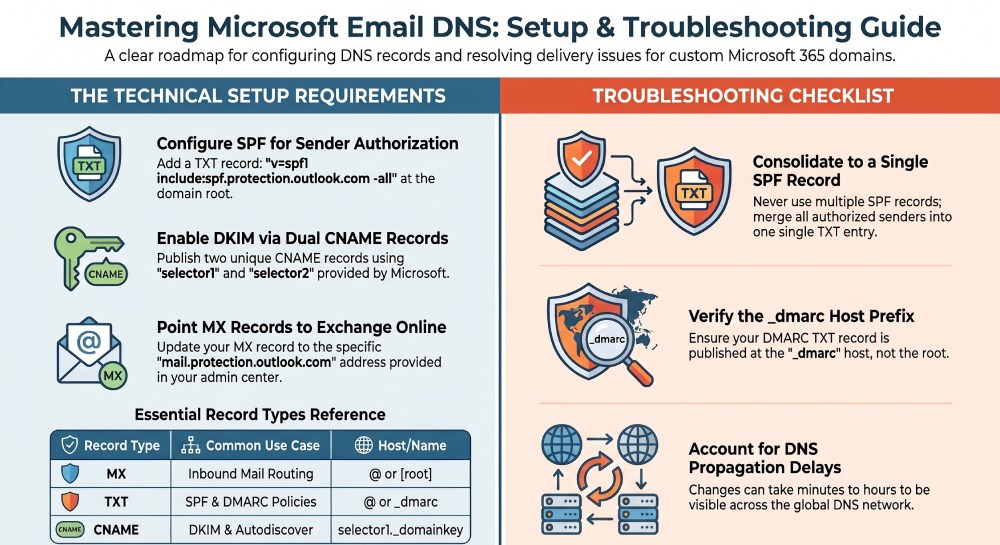
It’s crucial to note that DNS settings for @hotmail.com addresses are not configured within Hotmail itself; they are managed by the provider where your custom domain is hosted (e.g., GoDaddy, Namecheap, or DNS providers like Amazon Route 53). Properly configured DNS settings are essential for domain verification, correct email routing, and preventing unauthorized usage. Incorrect configurations can lead to delivery issues or spam filtering. Additionally, DNS propagation can delay the visibility of changes, taking anywhere from minutes to hours.
Hotmail vs. Outlook.com vs. Microsoft 365: Which DNS Records Apply?
Hotmail and Outlook.com are email services provided by Microsoft for consumers. Standard addresses like name@hotmail.com and name@outlook.com don’t require DNS configuration since Microsoft manages these domains and their infrastructure, including MX records, SPF, DKIM keys, and DMARC policies.
However, when using a custom domain with Microsoft 365 or Exchange Online, such as you@yourcompany.com, you need to set up DNS records. Microsoft 365 supplies the necessary records for this configuration, including MX records for Exchange Online, TXT records for SPF and verification, and CNAME records for DKIM and autodiscover.
The typical Microsoft 365 email domain configuration includes:
| Purpose | DNS Record Type | Common Microsoft 365 Use |
|---|---|---|
| Inbound mail routing | MX Record | Sends mail to Exchange Online |
| Sender authorization | TXT Record | SPF record, such as include:spf.protection.outlook.com |
| Domain verification | TXT Record | Verifies domain ownership |
| Client configuration | CNAME Record | Autodiscover for Outlook |
| Message signing | CNAME Record | DKIM selectors |
When transitioning from a prior email provider, ensure you migrate existing emails before altering the MX record, as the former host may still receive messages until the change is made. Microsoft 365 offers an onmicrosoft.com fallback domain, useful for user configuration and testing prior to switching mail flow with your custom domain.
Prerequisites: Domain Access, DNS Hosting, and Microsoft Account Requirements
Prior to modifying DNS settings, confirm the location of your authoritative DNS records. Domain registration and DNS hosting may involve separate providers; for instance, you might register a domain with Namecheap and manage its DNS through Cloudflare.
You will typically need:
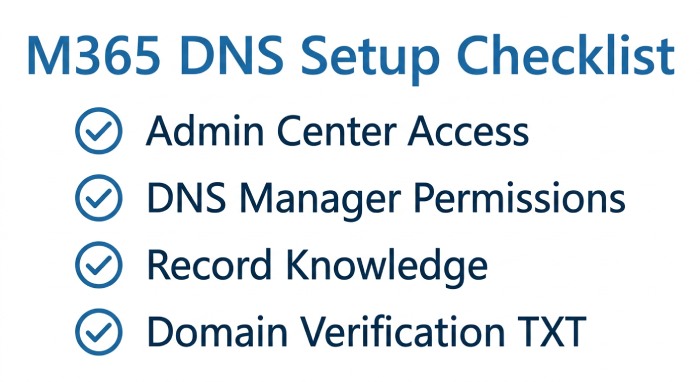
- Access to the Microsoft 365 admin center.
- Permission to manage your custom domain.
- Access to the DNS Manager or Domain Manager.
- Permission to add, edit, and remove DNS records.
- Knowledge of required host names, values, targets, priorities, and TTL settings.
- A migration plan if you are moving from another email provider.
- Access to registrar documentation when DNS fields are unclear.
Microsoft allows for both automatic and manual DNS configuration. If your registrar has Domain Connect support, you can use the Domain Connect Wizard for automatic record setup, minimizing errors with MX, CNAME, TXT, SPF, and autodiscover records.
If automatic setup is not an option, the required DNS records can be found in the Microsoft 365 admin center for manual entry into your DNS provider’s interface. Note that terminology may vary among providers; terms like “Host,” “Name,” and “Host name” often refer to the same field, while “Value,” “Target,” “Points to,” or “Alias” describes destination values.
Domain ownership verification occurs early in the setup. Microsoft provides a TXT record to be published in your DNS zone, which it checks to confirm domain control. This process verifies ownership but does not transfer email.
SPF for Hotmail and Microsoft Email
Sender Policy Framework (SPF) is an email authentication method that allows recipient mail servers to verify if a server is permitted to send emails on behalf of your domain. For Microsoft 365 and Exchange Online, SPF is established as a TXT record at the root of the custom domain. A typical SPF record for Microsoft 365 is:
v=spf1 include:spf.protection.outlook.com -allIn various DNS interfaces, the host name is typically set to @ or left empty, with the record type designated as TXT. The TTL often defaults to the provider’s standard, commonly 3600 seconds.
Avoid Multiple SPF Records
A domain should have only one SPF policy. If an existing SPF record is already in place for another email service, do not create another; instead, merge all authorized mechanisms into a single record. For instance, if a company utilizes Microsoft 365 alongside a marketing platform or help desk, these should be included in the same SPF policy. Having multiple SPF records can lead to authentication issues and hinder email delivery to providers like Hotmail, Outlook, and Gmail.
MX Records for Exchange Online
Microsoft 365 may also require an MX record that directs incoming mail to Exchange Online. The target generally resembles:
yourdomain-com.mail.protection.outlook.comAlways obtain the exact MX value from the Microsoft 365 admin center, as it is specific to your domain and Microsoft 365 configuration.
MX records feature a priority value, where lower numbers indicate higher priority. Before modifying MX records, verify that no outdated records are linked to a former email provider.
Prematurely deleting old MX records may disrupt mail delivery during migration. If transitioning from another host, ensure that mailbox preparation and migration are finalized before altering the mail routing.
DKIM Setup: Enabling Signing and Adding CNAME Records
DKIM, or DomainKeys Identified Mail, adds a cryptographic signature to outgoing messages. When DKIM is enabled for Microsoft 365, Exchange Online signs outgoing email so receiving systems can verify that the message is associated with the authorized domain and has not been altered during transit.
Microsoft 365 uses two DKIM CNAME records for each custom domain, typically using the selectors selector1 and selector2. The exact CNAME target values are specific to your Microsoft 365 tenant and should be obtained from Microsoft before publishing the records.
The values often resemble:
selector1._domainkey.yourdomain.com CNAME selector1-yourdomain-com._domainkey.yourtenant.onmicrosoft.com
selector2._domainkey.yourdomain.com CNAME selector2-yourdomain-com._domainkey.yourtenant.onmicrosoft.com
Utilize the specific values from Microsoft rather than generic examples. After adding the CNAME records, permit time for DNS propagation before enabling DKIM signing in Microsoft 365.
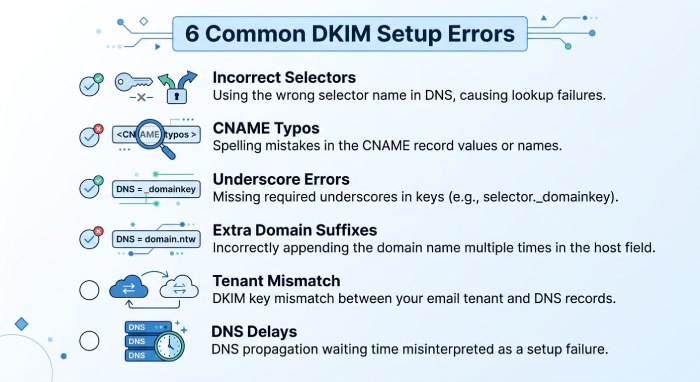
If DKIM does not activate, check for:
- Incorrect selector names.
- Typographical errors in the CNAME target.
- Incorrect underscores.
- Extra domain suffixes automatically added by the DNS provider.
- A mismatch between the custom domain and Microsoft 365 tenant target.
- DNS propagation delays.
DKIM is complementary to SPF, MX, and DMARC; each serves distinct roles within a comprehensive email authentication framework.
DMARC Setup: Creating a Policy and Choosing Alignment
DMARC, or Domain-based Message Authentication, Reporting, and Conformance, builds on SPF and DKIM. It tells receiving email systems how to handle messages that fail authentication checks.
For a custom domain used with Microsoft 365, DMARC is published as a TXT record at the _dmarc host.
A basic example is:
v=DMARC1; p=none; rua=mailto:dmarc-reports@example.com; adkim=s; aspf=sFor a new implementation, organizations can begin with p=none to monitor authentication results. After reviewing legitimate sending sources and confirming SPF and DKIM alignment, the policy can gradually move to p=quarantine and eventually p=reject.
This staged approach helps identify legitimate senders before stronger enforcement is applied.
Understanding DMARC Alignment
SPF alignment checks whether the domain authenticated through SPF matches the visible From domain. DKIM alignment checks whether the DKIM signing domain matches the From domain. Strict alignment uses:
adkim=sfor DKIM.aspf=sfor SPF.
Relaxed alignment can be more suitable when using third-party email services, marketing platforms, forwarding systems, or domain aliases.
When creating the DMARC TXT record, confirm:
- Record type: TXT
- Host name:
_dmarc - TXT value: Your DMARC policy
- TTL: Usually 3600 seconds or the provider default
- Target/Points to: Not required for DMARC TXT records
DMARC, SPF, and DKIM collaborate to mitigate domain spoofing, phishing, and unauthorized use.
Step-by-Step DNS Configuration for Microsoft 365
To initiate a custom domain deployment in Microsoft 365, access the admin center and navigate to Settings > Domains. Select the option to add a domain, input your domain name, and adhere to the verification steps provided by Microsoft.
You may need to publish a TXT record for ownership verification. If your provider supports Domain Connect, automatic configuration could be an option; otherwise, proceed with manual DNS setup.
Common DNS management locations include:
- GoDaddy: DNS Manager or Domain Manager
- Cloudflare: DNS section
- Namecheap: Advanced DNS
- Network Solutions: DNS settings
- AWS Route 53: Hosted zones
- OVH: DNS zone
- IONOS: DNS or domain settings
- 123-reg.co.uk: DNS settings
- Windows DNS: Forward lookup zone
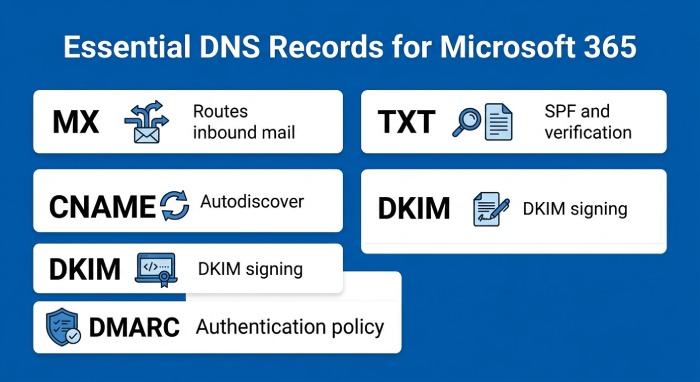
For Microsoft 365, the common records include:
- MX record: Routes inbound mail to Exchange Online.
- TXT record: Supports SPF and domain verification.
- CNAME record: Supports autodiscover.
- DKIM CNAME records: Enable DKIM signing.
- DMARC TXT record: Defines the domain’s authentication policy.
Before modifying MX records, identify your existing email service provider. If the migration is not complete, do not remove the previous provider’s MX records prematurely.
Testing and Verifying SPF, DKIM, and DMARC
Once DNS records are published, allow time for propagation; some updates may be visible in minutes, while others could take hours. Use the Microsoft 365 admin center to verify the domain setup, ensuring that the necessary MX, SPF, DKIM, and other DNS records are recognized.
For SPF, verify that the published TXT record contains the expected Microsoft authorization:
v=spf1 include:spf.protection.outlook.com -allMake sure there is only one SPF record for the domain.
Before activating DKIM in Microsoft 365, ensure that both necessary CNAME records are present. After activation, examine message headers to verify that outgoing emails include DKIM authentication findings.
For DMARC, dispatch test emails and review the headers for authentication outcomes, such as:
spf=passdkim=passdmarc=pass
Third-party DNS lookup tools can also help verify the published record type, host name, value, alias, and target. Always compare the results with the values supplied by Microsoft and your DNS provider.
Troubleshooting Common Hotmail DNS Record Errors
Delivery issues with Hotmail, Outlook, and Microsoft 365 often stem from incorrect DNS settings, particularly after linking a custom domain.
If you’re not receiving inbound emails, start by verifying the MX record; it should direct to Exchange Online when Microsoft 365 handles mail reception.
Common SPF problems include:
- Multiple SPF records.
- Missing Microsoft SPF authorization.
- Incorrect TXT formatting.
- Unnecessary quotation marks.
- Incorrect DNS host name.
DMARC may not function properly if the record is at the root domain rather than at _dmarc. Similarly, DKIM can fail due to incorrect selector entries or an erroneous CNAME target.
Other issues include:
- DNS is hosted by a different provider than the domain registrar.
- DNS propagation has not completed.
- Autodiscover CNAME is missing.
- Old MX records still point to the previous email provider.
- MX priorities are incorrect.
- Domain Connect configuration failed.
- DNS editing permissions are restricted.
If emails are landing in junk folders despite accurate DNS settings, investigate SPF, DKIM, and DMARC results. Email providers also assess sender reputation, complaint rates, content quality, and other factors to decide if an email is delivered to the inbox.
Best Practices for Ongoing Email Authentication and Security
 DNS authentication should be treated as an ongoing security process rather than a one-time configuration task.
For Microsoft 365 and Exchange Online, follow these best practices:
- Maintain one valid SPF TXT record per domain.
- Keep DKIM enabled for accepted domains and aliases.
- Monitor DMARC reports before enforcing a strict policy.
- Move DMARC from
p=nonetowardp=quarantineandp=rejectafter validation. - Review aggregate reports for unknown senders.
- Audit MX, CNAME, and TXT records after DNS changes.
- Document your registrar, DNS provider, and authoritative name servers.
- Use Domain Connect where available, but verify automatically created records.
- Restrict access to DNS management and Microsoft 365 administration.
- Maintain a record of DNS changes and their business purpose.
Large organizations should keep a DNS change log detailing record types, values, Time-To-Live(TTL), dates, and reasons for each update. This aids in spotting unauthorized changes and resolving authentication issues. Additionally, security teams must oversee Exchange Online Protection, message trace outcomes, quarantine patterns, and failed DMARC sources as part of their email security strategy. Before permitting a third-party vendor to use your domain for messaging, ensure their SPF or DKIM alignment is verified.
General Manager
General Manager at DuoCircle. Product strategy and commercial lead across the email security portfolio.
Secure your email infrastructure
Protect, authenticate, and deliver. Contact our team to find the right solution.