NetSuite SPF Record: How Configure, Validate And Troubleshoot

Quick Answer
A NetSuite SPF record authorizes NetSuite to send emails on your domain’s behalf. Learn how to configure the correct SPF record, validate DNS settings, identify common SPF errors, and troubleshoot authentication issues to improve email deliverability and protect against spoofing.
Email plays a crucial role in nearly every workflow within NetSuite. Companies utilize NetSuite for various communications, including invoices, order confirmations, customer alerts, password resets, reports, and other automated messages. However, if your domain lacks proper authentication, these emails may encounter delivery issues or risk being marked as suspicious.
A key aspect of email authentication is the SPF (Sender Policy Framework) record. When accurately set up, a NetSuite SPF record instructs receiving mail servers regarding which systems are permitted to send emails on behalf of your domain. This can help receiving mail servers identify authorised sending sources, reduce the risk of domain spoofing, and support email deliverability.
In this guide, you will discover the definition of a NetSuite SPF record, the steps for configuring it, methods for validation, and solutions for common SPF-related issues.
What Is a NetSuite SPF Record?
An SPF (Sender Policy Framework) record is a type of DNS TXT record that designates which servers and services are permitted to send emails on behalf of a specific domain.
When NetSuite dispatches an email from your domain, the recipient’s mail server conducts an SPF validation. This process involves evaluating the sending servers in relation to the SPF policy that is published in your domain’s DNS settings.
For example, an SPF record may look something like:
v=spf1 include:example.com ~allThe specific SPF configuration necessary for NetSuite is contingent upon your individual NetSuite email configuration and the services allowed to send emails on behalf of your domain. It is advisable to implement the SPF value suggested by NetSuite tailored to your unique setup, rather than simply replicating a record from another organization.
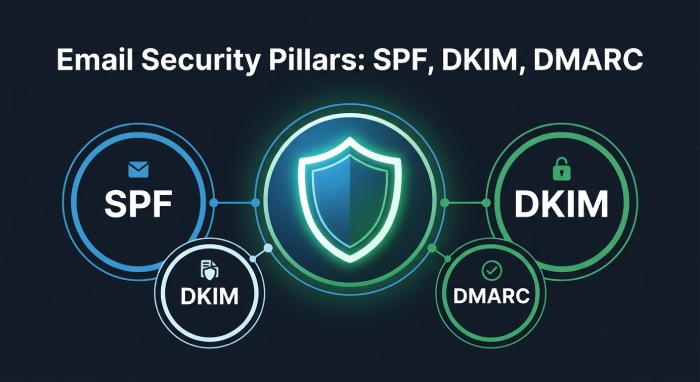
It’s important to note that the SPF record is merely one component of a comprehensive email authentication approach. Incorporating DKIM and DMARC is essential when establishing a robust email security strategy.
Why Is SPF Important for NetSuite Email?
NetSuite is capable of producing substantial quantities of automated business emails. For recipient mail servers to validate the authenticity of these messages, it is essential that there is a mechanism in place to confirm the legitimacy of the sending infrastructure, especially when the emails seem to originate from your company’s domain.
A properly configured SPF policy can provide several benefits.
1. Helps Prevent Email Spoofing
Attackers can attempt to impersonate your domain by sending fraudulent messages that appear to originate from your organization. SPF allows receiving mail servers to check whether the sending host is authorised to use the domain in the email’s MAIL FROM or HELO identity.
2. Supports Email Deliverability
Issues with authentication can lead to emails being either rejected, quarantined, or directed to spam folders. Properly configured SPF settings play a crucial role in building trust between your domain and the mail servers that receive your messages.
3. Strengthens Email Security
NetSuite is likely not the sole system responsible for email communications within your organization. Ensuring that you have an accurate SPF policy in place is essential for designating which services are authorized to send emails on behalf of your domain.
4. Works With DKIM and DMARC
SPF should never be regarded as a solitary solution for email security. DKIM contributes an additional layer of cryptographic validation, whereas DMARC enables domain proprietors to dictate the response protocols of receiving servers in the event of authentication failures. Collectively, these technologies create a more robust framework for email authentication.
Before Configuring Your NetSuite SPF Record
Before changing DNS, identify every service that sends email using your domain.
Your organization may use NetSuite alongside:
- Microsoft 365
- Google Workspace
- Marketing automation platforms
- CRM applications
- Transactional email services
- Help desk platforms
- Customer support systems
- Other third-party applications
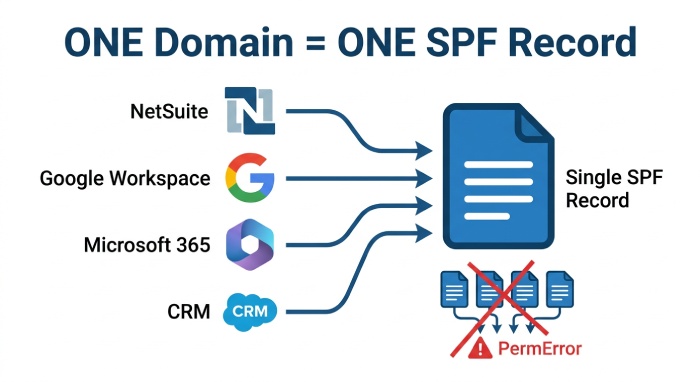
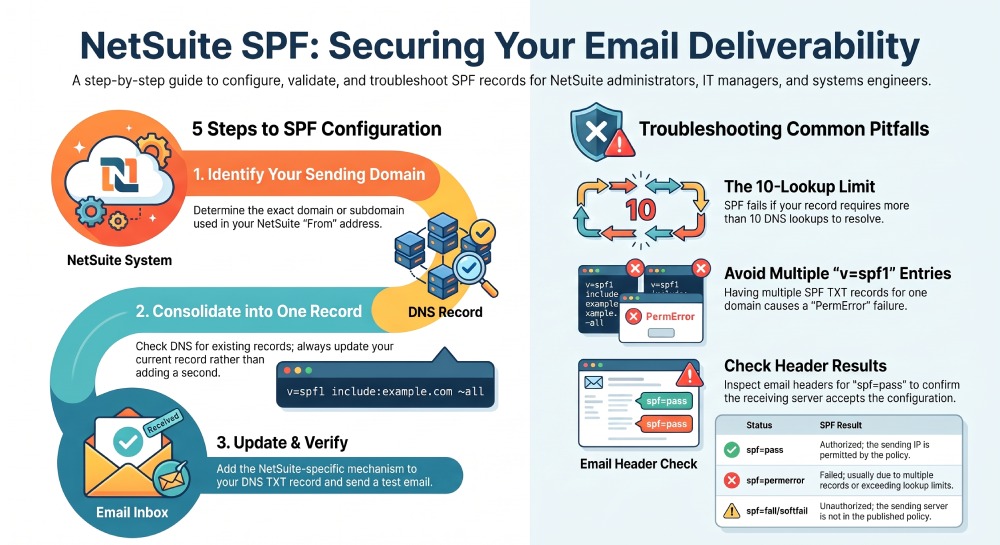
It is essential to understand that a single SPF record is typically required for your domain, encompassing all valid sending sources. Establishing individual SPF records for each service may lead to conflicts. For instance, having multiple TXT records that start with v=spf1 can trigger an SPF PermError.
How to Configure a NetSuite SPF Record
The specific procedure is determined by the configuration of your NetSuite account and your DNS provider; however, the general workflow remains simple.
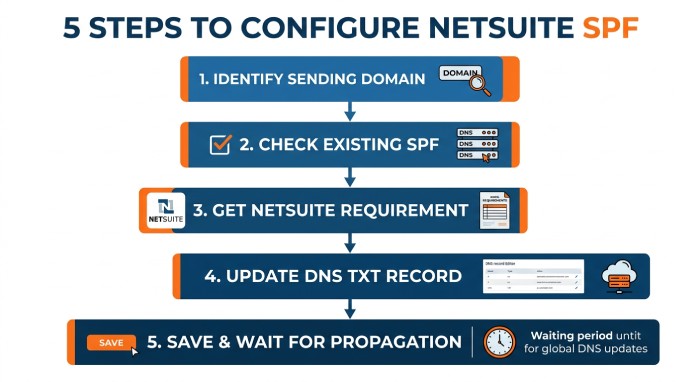
Step 1: Identify Your Sending Domain
First, determine which domain or subdomain is used in the From address of your NetSuite emails.
For example:
billing@example.com
In this case, example.com is the domain that may require SPF configuration.
Should your organization utilize a specific subdomain for sending transactional emails, it is essential to properly set up SPF records for the correct domain.
Step 2: Check Your Existing SPF Record
Before adding anything, check whether your domain already has an SPF record.
An SPF record is stored as a DNS TXT record and generally begins with:
v=spf1
Avoid generating a new SPF record if an existing one is present. Instead, assess the currently authorized email services and make any necessary updates to the existing policy.
Step 3: Obtain the Correct NetSuite SPF Requirement
Refer to the latest NetSuite documentation or consult your NetSuite administrator’s configuration details to identify the suitable SPF mechanism for your account. Be cautious; do not presume that an SPF value employed by another NetSuite client will be applicable to your domain.It is essential that your SPF record permits only valid sending sources and minimizes the use of excessive mechanisms.
Step 4: Add or Update the DNS TXT Record
Log in to the DNS provider that manages your domain.
Locate the DNS records section and create or modify the TXT record associated with the domain.
A generic SPF structure looks like:
v=spf1 [authorized-sources] [policy]For example:
v=spf1 include:authorized-service.example ~allThe illustration provided serves merely as a structural reference. Please substitute the authorized source with the value that is relevant to your specific NetSuite environment.
Step 5: Save the DNS Changes
Save the updated TXT record.
DNS modifications might not be universally recognized right away, as DNS records can be stored in caches based on their Time-To-Live(TTL) settings. During the propagation period, refrain from making frequent record alterations. Instead, verify the published information by querying the authoritative DNS server.
How to Validate a NetSuite SPF Record
Once SPF has been configured, it is crucial to conduct a validation. Merely inserting a TXT record with your DNS provider does not ensure that the resulting SPF policy is legitimate.
Check the Published DNS Record
Use an SPF lookup or DNS TXT lookup tool to inspect your domain.
You should be able to see a record beginning with:
v=spf1
Check that:
- There is only one SPF policy for the domain.
- NetSuite’s authorized sending source is present.
- Other legitimate email platforms are included.
- There are no accidental syntax errors.
- The final policy mechanism is intentional.
Send a Test Email From NetSuite
Send an email from NetSuite to an account where you can inspect the message headers.
Look for authentication results similar to:
spf=pass
The exact header format varies between email service providers.
An SPF pass signifies that the receiving system recognizes the sending IP as permitted according to the SPF policy associated with the applicable domain.
Check DKIM and DMARC Results Too
While testing NetSuite email, examine the complete authentication results.
You may see:
spf=passdkim=passdmarc=pass
In an optimal scenario, it is crucial to properly configure all three authentication technologies. It’s important to note that achieving a successful SPF check does not guarantee a DMARC pass, as DMARC assessment also includes the alignment between the authenticated domain and the domain displayed in the From field.
Common NetSuite SPF Problems
Even with proper configuration of NetSuite, SPF failures can occur due to issues related to DNS settings. Below are some of the frequently encountered challenges.
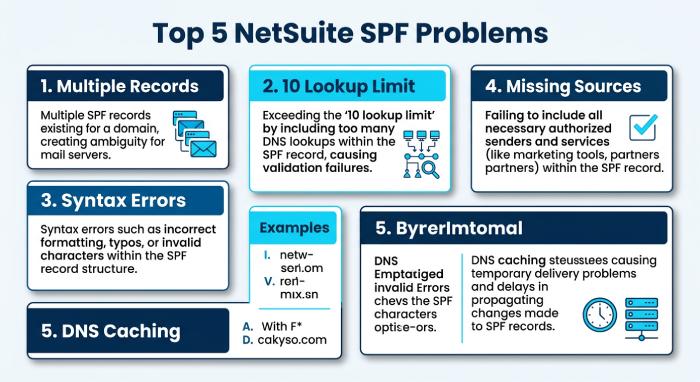
1. Multiple SPF Records
One of the most common mistakes is publishing multiple SPF TXT records.
For example:
v=spf1 include:service-a.example ~allAnd:
v=spf1 include:service-b.example ~allThe existence of distinct SPF policies can lead to an SPF PermError. To avoid this, it is advisable to consolidate valid mechanisms into a single SPF record.
2. SPF DNS Lookup Limit
The SPF protocol permits a maximum of 10 DNS lookups for any mechanisms and modifiers that necessitate DNS resolution. This limitation can pose challenges for organizations that authorize a wide range of cloud services. For instance, a policy incorporating several include mechanisms may ultimately surpass this lookup threshold.
A typical symptom is:
spf=permerror
If your organization employs NetSuite in conjunction with multiple email platforms, it is advisable to examine the entire SPF evaluation tree rather than focusing solely on the primary record.
3. Incorrect Syntax
A small formatting error can invalidate an SPF record.
For example, the record should begin with:
v=spf1
and mechanisms must follow valid SPF syntax.
Ensure that you do not include extraneous information or inadvertently embed multiple v=spf1 declarations within a single policy.
4. Missing Authorized Sending Sources
If NetSuite is inadequately reflected in your SPF policy, receiving servers might conclude that the sending infrastructure lacks authorization.
This can result in:
- SPF failures
- Increased spam placement
- Message rejection
- DMARC failures
Make sure every legitimate sending service is accounted for.
5. DNS Propagation or Caching
Following an update to your SPF record, certain DNS resolvers might still provide the outdated version until the cache has expired. If you notice that one DNS checker reflects the new record while another continues to display the old one, allow sufficient time for the changes to propagate before conducting another check.
How to Troubleshoot a NetSuite SPF Failure
When NetSuite email produces an SPF failure, follow a structured troubleshooting process.
Step 1: Identify the SPF Result
Inspect the email headers and find the authentication result.
Common results include:
spf=passspf=failspf=softfailspf=neutralspf=permerrorspf=temperror
Each result points toward a different type of problem.
Step 2: Find the SPF Domain Being Evaluated
Do not take for granted that the From address you see is the sole domain at play. Examine the authentication results to determine the domain for which SPF validation was conducted. This becomes particularly crucial when using NetSuite or other services that employ distinct envelope sender and header From domains.
Step 3: Perform an SPF Lookup
Check the TXT records that have been published for the domain. Ensure that the DNS record visible now includes the correct NetSuite authorization. If the anticipated value is absent, review your DNS settings for possible issues.
Step 4: Check for Multiple SPF Policies
Examine all TXT records linked to the specified domain. In the event that multiple records start with v=spf1, please combine the policies into a single, valid SPF record.
Step 5: Check the Lookup Count
When your SPF record includes numerous mechanisms such as include, a, mx, exists, or redirect, it’s essential to assess if your policy surpasses the DNS lookup limit established for SPF records. Streamlining the policy by eliminating superfluous mechanisms can contribute to its simplicity.
Step 6: Review Recent DNS Changes
If your SPF was functioning effectively before but has recently failed, it is advisable to investigate any recent changes made to your DNS settings. Modifications related to marketing platforms, Customer relationship management migrations, hosting services, or updates to your email provider may have impacted your SPF policy.
Step 7: Test Again
Once you have implemented the necessary corrections, please send an additional email through NetSuite and review the outcome of the authentication checks. It is important not to depend exclusively on a DNS checker, as conducting a real email test provides a definitive assessment of how the recipient’s system processes the message.
NetSuite SPF Best Practices
A well-maintained SPF record is easier to troubleshoot and less likely to break.
- Keep One SPF Record: Ensure that each domain has only one SPF policy in place. Instead of creating multiple SPF records, integrate authorized services into the existing record.
- Review SPF Regularly: Email infrastructure evolves over time. Whenever your organization implements or discontinues an email service, it’s important to reassess the SPF policy. Ensure that any outdated authorization methods are eliminated when they are no longer necessary.
- Avoid Unnecessary DNS Lookups: Maintain a straightforward SPF policy. Overly complex nested includes can complicate management and lead to issues with lookup limits.
- Combine SPF With DKIM and DMARC: The effectiveness of SPF is significantly enhanced when used in conjunction with DKIM and DMARC. DKIM offers cryptographic authentication at the message level, whereas DMARC adds policy enforcement and reporting features.
General Manager
General Manager at DuoCircle. Product strategy and commercial lead across the email security portfolio.
Secure your email infrastructure
Protect, authenticate, and deliver. Contact our team to find the right solution.