Why Emails Get Queued: 10 Common Causes And How To Fix Them

Quick Answer
Emails get queued when a mail server delays delivery due to issues like server downtime, DNS errors, spam checks, throttling, or network problems. Fix queued emails by checking server status, reviewing mail settings, resolving errors, and optimizing email infrastructure.

Email queues are a standard mechanism utilized by mail servers to manage message processing. Nevertheless, prolonged retention of emails in the queue can hinder communication flow, decrease productivity, and potentially harm your sender reputation. Regardless of whether you are dispatching transactional emails, marketing initiatives, or corporate correspondence, it is crucial to comprehend the reasons behind queued emails to ensure dependable email delivery.
This guide will provide insight into the concept of an email queue, the various reasons emails may become queued, the 15 most prevalent factors contributing to this issue, and actionable strategies to resolve and prevent it in the future.
What Does It Mean When an Email Is Queued?
An email is categorized as queued when it has been received by the sending mail server, yet delivery to the intended recipient has not been achieved. Rather than failing instantly, the server holds the email temporarily and makes repeated attempts to deliver it after a designated period.
Consider this situation akin to waiting in line at a crowded checkout. Your email has not been lost; it simply hasn’t arrived at its intended location due to temporary obstacles hindering immediate delivery.
Email servers implement queues because many issues related to delivery are not permanent. Instead of discarding the message outright, they make several attempts to deliver it before issuing a bounce notification.
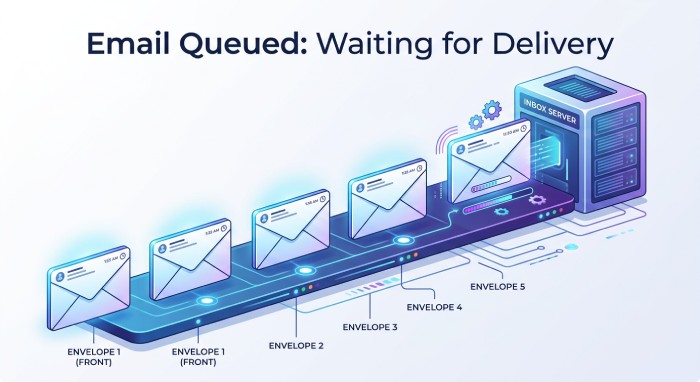
How Email Queuing Works
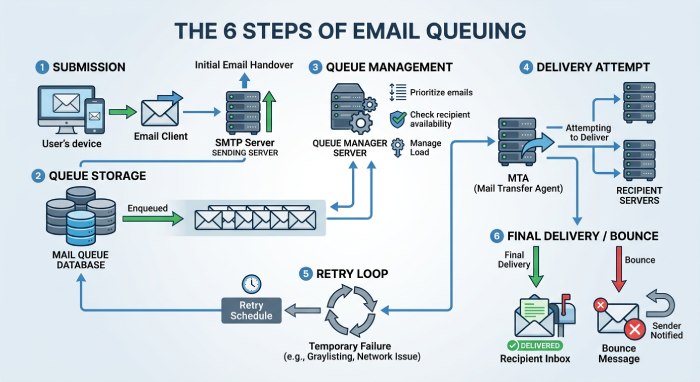
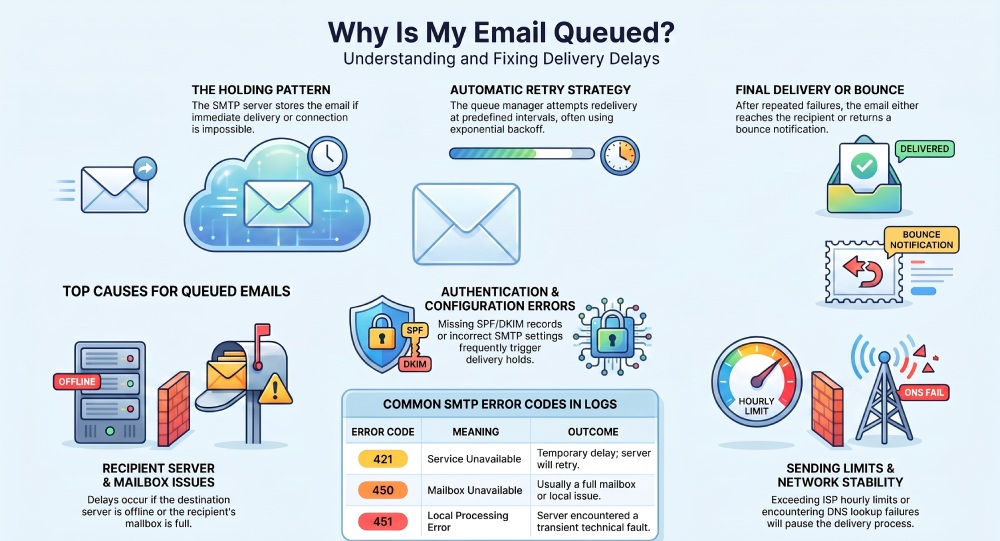
Email queuing refers to the temporary storage of outgoing emails prior to delivery. Instead of immediate sending, the mail server organizes messages in a queue, processing them according to their arrival or priority. This method enhances reliable delivery, particularly during peak sending periods or network disruptions.
Step 1: Email Is Submitted
When an email is sent by a user or application, it is initially routed to an SMTP server. This server verifies the sender, recipient, and message details prior to processing the delivery.
Step 2: Email Enters the Queue
When immediate delivery of an email is not possible, or if there are numerous emails pending, the SMTP server will store the message in a queue. Each email in this queue includes various details, such as the length of the content.
- Sender address
- Recipient address
- Timestamp
- Delivery priority
- Retry schedule
- Delivery status
Step 3: Queue Manager Processes Emails
A queue manager regularly monitors the queue and strives to send out emails. Based on the server settings, it may:
- Process emails in first-in, first-out (FIFO) order
- Prioritize urgent or transactional emails
- Limit delivery rates to prevent throttling
Step 4: SMTP Delivery Attempt
The mail server retrieves the MX records of the recipient’s domain and initiates an SMTP connection with the destination server. Upon a successful connection, the email is delivered and subsequently cleared from the queue.
Step 5: Retry on Temporary Failures
If delivery fails due to a temporary issue—such as:
- Recipient server unavailable
- DNS lookup failure
- Mailbox temporarily full
- Greylisting
- Network timeout
the email remains in the queue. The server retries delivery at predefined intervals, often using an exponential backoff strategy.
Step 6: Delivery or Bounce
Eventually, one of two things happens:
- Successful delivery: The email successfully arrives at its intended recipient and is consequently cleared from the queue.
- Permanent failure: Should repeated attempts remain unsuccessful or if the server issues a definitive SMTP error (like an invalid recipient), the email will be withdrawn from the queue, and a bounce notification (NDR) will be dispatched to the sender.
Why Emails Get Queued
When you hit Send, you likely anticipate an immediate email delivery. However, this isn’t always the case. Sometimes, your email enters a queue, where it’s held by the mail server until it can be delivered.
Email queuing isn’t inherently problematic; rather, it acts as a protective measure against potential loss during temporary issues. Once the issue is resolved, the server will automatically attempt delivery again.
Here are some common reasons for email queuing and how to address them.
1. The Recipient’s Mail Server Is Unavailable
Queued emails often occur when the recipient’s mail server is unreachable, possibly due to maintenance, a restart following an update, or an unexpected outage. Rather than deleting the message, your mail server retains it in the queue and will continue to attempt delivery until the recipient’s server is back online.
How to resolve it:
- Wait for the recipient’s server to come back online.
- Allow your mail server to continue its automatic retry process.
- Contact the recipient if the outage lasts for an extended period.
2. The Recipient’s Mailbox Has Reached Its Storage Limit
Each email account has a storage limit. Once a mailbox is full, the receiving server cannot accept additional messages, leading to delays for incoming emails on the sender’s end.
This often results in temporary SMTP errors or “Mailbox Full” alerts in your mail logs.
Recommended solution:
Please consider removing unnecessary emails, clearing out your Trash folder, archiving older messages, or upgrading your mailbox storage if required.
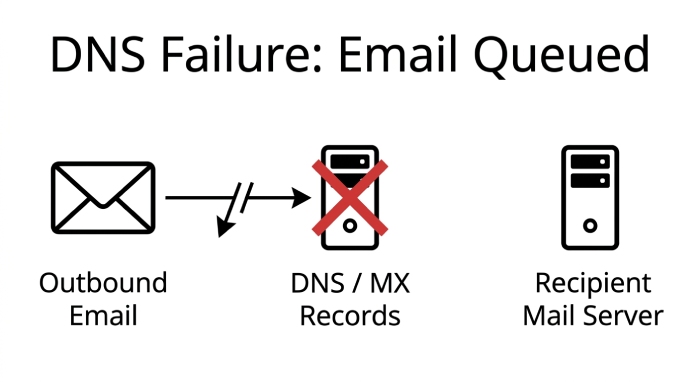
3. DNS Problems Prevent Server Lookup
Prior to the successful delivery of an email, the sending server must identify the recipient’s mail server by accessing DNS records. Should DNS lookups be unsuccessful due to absent MX records, misconfigurations, or delays in propagation, the process of delivery is temporarily halted.
As long as the server is unable to properly resolve the destination, the email will remain in a queued state.
Best practices:
- Verify MX records.
- Check DNS configuration for errors.
- Use reliable DNS providers.
- Monitor DNS health regularly.
4. Network Connectivity Interruptions
Communication between mail servers can be disrupted by network problems, even if both servers are functioning optimally. Issues such as internet outages, routing errors, firewall limitations, or packet loss might hinder the successful completion of SMTP connections.
In such cases, the mail server will pause and attempt to resend the message when network conditions become stable.
What to check:
- Internet connection stability
- SMTP connectivity
- Firewall rules
- Network routing and ISP status
5. SMTP Authentication Failures
Contemporary mail servers typically necessitate authentication prior to permitting the transmission of emails. Should the username, password, or any authentication parameters be inaccurate, the server may deny the connection and hold outgoing emails in a queue.
Issues with authentication frequently arise following alterations to passwords, updates to accounts, or errors in configuration.
How to fix it:
- Verify SMTP credentials.
- Reset expired passwords.
- Enable SMTP authentication.
- Confirm account permissions.
6. Incorrect SMTP Configuration
An innocuous configuration error can disrupt the successful transmission of emails. Common culprits such as utilizing an incorrect SMTP server, specifying erroneous port numbers, employing unsupported encryption protocols, or having invalid relay settings can result in emails being stuck in the queue.
It is crucial to meticulously examine your mail server configuration whenever you encounter delivery challenges.
Verify the following:
- SMTP hostname
- Port number
- SSL/TLS settings
- Authentication method
7. Sending Limits Have Been Exceeded
Many email service providers implement restrictions on the number of messages that can be sent to minimize spam. If you surpass your designated hourly or daily limits, any extra emails will be held in a temporary queue until your allowance is renewed.
This practice is particularly prevalent among services such as Gmail, Microsoft 365, those offering shared hosting, and various email marketing platforms.
Ways to avoid throttling:
- Reduce sending speed.
- Schedule large campaigns in batches.
- Upgrade to higher sending limits.
- Use dedicated email infrastructure for bulk mail.
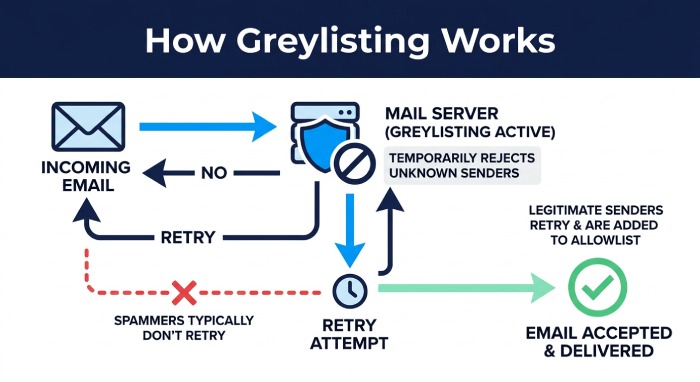
8. Greylisting Delays New Senders
Greylisting serves as a security measure that momentarily declines emails from unknown senders. Authentic mail servers typically attempt to resend after a brief pause, whereas numerous spam servers do not engage in this process.
As a result of this retry mechanism, emails might seem to be in a queue, despite the system operating as intended.
What should you do?
Typically, there is no action required on your part. Your mail server will automatically attempt to resend the email, and it is generally delivered without the need for manual intervention.
9. Spam Filtering Requires Additional Verification
Contemporary email security solutions assess each incoming message prior to its acceptance. Messages that exhibit questionable content, contain numerous links, originate from unreliable senders, or feature unusually large attachments may be subject to further scrutiny, leading to potential delays.
While the email is not outrightly dismissed, it might temporarily remain in a queue during this evaluation process.
Improve deliverability by:
- Writing natural email content.
- Limiting unnecessary hyperlinks.
- Avoiding spam-trigger phrases.
- Maintaining a strong sender reputation.
10. Missing Email Authentication Records
SPF, DKIM, and DMARC protocols assist receiving servers in confirming the authenticity of your emails. Should any of these records be absent or improperly set up, certain mail servers might postpone delivery to conduct additional verification steps.
Ensuring proper email authentication greatly enhances deliverability and minimizes issues related to message queuing.
Authentication records to configure:
- SPF
- DKIM
- DMARC
Regularly test and validate these DNS records to ensure they remain accurate.
How to Diagnose Queued Emails
- Check the Mail Queue: Begin by examining your mail server’s email queue to identify pending messages. Focus on trends, like repeated emails to a single domain or those delayed for an extended period. This approach helps determine if the problem is localized or more extensive.
- Review SMTP Error Logs: Review your mail server logs for SMTP error codes and delivery notifications. Codes like 421 (temporary service unavailable), 450 (mailbox unavailable), and 451 (local temporary issue) can indicate why emails are queued and whether the problem is transient or necessitates intervention.
- Verify DNS and Email Authentication Records: Ensure your MX, SPF, DKIM, and DMARC records are properly set up. Misconfigured or absent DNS records can hinder email delivery, keeping messages in a queue until resolved.
- Test Mail Server Connectivity: Ensure your MX, SPF, DKIM, and DMARC records are properly set up. Misconfigured or absent DNS records can hinder email delivery, keeping messages in a queue until resolved.
- Monitor Server Resources and Reputation: Assess your server’s CPU, memory, disk space, and outbound IP reputation. Exhausted resources can impede email processing, while blacklisted IPs or low sender reputation may lead recipient servers to delay incoming messages, increasing the email queue.
General Manager
General Manager at DuoCircle. Product strategy and commercial lead across the email security portfolio.
Secure your email infrastructure
Protect, authenticate, and deliver. Contact our team to find the right solution.