10 SPF Record Zendesk Checks Before Sending Customer Emails

Quick Answer
Before sending customer emails through Zendesk, verify your SPF record for correct syntax, authorized Zendesk servers, DNS lookup limits, domain alignment, duplicate records, and authentication errors. These checks help stop spoofing, improve email deliverability, and protect your domain reputation.
Customer emails sent via Zendesk contain vital information, such as support responses, account updates, and service notifications. If your domain’s email authentication is misconfigured, these emails may fail SPF checks, end up in spam, or be rejected altogether.
An SPF record is essential for allowing receiving servers to confirm that Zendesk can send emails on your domain’s behalf. However, it’s not sufficient to simply add one. You must ensure that the record is properly set up, includes the right sending services, adheres to SPF lookup limits, and integrates with other authentication methods like DKIM and DMARC.
Prior to sending emails through Zendesk, utilize the following 10 SPF Record checks to diagnose any configuration issues and enhance email deliverability.
1. Check Whether Your Domain Has an SPF Record
The initial task is to ascertain whether your sending domain possesses an SPF record.
An SPF record is established as a TXT entry within your domain’s DNS settings, serving to identify the mail servers and services that are permitted to send emails on behalf of your domain.
A typical SPF record might appear as follows:
v=spf1 include:example.com ~all
For Zendesk, the specific SPF setup will vary based on your organization’s email sending configuration and the services granted permission to send messages on behalf of the domain.
Utilize an SPF lookup or DNS analysis tool to access the current TXT records associated with your domain. Ensure that an SPF record is present and commences with v=spf1.
If an SPF record is absent, receiving mail servers will be unable to perform standard SPF authorization checks for that domain.
2. Verify That Zendesk Sending Is Authorized
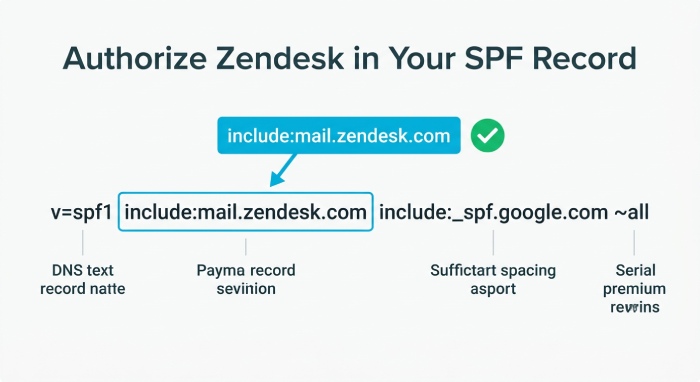
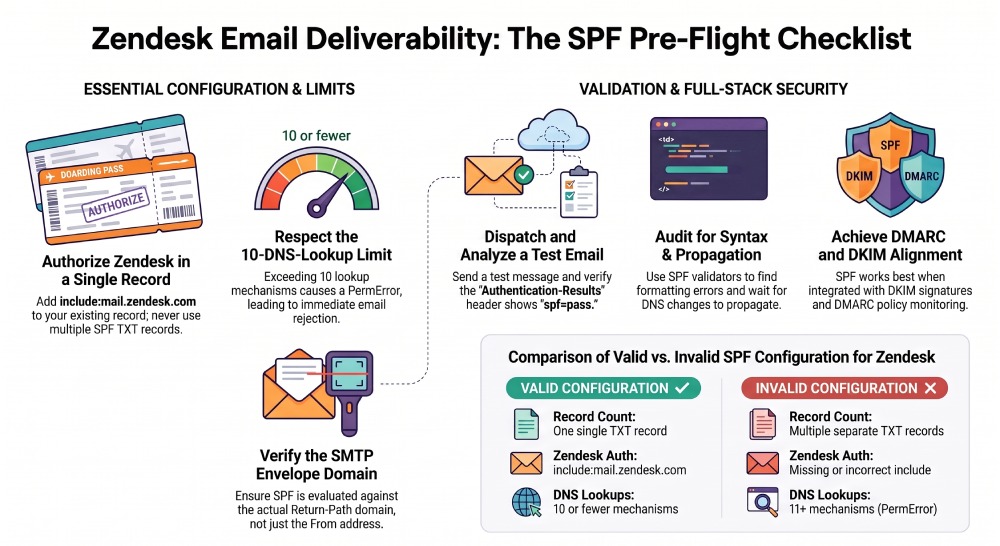
Confirm that your domain’s SPF record authorizes Zendesk to send emails on your behalf. Zendesk currently recommends adding include:mail.zendesk.com to your existing SPF record. If other services, such as Microsoft 365, Google Workspace, or a marketing platform, also send emails from your domain, include their authorised sending sources in the same SPF record.
After making changes, perform an SPF lookup to confirm that the record contains the expected Zendesk authorization and that the complete policy is valid.
3. Look for Multiple SPF Records
A domain should maintain a single SPF policy, rather than multiple independent SPF TXT records. The following configuration illustrates a problematic scenario:
v=spf1 include:service-a.com ~all

v=spf1 include:service-b.com ~all
Receiving mail servers might regard multiple SPF records as a definitive SPF error instead of combining them as intended. This issue can arise when different teams autonomously add SPF records for various services such as Zendesk, Microsoft 365, or email marketing platforms.
To avoid this, it is essential to consolidate all authorized services into one comprehensive SPF record. For instance:
v=spf1 include:service-a.com include:service-b.com ~allThe specific mechanisms included should align with your legitimate email providers and adhere to their current documentation.
4. Check the SPF 10-DNS-Lookup Limit
One critical aspect of Zendesk’s SPF record verification is the management of DNS lookups. SPF limits the evaluation to 10 DNS-querying mechanisms and modifiers, such as include, a, mx, exists, and redirect.
This is especially relevant for organizations using multiple email services. For instance, if your domain authorizes Zendesk and other platforms, each may add include statements, potentially exceeding the SPF lookup limit.
Exceeding this limit can lead to an SPF PermError. Thus, it’s essential to assess the entire SPF evaluation rather than just counting visible include statements. Implementing SPF flattening or optimizing records may reduce unnecessary DNS lookups, but such changes should be made cautiously as providers update their infrastructures.
5. Confirm the Correct Domain Is Being Authenticated
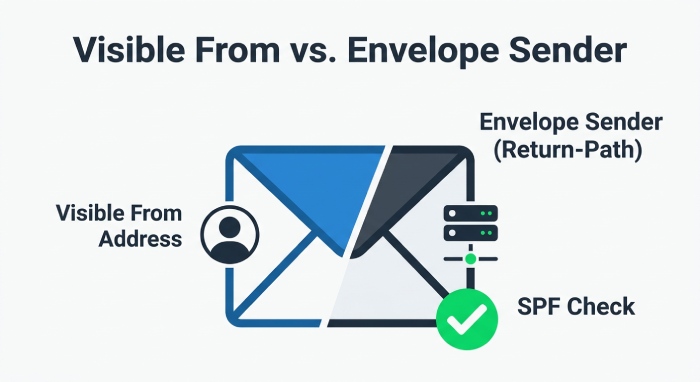
It’s crucial to verify that SPF is evaluated against the expected domain. SPF authentication relies on the domain in the SMTP envelope sender (Return-Path or MAIL FROM), which may differ from the customer’s visible From address.
For instance, while an email appears as:
From: support@example.com
the SMTP envelope sender could use a different domain.
This distinction is significant, as an SPF record for example.com doesn’t automatically authenticate other domains or subdomains within your email system. Check your Zendesk setup to identify the actual envelope sender domain and ensure the correct SPF policy is published for it.
6. Check SPF Alignment With DMARC
SPF should not be considered in isolation. If your organization implements DMARC, verify that either SPF or DKIM authenticates the message with alignment to the visible From domain. SPF can pass while DMARC fails when the authenticated SPF domain does not align with the From domain.
For instance, if a message appears as:
From: support@example.com
but SPF authenticates a different domain, SPF may pass while DMARC alignment fails. This explains how a message can successfully authenticate via SPF but still fail DMARC.
Review your Zendesk email setup, including the envelope sender and From domain. Ensuring proper alignment is crucial for meeting your email authentication policy.
7. Make Sure DNS Changes Have Propagated
If you’ve recently updated your SPF record, be aware that it may take time for all mail servers to recognize the changes due to DNS propagation delays. Before sending bulk customer emails, use an external SPF or DNS checker to verify that your updated record is accessible.
This is especially important when:
- Adding Zendesk to an existing SPF policy
- Moving email services
- Changing DNS providers
- Consolidating multiple SPF records
- Updating authorized sending services
Evaluating the existing DNS record assists in identifying whether the issue arises from a configuration error or is merely a temporary propagation delay.
8. Test an Actual Zendesk Email
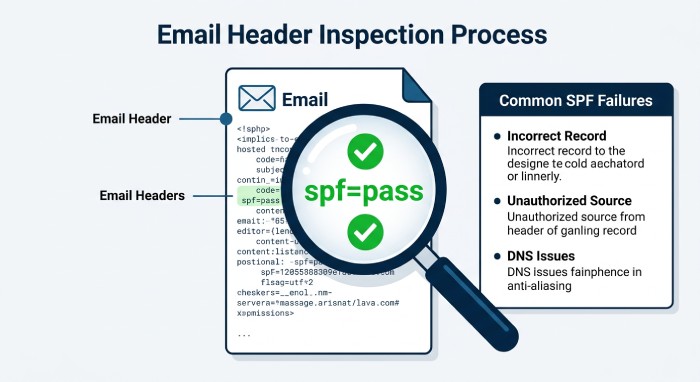
A DNS query validates the information contained in your SPF record; however, to fully understand the email authentication process, it’s essential to send an actual test message. Dispatch a test email to a designated mailbox from Zendesk, then analyze the message headers for further insights.
Look for authentication results similar to:
Authentication-Results:
sp=pass
You may also see DKIM and DMARC results.
A successful SPF result indicates that the receiving server considered the sending infrastructure authorized according to the relevant SPF policy. If SPF fails, examine the returned result carefully. Common causes include an incorrect SPF record, an unauthorized sending source, an incorrect envelope domain, DNS issues, or an overly complex SPF policy. Testing an actual message is one of the most valuable checks because it validates the configuration from the receiving server’s perspective and provides a practical way to support email security.
9. Check for SPF Syntax Errors
SPF records adhere to particular syntax guidelines, and even a minor formatting error can render an otherwise valid policy ineffective.
A typical SPF record starts with:
v=spf1
It then contains mechanisms, modifiers, and a final policy such as:
~all
or:
-all
Depending on your organization’s authentication strategy.
Refrain from incorporating arbitrary mechanisms without a clear understanding of their intent. Additionally, be vigilant for unintended quotation marks, invalid characters, duplicate mechanisms, incorrect domains, or unsupported syntax.
Utilizing an SPF validator will help detect numerous issues and clarify how the record is interpreted. Prior to implementing any modifications, ensure you create a data backup of the existing SPF record. This will enable you to easily compare versions or revert to the previous setup if needed.
10. Review SPF Alongside DKIM and DMARC
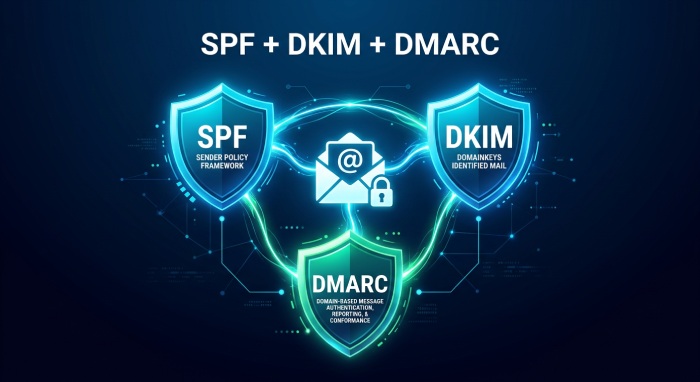
A complete email authentication strategy for Zendesk should go beyond SPF and incorporate SPF, DKIM, and DMARC. SPF verifies whether a designated mail server is authorized to send messages on behalf of your domain. DKIM adds another layer of protection by attaching a cryptographic signature to outgoing emails, allowing receiving servers to confirm that the message is associated with an authorized domain and has not been altered.
These authentication methods also help support a positive domain reputation by demonstrating that your emails come from legitimate and properly authorized sources.
DMARC builds on SPF and DKIM by defining how receiving servers should handle authentication failures while also checking whether the authenticated domain aligns with the visible From address. When these three protocols are configured together, they provide a stronger and more reliable email authentication framework than SPF alone.
For Zendesk customer communications, verify that:
- SPF authorizes the appropriate sending infrastructure.
- DKIM is correctly configured where supported.
- The visible From domain is configured correctly.
- SPF or DKIM aligns with the From domain for DMARC.
- DMARC reports are monitored for authentication failures.
This methodology can assist in distinguishing between valid sending sources and any unauthorized actions related to your domain.
Why These SPF Checks Matter for Zendesk Emails
Emails sent to customers are closely linked to your organization’s reputation. If messages do not pass authentication checks, they might be filtered, isolated, or outright rejected by the recipient’s email systems. Setting up an accurate SPF record is essential for helping receiving servers identify legitimate senders from unauthorized entities trying to utilize your domain for sending messages.
It’s important to note that SPF configuration isn’t a one-time task. Organizations often adopt new email services, switch providers, implement marketing tools, or alter their DNS infrastructure. Each of these changes can impact the current SPF settings. To avoid unexpected authentication issues, it is crucial to routinely review your SPF configuration.
Common SPF Problems to Watch For
Several issues can cause Zendesk email authentication problems:
- Incorrect SPF Authorization: The SPF record might not grant permission for the sending infrastructure utilized by your Zendesk setup.
- Multiple SPF Records: Implementing several SPF policies for a single domain may lead to errors during the SPF evaluation process.
- Too Many DNS Lookups: Records with multiple inclusion mechanisms can surpass the allowed SPF lookup limits.
- Wrong Envelope Domain: An SPF record can be issued for a domain that differs from the true SMTP envelope sender.
- Syntax Problems: Incorrect SPF syntax can hinder receiving servers from accurately interpreting the policy.
- Unplanned DNS Changes: Modifications carried out by administrators, marketing personnel, or external email service providers may inadvertently alter or disrupt a pre-existing SPF record.
Best Practices for Managing a Zendesk SPF Record
- Maintain only one SPF record per domain: Integrate Zendesk with other approved email services within a single SPF TXT record, instead of generating multiple SPF records.
- Use the current Zendesk SPF include: Zendesk currently recommends authorizing its email infrastructure with include:mail.zendesk.com. If your domain already has an SPF record, add this mechanism to the existing record rather than creating a separate SPF record.
- Review the SPF record regularly: When you add, remove, or modify your email-sending platforms, it is essential to verify your DNS records to confirm that only authorized and legitimate services are granted permission.
- Monitor SPF-related delivery problems: Utilize an external SPF lookup tool to verify your SPF record, and examine any issues that may lead to customer emails being obstructed or classified as spam.
- Use SPF with DKIM and DMARC: To maximize its effectiveness, SPF should be implemented within a comprehensive email authentication framework. Enhance domain security and increase email reliability by setting up DKIM and DMARC in conjunction with SPF.
General Manager
General Manager at DuoCircle. Product strategy and commercial lead across the email security portfolio.
Secure your email infrastructure
Protect, authenticate, and deliver. Contact our team to find the right solution.