Why Gmail Rejects Emails After A Mail Server Migration: SMTP Errors And Fixes

Quick Answer
Learn why Gmail rejects emails after a mail server migration and how to fix common SMTP errors. Discover how DNS changes, SPF, DKIM, DMARC misconfigurations, and IP reputation affect email delivery, and explore practical solutions to restore authentication and improve deliverability.
Migrating to a new mail server can improve performance, scalability, and email management, but it can also create unexpected email delivery problems. Many organizations discover that Gmail rejects their messages after migration because of authentication failures, DNS misconfigurations, SMTP errors, or changes in sender reputation.
Even when the domain remains the same, a new IP address or mail server identity can affect how Gmail evaluates incoming messages. Understanding the common causes of these rejections and knowing how to fix them helps businesses restore email deliverability, protect domain reputation, and ensure legitimate messages reach recipients’ inboxes.
Why Gmail Rejects Email After a Mail Server Migration
When you move to a new mail server, Gmail evaluates your messages as if they are coming from a changed sending environment. Even if your domain is the same, the IP address, DNS records, mail routing, TLS connection behavior, and SMTP identity may all be different. That is why many teams suddenly see Gmail reject email after a migration that appeared technically successful.
A typical symptom is an email bounce from Gmail with a delivery status notification generated by the Mail Delivery Subsystem. The bounceback email may come from mailer-daemon@googlemail.comand include an error message explaining that the message was blocked, deferred, or temporarily rejected. In some cases, the sender sees “mail blocked” or “unauthenticated email” language. In others, Gmail blocking email looks like a quiet deliverability drop where mail never reaches the recipient’s inbox.
What Changes When You Move a Mail Server
A mail server migration changes signals Gmail uses to judge trust. Google looks at email authentication, sender reputation, previous traffic patterns, spam-complaint rate, and whether the new server follows sender guidelines. If Gmail sees a new IP address sending bulk mail at full volume before reputation exists, the spam filter may intervene.
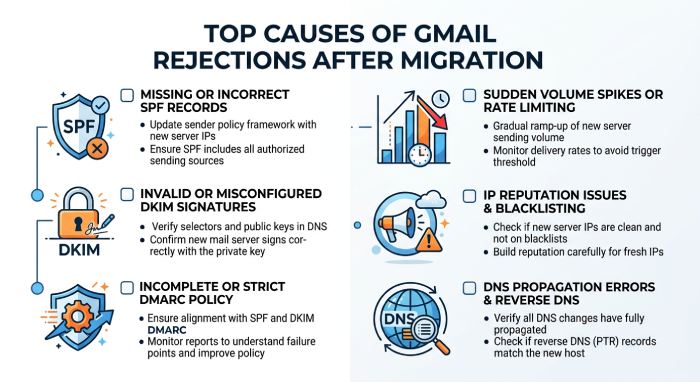
Common migration-related causes include:
- Missing or incorrect SPF, DKIM, or DMARC records
- Broken domain alignment between the visible From domain and authenticated domain
- Incorrect reverse DNS or PTR records
- A HELO/EHLO error during SMTP negotiation
- A blocklist listing, such as Spamhaus
- Sudden changes in outgoing email volume
- Sending to an invalid email address or stale list
- Poor TLS connection behavior
- Mail routing mistakes involving forwarding email, aliases, or Google Groups
This is why “Gmail reject email” problems often appear immediately after cutover. Gmail is not only reading your content; it is validating whether your new infrastructure looks like a legitimate Email Provider or like spoofed mail associated with phishing.
Common Gmail SMTP Error Codes and What They Mean
Gmail returns SMTP responses that follow standards such as RFC 5321. These responses appear in the delivery status notification or bounceback email. The exact error message matters because it tells you whether Gmail blocking email is temporary, permanent, authentication-related, or reputation-based.
4xx vs. 5xx Gmail Responses
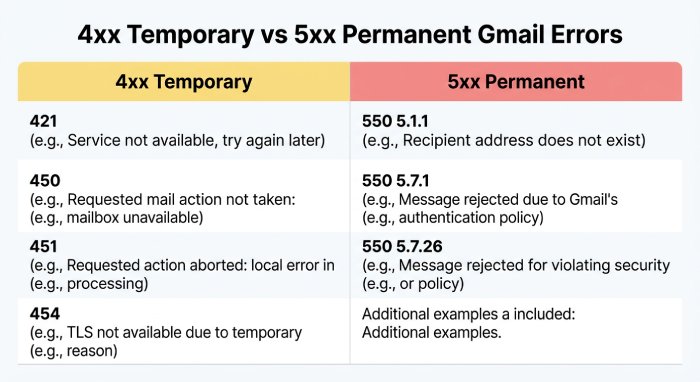
A 4xx SMTP code usually means the message was temporarily rejected. Gmail may defer mail because the new IP address lacks reputation, the server exceeded an email limit, or the sending pattern resembles bulk mail abuse. A temporarily rejected message may be retried by your mail server, so an immediate email bounce is not always final.
Common temporary errors include:
- 421 4.7.0 — Gmail is throttling or rate-limiting your server.
- 450 4.2.1 — The recipient email address is temporarily unavailable.
- 451 4.3.0 — Temporary system issue or policy-related delay.
- 454 4.7.0 — TLS connection or authentication-related temporary failure.
A 5xx SMTP code usually means delivery failure is permanent. The bounceback email may say Gmail rejects email due to policy, authentication, or an invalid email address. A permanent email bounce should not be retried endlessly.
Common permanent errors include:
- 550 5.1.1 — The recipient email address does not exist.
- 550 5.2.2 — The recipient’s inbox may be full, possibly due to storage space limits across Gmail, Google Drive, or Google Photos.
- 550 5.7.1 — Gmail rejected the message for policy reasons.
- 550 5.7.26 — The message failed authentication or was treated as unauthenticated email.
- 550 5.7.26 — The message failed authentication or was treated as unauthenticated email.
A Mail Delivery Subsystem notice may also mention a personal Gmail account, Google Workspace account, or Google Groups address. That distinction matters because Google Workspace administrators can sometimes review routing, quarantine, or compliance policies in the Admin console, while a personal Gmail account has fewer administrative diagnostics.
Authentication Problems: SPF, DKIM, DMARC, and Reverse DNS
After migration, authentication failures can cause Gmail to reject emails or send them to spam. Gmail requires all senders to personal Gmail accounts to configure SPF or DKIM authentication. Bulk senders delivering 5,000 or more messages per day to personal Gmail accounts must also meet additional requirements, including SPF, DKIM, and DMARC authentication. If DNS records are missing or incorrectly configured after migration, messages may fail authentication and face delivery problems.
Align SPF, DKIM, and DMARC Before Sending
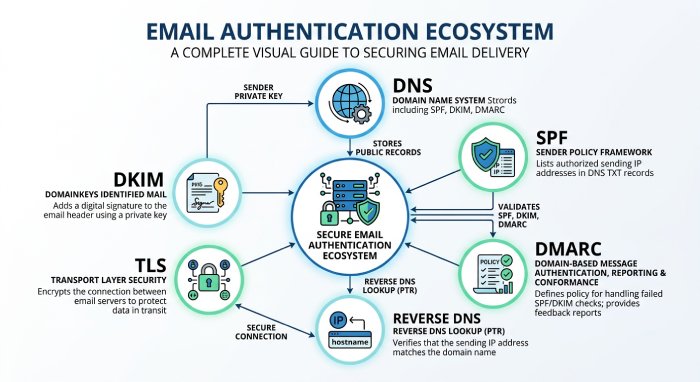
SPF authorizes the sending IP address or service, such as SendLayer, Microsoft, Yahoo infrastructure, or another email service provider. If you changed servers but did not update SPF, Gmail may treat the message as coming from an unverified sender.
DKIM signs the message cryptographically. If your DKIM selector changed during migration, or if the DNS records were not copied correctly, Gmail may show a DKIM fail in the error message. DMARC then checks whether SPF or DKIM aligns with the visible From domain. DMARC checks whether SPF or DKIM passes with the required alignment to the visible From domain. The domain owner’s published DMARC policy specifies how receiving servers should handle messages that fail DMARC, subject to the receiver’s own policies.
Reverse DNS, PTR, and SMTP Identity
Gmail also evaluates reverse DNS. The IP address should resolve to a hostname, and that hostname should make sense for your Domain. Your SMTP banner, HELO, and EHLO identity should be consistent. A HELO/EHLO error can make a legitimate server look misconfigured. For example, if your server identifies itself as localhost during the EHLO command or uses a hostname that does not resolve correctly in DNS, Gmail may temporarily defer or reject the message. Even when SPF, DKIM, and DMARC pass, incorrect reverse DNS or SMTP identity configuration can affect email deliverability.
TLS, RFC Compliance, and Spoofing Protection
Gmail prefers secure, standards-compliant delivery. A failed Transport Layer Security(TLS) connection, expired certificate, or unusual SMTP behavior can trigger an error message. Google is especially strict where phishing and spoofed mail patterns are suspected.
If Gmail rejects email notices mentioning authentication, do not only check SPF. Review DKIM, DMARC, DNS, reverse DNS, HELO, EHLO, and TLS together. Authentication is an ecosystem, not a single record.
Reputation, IP Warm-Up, and Sending Behavior After Migration
A new IP address has no established sender reputation with Google. If it immediately sends thousands of messages, Gmail’s spam filter may assume risk. That is a common reason for Gmail blocking email after a migration even when SPF, DKIM, and DMARC are correct.
Warm Up the New IP and Watch Sending Patterns
IP warm-up means gradually increasing outgoing email volume. Start with highly engaged recipients in Google Contacts or known active customers, then expand. Avoid sending to old lists, purchased contacts, or addresses likely to produce an email bounce.
Watch for these risk signals:
- High spam-complaint rate
- Sudden spikes in bulk mail
- Repeated email bounce events
- Many invalid email address failures
- Low engagement from Gmail users
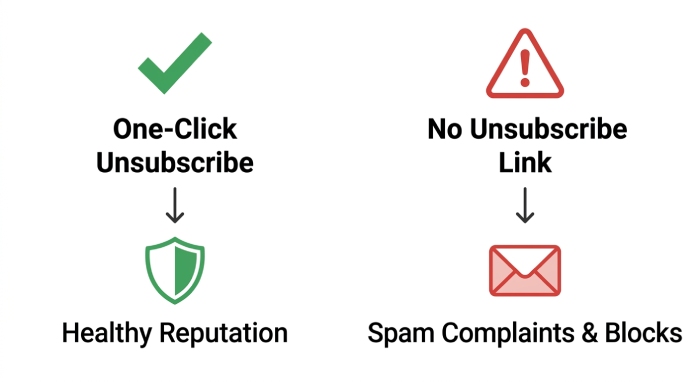
- Missing one-click unsubscribe for marketing email
- Poor list hygiene across Google Workspace and personal Gmail account recipients
Gmail can temporarily rejected mail while it evaluates behavior. During that period, the recipient’s inbox may not receive messages even though your server is retrying. The delivery status notification may not always arrive immediately, so check logs as well as bounceback email reports.
List-Unsubscribe and One-Click Unsubscribe
For marketing email, include List-Unsubscribe and List-Unsubscribe-Post headers, following RFC 8058 for one-click unsubscribe. This reduces spam complaints and improves compliance with Google sender guidelines. If subscribers cannot easily opt out, they may click “Report spam,” causing Gmail blocking email patterns to intensify.
Do Not Confuse Undo Send With Delivery Recovery
Gmail’s undo send feature only delays sending from the user interface for a few seconds. It does not reverse SMTP delivery, remove a message from the recipient’s inbox, or fix a delivery failure after the mail server has handed the message to Gmail.
Step-by-Step Fixes to Restore Gmail Deliverability
Restoring Gmail deliverability requires a structured approach. Do not resend aggressively after every email bounce. Instead, diagnose the exact error message, confirm authentication, and reduce risk signals before increasing volume.
Practical Recovery Checklist
1. Audit DNS Settings and Authentication
Review all DNS settings and dns records related to mail:
- SPF includes the new mail server or email provider
- DKIM public key matches the active selector
- DMARC policy exists and supports domain alignment
- Reverse DNS points to a valid hostname
- MX records and mail routing are correct
- HELO/EHLO name matches a real DNS hostname
- TLS connection works with modern encryption
Then send a test to a Google Workspace mailbox and a personal Gmail account. Inspect message headers to confirm SPF, DKIM, and DMARC pass. If the Mail Delivery Subsystem returns a delivery status notification, read the full bounceback email and map the error message to the fix.
2. Check Reputation, Blocklists, and Google Tools
Use Google Postmaster Tools, also called Postmaster Tools, to review domain and IP reputation. The compliance status dashboard can show whether Google sees authentication, spam rate, or policy issues. Also check whether the IP address appears on a blocklist such as Spamhaus.
If the sender reputation is poor, reduce volume immediately. Gmail reject email issues often worsen when senders repeatedly retry bad traffic. Lower sending limits, segment engaged recipients, and pause bulk mail until the spam-complaint rate stabilizes.
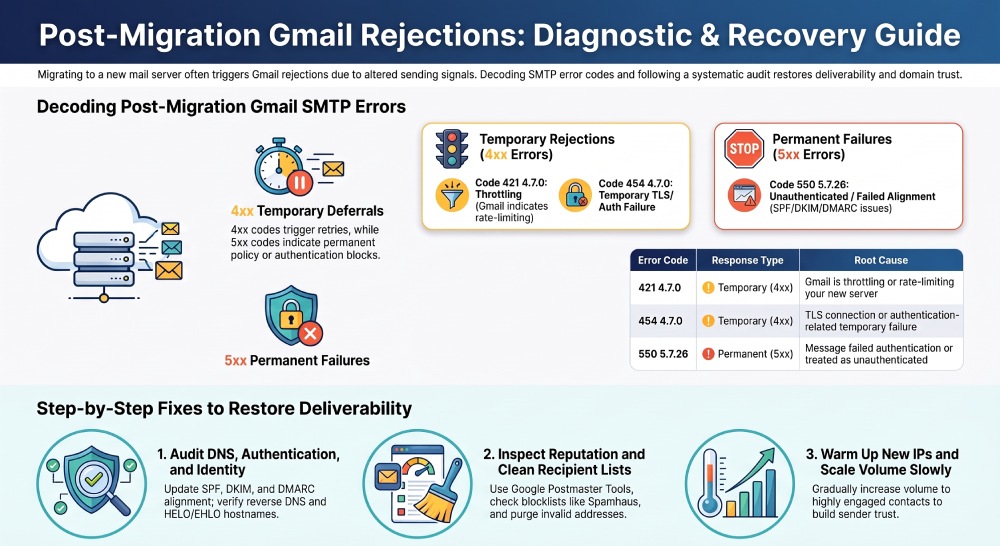
3. Clean Lists and Control Sending Limits
Remove invalid recipients, repeated hard bounces, and inactive contacts. An email bounce caused by an invalid email address should be suppressed permanently. A bounceback email indicating storage space problems may be retried later, but repeated failures still hurt message deliverability.
For Google Groups or forwarding email setups, verify that the group allows external senders and that downstream forwarding does not break DKIM. Forwarding can cause Gmail to see an authenticated email as an unauthenticated email if the message is modified in transit. Following email security best practices helps maintain authentication integrity and protect your domain reputation.
Finally, increase volume slowly. Respect Gmail sending limits, especially for new infrastructure. If a message is temporarily rejected, allow normal SMTP retries rather than forcing immediate resends. The goal is to show Gmail that your mail server sends wanted, authenticated, policy-compliant email that deserves placement in the recipient’s inbox.
General Manager
General Manager at DuoCircle. Product strategy and commercial lead across the email security portfolio.
Secure your email infrastructure
Protect, authenticate, and deliver. Contact our team to find the right solution.