Public Folder Migration Checklist For Microsoft 365 And Exchange Online

Quick Answer
Planning a Public Folder Migration to Microsoft 365 and Exchange Online requires careful preparation. Follow a complete migration checklist to assess your environment, configure Exchange Online, migrate public folders, validate permissions, ensure a secure, seamless transition with minimal downtime.
Migrating public folders from on-premises Exchange Server to Microsoft 365 and Exchange Online requires careful planning to avoid data loss, permission issues, and unexpected downtime. From assessing your existing public folder environment to validating mailbox mapping, mail-enabled public folders, and post-migration access, every step plays a critical role in a successful migration. This comprehensive public folder migration checklist walks you through the essential prerequisites, execution steps, and post-migration validation tasks to help ensure a smooth, secure, and efficient transition while maintaining business continuity and preserving critical organizational data.
Assess Your Current Public Folder Environment
A successful public folder migration starts with a precise understanding of the existing Exchange Server environment. Before moving public folders to Microsoft 365 and Exchange Online, document the current public folder deployment, including versions, folder hierarchy, content volume, permissions, mail-enabled settings, and any legacy configuration in Active Directory.
Inventory Exchange Server Versions and Readiness
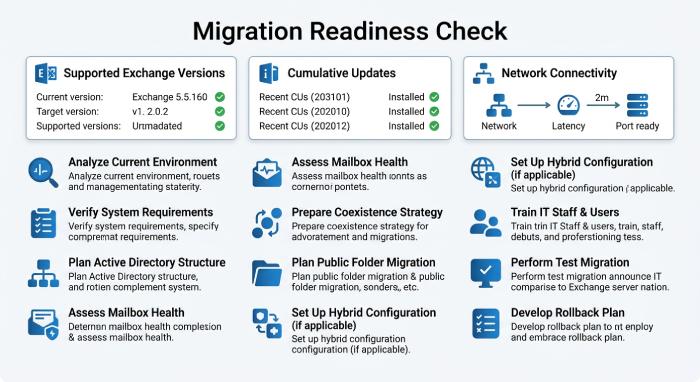 Confirm that your on-premises Exchange environment is supported for public folder migration. Organizations commonly migrate from Exchange Server 2016 or Exchange Server 2019, but older environments such as Exchange Server 2013 CU15 or Exchange Server 2016 CU4 require careful review. Microsoft frequently ties public folder migration support to a required cumulative update, so verify that each Microsoft Exchange Server is running a supported cumulative update and the latest security update.
For hybrid or staged scenarios, confirm the health of on-premises Exchange, Autodiscover, certificates, and namespace configuration. If MRS Proxy is required, validate that it is enabled and reachable. The public folder migration process depends heavily on reliable connectivity between on-premises Exchange and Exchange Online.
Confirm Cumulative Update and Security Update Baselines
As part of the migration prerequisites, check:
- Exchange Server version and cumulative update level
- Latest security update installation status
- Public folder database or modern public folders configuration
- Hybrid configuration status, if applicable
- Administrative access through Exchange Management Shell
- Required permissions in the Organization Management role group and Server Management Role-based access control (RBAC)
Running a current cumulative update is especially important because public folder migration scripts and PowerShell cmdlets may fail or return incomplete data on older builds. Microsoft guidance on the Exchange Team blog often references specific cumulative update requirements for batch migration and modern public folders.
Capture Folder Statistics and Public Folder Structure
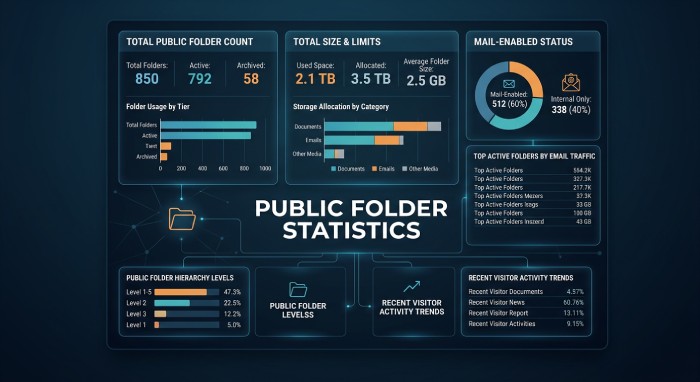
Use Exchange Management Shell to collect folder statistics and assess the public folder structure:
- Total number of public folders
- Total size and item count
- Child public folders and sub-folders
- Deleted items retained in folders
- Public folder age limit settings
- Folder permissions and owners
- Mail-enabled public folders and related SMTP email address values
Commands such as Get-PublicFolder, Set-PublicFolder, and related folder statistics cmdlets help identify oversized branches, stale content, and public folder size limits that could affect the migration batch. Also look for duplicate public folder objects in Active Directory, especially where mail-enabled public folders have been modified over many years.
Prepare Microsoft 365 and Exchange Online for Migration
Before creating a migration batch, prepare Microsoft 365 and Exchange Online so they can receive the public folders from on-premises Exchange. Preparation steps include validating domains, configuring public folder mailboxes, reviewing quotas, and ensuring administrators have the correct access.
Configure Tenant, Domains, and Administrative Access
In Exchange Online, verify that accepted domains match the domains used by mail-enabled public folders. Use Exchange Online PowerShell and commands such as Get-AcceptedDomain, New-AcceptedDomain, and Set-AcceptedDomain to confirm or configure each accepted domain. If a mail-enabled public folder uses a legacy SMTP email address, that address must remain routable after migration.
Administrators should have the necessary role groups assigned in both environments. In on-premises Exchange, membership in Organization Management and appropriate Server Management RBAC permissions may be required. In Exchange Online, use the Exchange admin center (EAC) and Exchange Online PowerShell to confirm access before starting batch migration.
Verify Accepted Domain and Mail Routing
Before the DNS transition, confirm:
- Accepted domain configuration in Exchange Online
- Mail routing for mail-enabled objects
- Proxy addresses and primary SMTP email address values
- Hybrid mail flow, if hybrid configuration is still active
- Whether mail-enabled public folders require address policy updates
This step reduces the risk of mail delivery issues once the public folder migration is finalized.
Set Quotas and Mailbox Mapping
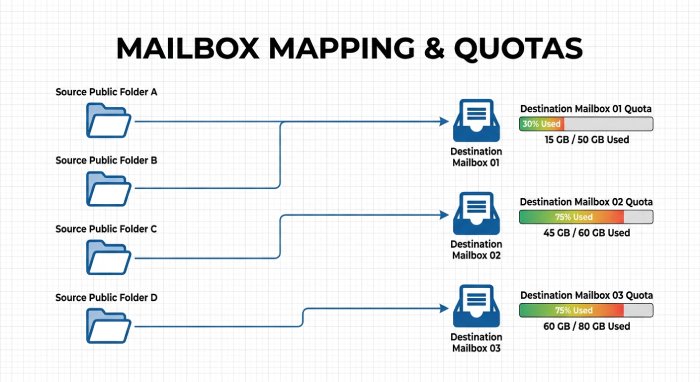
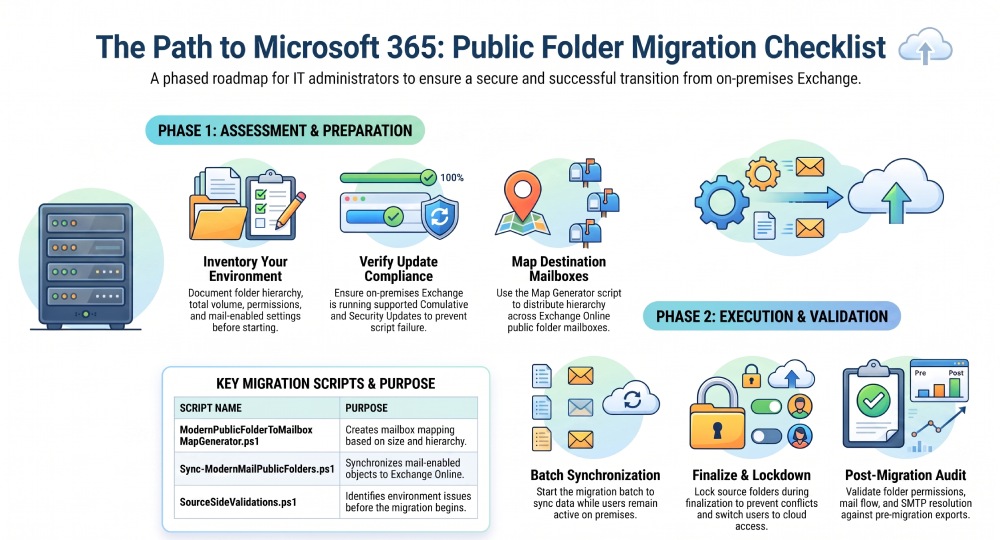
Exchange Online stores migrated data in public folder mailboxes, also called Public Folder Mailbox objects. Use Microsoft’s ModernPublicFolderToMailboxMapGenerator.ps1 script to create mailbox mapping based on size and hierarchy. This mapping helps distribute public folders across destination mailboxes and avoids exceeding public folder mailbox quotas.
Review settings such as DefaultPublicFolderIssueWarningQuota and DefaultPublicFolderProhibitPostQuota with Get-OrganizationConfig and adjust them with Set-OrganizationConfig if needed. Exchange Online includes an auto-split feature for public folder mailboxes, but you should still plan capacity carefully instead of relying entirely on automatic behavior.
Plan Permissions, Mail-Enabled Folders, and Compliance Requirements
Permissions and compliance controls are often the most complex parts of public folder migration. Public folders may contain business-critical records, delegated access, shared customer communications, and historical attachments that must remain available after the migration batch completes.
Permissions and Compliance Controls
Export and review folder permissions before migration. Pay particular attention to custom roles, anonymous access, default permissions, owner assignments, and any folders used by applications. Permission mismatches are a common cause of migration troubleshooting after data synchronization.
Preserve Identities, Mail-Enabled Public Folders, and Compliance Settings
Run pre-migration scripts such as Sync-ModernMailPublicFolders.ps1 to synchronize mail-enabled public folders into Exchange Online. This script helps align mail-enabled objects between on-premises Exchange, Active Directory, and Exchange Online. For source side validation, use SourceSideValidations.ps1 to identify issues before the public folder migration begins.
Also confirm:
- Mail-enabled public folders have valid addresses
- Duplicate public folder objects are removed or corrected
- Compliance and retention requirements are documented
- Deleted items and recoverable data expectations are understood
- Public folder age limit settings are reviewed
- PST export is available as a fallback for selected legacy content
For highly regulated environments, document the data owner, business purpose, data retention requirement, and retention requirement for major public folders before migration downtime is scheduled.
Execute the Public Folder Migration Process
Once prerequisites are complete, create and start the migration batch. In most modern scenarios, public folder migration to Exchange Online is performed as a batch migration. The migration batch synchronizes public folders from on-premises Exchange to Exchange Online while users continue to access the source environment until cutover.
Typical execution steps include:
- Run pre-migration scripts and fix reported issues.
- Generate mailbox mapping for destination public folder mailboxes.
- Create public folder mailboxes in Exchange Online.
- Start the migration batch using Exchange Online PowerShell.
- Monitor data synchronization and folder statistics.
- Lock the source public folders during finalization.
- Complete the migration batch and switch users to Exchange Online.
During batch migration, monitor progress regularly. Large public folders, deep sub-folders, corrupted items, or inconsistent Active Directory attributes can slow synchronization. If the migration batch stalls, review the migration report and Exchange Online PowerShell output before making changes.
For environments with hybrid configuration, verify whether users’ primary mailbox locations affect access. Users with a primary mailbox in Exchange Online should be tested against migrated public folders, while users still on on-premises Exchange may require coexistence planning.
Avoid making unnecessary changes to the public folder structure during data synchronization. Adding, deleting, or mail-enabling folders during active public folder migration can introduce conflicts, especially for mail-enabled public folders replicated through Active Directory.
Validate, Troubleshoot, and Complete Post-Migration Tasks
After the migration batch completes, validation is essential. Do not assume that a completed batch migration means every public folder, permission, and mail-enabled object is functioning correctly. Post-migration tasks should verify access, mail flow, hierarchy visibility, quotas, and administrative control in Exchange Online.
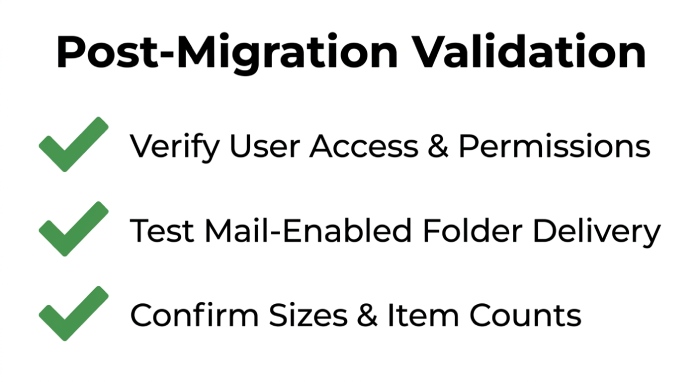
Key validation steps include:
- Confirm users can open public folders in Outlook and Outlook on the web.
- Test access for owners, editors, reviewers, and default users.
- Validate folder permissions against the pre-migration export.
- Send test messages to mail-enabled public folders.
- Confirm each SMTP email address resolves correctly.
- Check public folder mailboxes and public folder mailbox quotas.
- Review public folder size limits and item counts.
- Confirm no unexpected deleted items or missing sub-folders.
For migration troubleshooting, compare source and destination folder statistics. Use Exchange Online PowerShell to inspect public folder hierarchy, permissions, and mailbox placement. If mail-enabled public folders do not receive mail, check accepted domain settings, address lists, mail-enabled objects, and whether the DNS transition has been completed to maintain email security.
In the Exchange admin center, verify that the Exchange Online public folder deployment is visible and manageable. Use PowerShell cmdlets for deeper validation, especially in large environments where the EAC may not expose all hierarchy or permission details.
 Finally, complete administrative cleanup:
- Remove obsolete on-premises public folder references only after validation.
- Document final mailbox mapping and public folder mailboxes.
- Update support runbooks for Exchange Online public folders.
- Confirm backups, retention, and compliance policies.
- Monitor user reports during the first business cycle after migration downtime.
- Keep migration logs, reports, and script outputs for audit purposes.
Migrating public folders to Microsoft 365 and Exchange Online is a complex process that requires careful planning, accurate execution, and thorough post-migration validation. By following a structured migration checklist, organizations can minimize downtime, preserve folder hierarchy and permissions, maintain mail-enabled public folder functionality, and ensure business continuity throughout the transition.
From assessing the source environment and preparing Exchange Online to validating user access and mail flow after cutover, every step contributes to a successful migration. With proper planning, Microsoft-recommended tools, ongoing monitoring, and cloud computing best practices, businesses can confidently modernize their public folder infrastructure while improving scalability, security, long-term manageability, and overall operational efficiency.
General Manager
General Manager at DuoCircle. Product strategy and commercial lead across the email security portfolio.
Secure your email infrastructure
Protect, authenticate, and deliver. Contact our team to find the right solution.