Exchange Sever DKIM Troubleshooting for Large Email Message

Quick Answer
Exchange Server DKIM troubleshooting for large email messages involves checking message-size limits, MIME changes, transport rules, and DKIM body-hash failures. Compare small and large emails, review headers, and verify that no system modifies signed content.
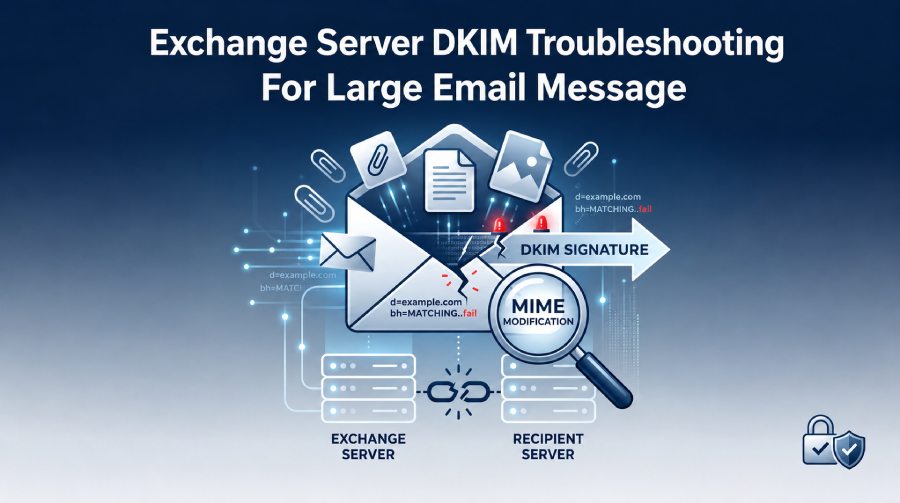
Large email messages can cause unforeseen DKIM authentication issues in Microsoft Exchange environments. Although DKIM aims to confirm that an email is sanctioned by the sending domain and that its content remains unchanged, significant messages with attachments or complex MIME structures can complicate matters.
When a DKIM failure occurs with a large email, administrators may encounter authentication errors despite proper DKIM setup. Potential issues may stem from message size limits, content transformation, MIME configuration, header modifications, attachment handling, or discrepancies between the Exchange server and the recipient’s mail system.
This guide outlines the typical causes of DKIM failures with large emails and offers practical troubleshooting steps for resolution.
What Is DKIM in Exchange Server?
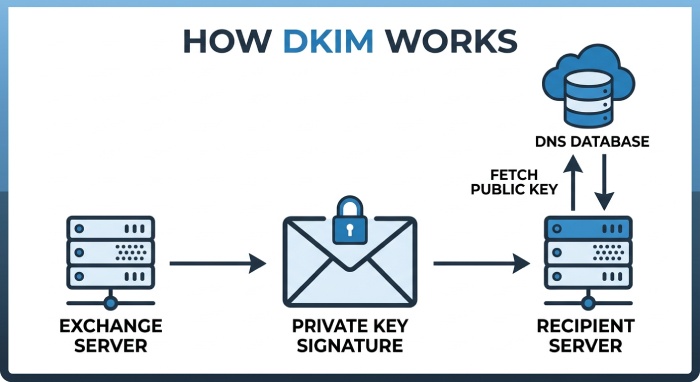
DomainKeys Identified Mail (DKIM) is an email verification technique that employs cryptographic signatures to confirm that messages originate from an authorized domain and remain unchanged during transit.
In an Exchange setup, when a DKIM-signed email is sent, a DKIM-Signature header is added, which includes details like the signing domain, selector, algorithm, signed headers, and hash.
The recipient server fetches the sender’s public key from DNS records to authenticate the signature.
A simplified DKIM record may look like:
selector1._domainkey.example.comThe DNS record associated with the selector contains the public key used during validation.
The process for standard messages is typically simple. However, larger messages may require extra processing, potentially altering the content or headers of the DKIM signature.
Why Large Messages Can Cause DKIM Problems
Extensive email messages typically include attachments, images, HTML elements, or intricate MIME layouts. Before reaching the recipient, Exchange and other mailing systems might handle these components.
A message may initially pass DKIM validation at the sender’s end but can fail if modified by another system.
For example, a large message might travel through:
Exchange Server → Security Gateway → Email Filtering Service → Recipient Mail Server Each system can potentially modify the message.
If the alteration impacts the content secured by the DKIM signature, the recipient has the option to report a DKIM failure.
Common causes include:
- Large attachments
- MIME re-encoding
- Content filtering
- Message rewriting
- Header modifications
- Email disclaimers
- Security gateway processing
- Line-ending changes
- Message fragmentation or reconstruction
- Incorrect DKIM canonicalization
- Inconsistent signing configuration
Recognizing the points at which the message alters is a crucial aspect of the troubleshooting process.
Check the DKIM Authentication Result
The initial stage involves reviewing the authentication outcomes found within the message headers of the recipient. Search for a header that resembles:
Authentication-Results: ... dkim=pass
Or:
Authentication-Results: ... dkim=fail
A DKIM failure can also include additional information describing the problem.
For example, a recipient system may report:
dkim=fail (body hash did not verify)This is particularly beneficial as it highlights any modifications made to the message body post-signature.
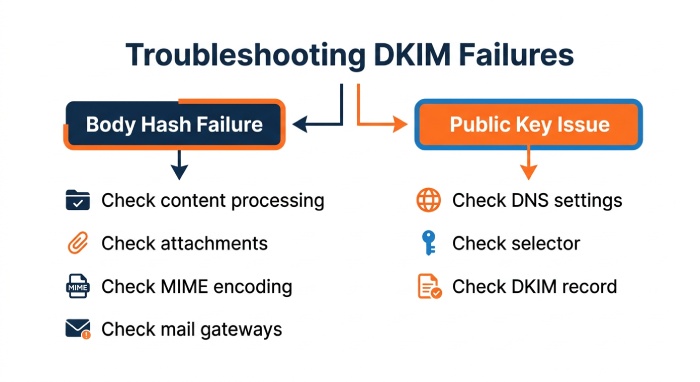
In cases where a body hash failure is detected, it is advisable to examine content processing, attachments, MIME encoding, and any intermediate mail gateways.
Conversely, if the failure suggests an issue with the public key, further investigation into DNS settings, the selector, or the DKIM record should be conducted.
Verify the DKIM Selector
A DKIM signature includes a selector that points to the DNS entry where the public key is stored.
For example:
d=example.com
s=selector1
The receiving server combines these values to locate the public key.
It is essential for administrators to ensure that the selector found in the DKIM-Signature header corresponds with the selector set up in the DNS configuration.
Check for:
- Incorrect selector names
- Missing DNS records
- Typographical errors
- Incorrect public keys
- Old selectors
- DNS propagation problems
- Incorrect domain configuration
A lengthy message does not necessarily necessitate a distinct DKIM selector. If DKIM is effective for smaller messages but encounters issues with larger ones, it is more probable that the problem lies with the message processing rather than the selector itself.
Inspect the DKIM-Signature Header
The DKIM-Signature header provides valuable troubleshooting information.
Important fields include:
- d= — signing domain
- s= — selector
- h= — headers included in the signature
- bh= — body hash
- b= — cryptographic signature
- c= — canonicalization method
For example:
DKIM-Signature: v=1; d=example.com; s=selector1; c=relaxed/relaxed; …The h= field shows which headers are covered by the signature.
Should any of those headers be altered during the delivery process, DKIM validation may not succeed. The bh= value is crucial for diagnosing issues with large messages, as it denotes the hash of the signed body. If the receiving server computes a different hash, it indicates that the message body was modified at some point after it was signed.
Investigate Body Hash Failures
One prevalent issue encountered in DKIM-related message handling is a failure in the body hash.
Consider a scenario where an Exchange server signs an email that includes a sizable PDF attachment. As the message moves through an email security gateway, the gateway may analyze the attachment and alter certain components of the MIME structure.
Although the recipient may see an email that appears unchanged from the original sent by the author, disparities may exist within the MIME content itself.
Upon receiving the email, the recipient computes a new body hash and compares it against the hash included in the DKIM signature. If there is a mismatch, the DKIM validation process is deemed unsuccessful.
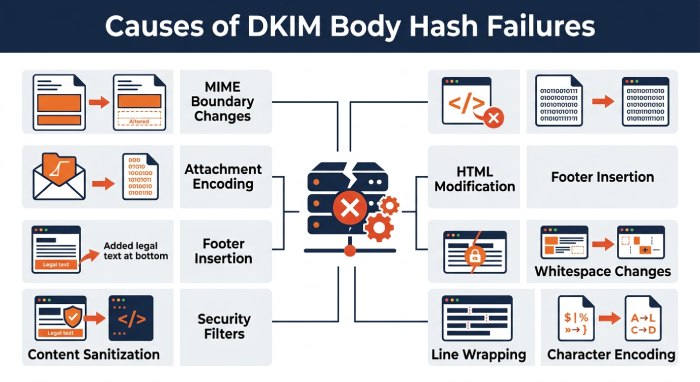
Possible causes include:
- MIME boundary changes
- Attachment encoding changes
- HTML modification
- Footer insertion
- Content sanitization
- Whitespace changes
- Line wrapping
- Character encoding changes
Review every system that processes the message between Exchange and the recipient.
Check Message Size Limits
Messages of significant size can face varying restrictions at different points in the transmission process. For instance, while Exchange may permit a certain message size, an external gateway or the receiving system may impose a lower cap. If a message surpasses the allowed limit, the system might reject it, truncate it, divide it, or handle it in an alternative manner. It is advisable to examine the message size configurations throughout the entire delivery route.
Check:
- Exchange message-size limits.
- Mailbox send and receive restrictions.
- Connector limits.
- Security gateway limits.
- SMTP relay limits.
- Recipient-server restrictions.
- Attachment-size policies.
A message may be considered oversized and thus not delivered; however, this situation does not constitute a DKIM failure. It is worth noting that administrators may occasionally conflate delivery errors with authentication issues.
When addressing these matters during troubleshooting, it is important to distinguish between the two.
Examine MIME and Attachment Processing
Before transmission via SMTP, attachments must be transformed into MIME format. The presence of sizable attachments can greatly inflate the overall size of an email, as MIME encoding introduces additional overhead.
For instance, binary data is typically encoded using Base64, which can cause the resulting message to be significantly larger than the initial attachment.
Security solutions might decode, analyze, and subsequently re-encode attachments. If this procedure alters any signed content, it may result in a failure of DKIM validation.
When addressing DKIM issues related to large messages, it is advisable to compare a successfully validated small message with a large message that did not pass validation.
Look for differences in:
- MIME boundaries
- Content-Type headers
- Content-Transfer-Encoding
- Attachment names
- Character encoding
- HTML formatting
- Message body structure
This comparison can help identify whether the attachment-processing stage is responsible.
Review Intermediate Mail Gateways
Many organizations route Exchange email through security appliances or cloud-based email gateways.
These services may perform:
- Spam filtering
- Malware scanning
- Attachment inspection
- URL rewriting
- Data-loss prevention
- Disclaimer insertion
- Message encryption
- Content modification
Every process has the potential to impact DKIM.
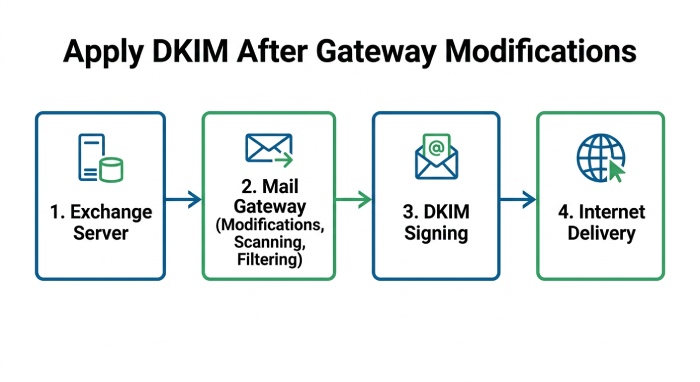
If Exchange signs an email prior to it arriving at the gateway, it is preferable for the gateway to refrain from altering any content that is protected by the DKIM signature.
Should changes be necessary, organizations ought to structure their email flow to ensure that DKIM signing happens after all content modifications have been completed.
The specific setup will vary based on the organization’s Exchange implementation and the security solutions in use.
Check DKIM Canonicalization
DKIM uses canonicalization to determine how headers and body content are normalized before hashing.
Two common modes are:
- simple
- relaxed
A signature can use a combination such as:
c=relaxed/simple
Or:
c=relaxed/relaxed
Relaxed canonicalization typically allows for benign formatting alterations, including differences in whitespace.
Nevertheless, it does not safeguard against all types of modifications.
When extensive rewrites of large messages occur, merely altering the canonicalization mode may not resolve the issue.
It is essential to precisely identify what is being altered and the location of those changes.
Compare Small and Large Messages
A highly effective method for rapid troubleshooting involves analyzing two messages originating from the same Exchange environment.
Send:
- One small message without an attachment.
- One large message with an attachment.
Send both to the same external recipient.
Then compare the authentication results.
If both messages return:
dkim=pass
The DKIM configuration is probably functioning correctly.
Should the smaller message be successful while the larger one encounters issues, it’s essential to examine the distinctions brought about by the larger message.
Consider analyzing factors such as attachment scanning, limitations on message size, MIME (Multipurpose Internet Mail Extensions) conversion processes, or gateway handling.
This systematic comparison can help rule out various possible factors contributing to the failure.
Use Message Tracking to Follow the Mail Flow
Exchange message tracking can help administrators understand how a message moves through the environment.
Review the message’s path and identify:
- Sending server
- Receive connector
- Send connector
- Transport rules
- Security services
- External relays
- Delivery status
The objective is to assess if there are any alterations to the message from the time it is first submitted to its final delivery. If Exchange indicates that the message was delivered successfully, yet the recipient experiences a DKIM failure, it suggests that the problem might arise after the message has exited the Exchange system. This differentiation is vital.
Review Transport Rules
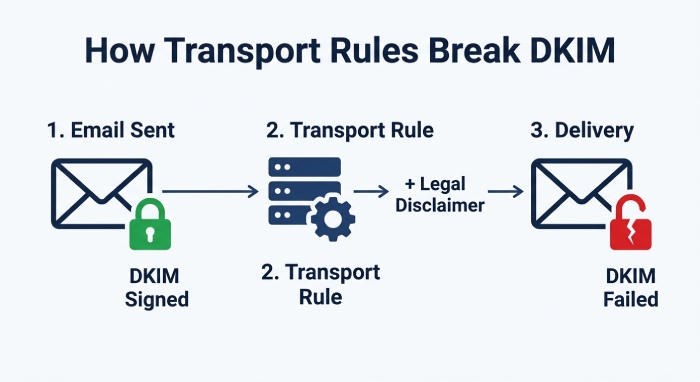
Transport rules can modify messages in ways that affect authentication.
Common examples include adding:
- Legal disclaimers
- Corporate signatures
- Warning banners
- Subject prefixes
- Additional headers
Modifications made post-DKIM signing can potentially invalidate the signature, contingent on the signed message components.
When DKIM failures arise following changes in mail flow, revisit transport rules. Focus on rules that act differently for larger messages or those with specific attachment types.
Check for Multiple DKIM Signatures
Emails often traverse various systems that apply digital signatures, leading to the possibility of multiple DKIM-Signature headers. While this isn’t inherently problematic, administrators must be aware of the origin of each signature. For instance, a message could include a signature from the sender’s domain and another from an intermediary service.
When troubleshooting, identify:
- Signing domain
- Selector
- Signing system
- Authentication result
- Signature status
Do not assume that the presence of multiple signatures means the configuration is incorrect.
Consider Message Forwarding
Forwarding can complicate DKIM authentication. When a message is forwarded, its body or headers may be modified, and mailing lists might add or alter content. Consequently, an originally DKIM-compliant message may fail upon forwarding. If larger messages are often failing, focus on examining the forwarding service instead of immediately adjusting the Exchange DKIM settings.
Verify DNS Availability
Although large-message-specific failures often involve message content, DNS should still be checked.
Confirm that the DKIM public-key record is:
- Published correctly
- Available publicly
- Associated with the correct selector
- Associated with the correct domain
- Free from formatting errors
DNS issues can impact messages of any size; however, DNS validation remains essential in a comprehensive DKIM troubleshooting approach.
Review Exchange and Security Logs
Logs can indicate if there were any processing errors with the message. Depending on your Exchange setup, examine the relevant transport, connector, message tracking, and security logs.
Look for events involving:
- Message rejection
- Attachment processing
- Transport errors
- Connector failures
- Message-size restrictions
- Content conversion
- Authentication
- External delivery
Align the timestamps with the failed message to identify if the issue arose before it departed from Exchange or after it reached a different mail system. Modify one setting at a time for better clarity in identifying the solution.
Practical DKIM Troubleshooting Process
Troubleshooting DKIM failures becomes much simpler when you follow a clear, step-by-step approach.
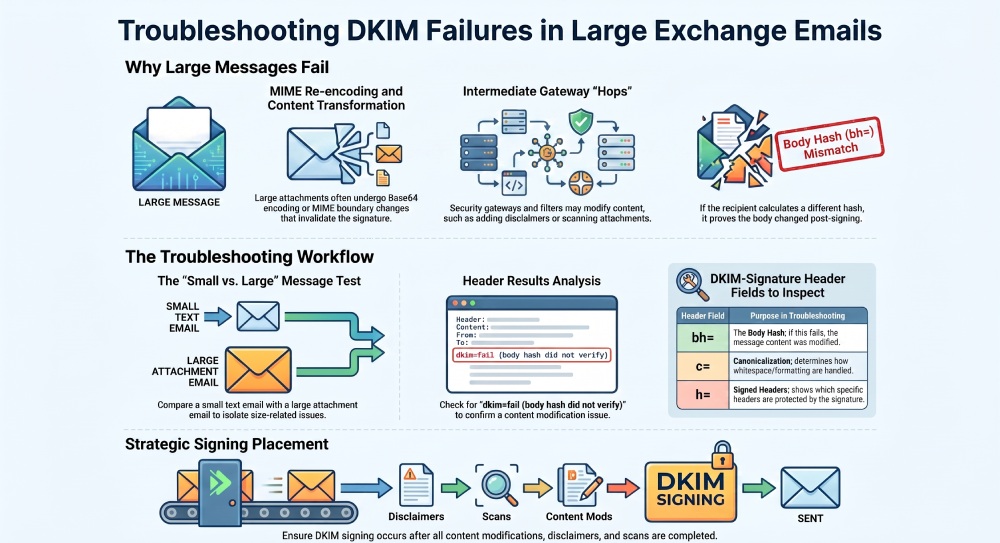
1. Determine the Scope of the Failure
Initially, determine if DKIM failures occur for all emails transmitted via Exchange or exclusively for those containing large attachments. This will assist in identifying whether the issue pertains to overall authentication or is tied to factors such as message size and formatting.
2. Compare Different Message Sizes
Please conduct an experiment by sending two test emails to the same external email address: the first should include a brief message, while the second should have a sizable attachment. Afterward, analyze the DKIM authentication outcomes for each email. If the smaller email is successfully authenticated but the larger one is not, direct your inquiry towards the message processing and MIME structure.
3. Examine the DKIM Signature
In the case of failed messages, examine the DKIM-Signature header along with the body hash. Identify any discrepancies between successful and failed messages that may suggest alterations in the content after the DKIM signature was created.
4. Trace the Email Route
Trace the complete route of the email delivery process, beginning with the Exchange server and concluding with the recipient’s mail server. This should encompass outbound connectors, email security gateways, filtering services, relays, and any other intermediary systems involved.
5. Find Potential Message Modifications
Pinpoint all services that have the potential to modify, scan, reformat, append disclaimers, alter attachments, or otherwise change the content of an email. Even a slight modification post-signature can lead to a failure in DKIM verification.
General Manager
General Manager at DuoCircle. Product strategy and commercial lead across the email security portfolio.
Secure your email infrastructure
Protect, authenticate, and deliver. Contact our team to find the right solution.