Gmail Stuck in Queued? 9 Causes and Practical Ways to Fix It

Quick Answer
9 common reasons why Gmail emails remain stuck in the queue and learn practical ways to fix them. Explore solutions for connectivity issues, storage limits, sync errors, battery restrictions, and app settings to restore smooth email sending and improve email deliverability.
Gmail is one of the most widely used email services for personal and professional communication. However, users sometimes encounter a frustrating problem where emails remain in the Outbox with a Queued status instead of being delivered. When Gmail gets stuck in queued mode, messages may fail to send even when the internet connection appears to be working normally.
This issue can occur on Android devices, iPhones, and desktop computers. It may be caused by an unstable internet connection, insufficient storage, incorrect Gmail settings, outdated applications, or temporary server problems.
Understanding why Gmail messages remain queued can help users identify the underlying issue and restore normal email delivery. In this article, we explore nine common causes of the Gmail queued problem and practical ways to fix it.
What Does Gmail Stuck in Queued Mean?
When Gmail shows an email as queued, it’s waiting in the Outbox and hasn’t finished sending. This can happen if Gmail can’t maintain a stable connection, access enough device resources, or complete background sync. The email usually isn’t lost Gmail will typically try to send it again once the issue is resolved. Maintaining proper email security is also important to protect your messages and ensure safe email communication.
9 Common Causes of Gmail Stuck in Queued
Before trying different troubleshooting methods, it is important to understand what might be preventing Gmail from sending messages.
1. Unstable or Poor Internet Connection
An unreliable internet connection is one of the most common reasons Gmail messages stay queued. Gmail needs a stable connection to upload outgoing messages to its servers. If your Wi-Fi signal is weak, mobile data is unavailable, or your connection keeps dropping, Gmail may not be able to finish sending.
How to fix it:
- Check whether your device is connected to the internet.
- Switch between Wi-Fi and mobile data.
- Restart your router if the Wi-Fi connection is unstable.
- Turn Airplane Mode on and off to refresh network connectivity.
- Open another website or application to confirm internet access.
Once the connection becomes stable, reopen Gmail and check whether the queued message has been sent.
2. Insufficient Google Account Storage
Google storage is shared across Gmail, Google Drive, and Google Photos. When your account reaches its storage limit, Gmail can’t send or receive messages until you free up space. Large attachments, old emails, and stored files can gradually use up your available storage, potentially affecting outgoing email delivery.
How to fix it:
- Open Google One to review your available storage.
- Delete unnecessary emails, particularly those containing large attachments.
- Empty the Trash and Spam folders.
- Remove unwanted files from Google Drive.
- Delete unnecessary photos and videos from Google Photos.
- Consider purchasing additional storage if required.
After freeing up storage, reopen Gmail and try sending the queued message again.
3. Gmail App Cache and Data Problems
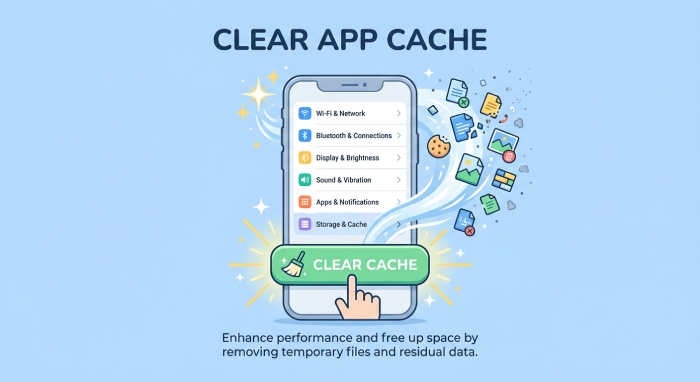
Temporary files help Gmail load faster and run smoothly, but corrupted cache files or outdated data can sometimes disrupt syncing and email delivery. This is especially common on Android when Gmail has accumulated unnecessary temporary files.
How to fix it:
- Open Settings on your Android device.
- Navigate to Apps or Applications.
- Find and select Gmail.
- Tap Storage and Cache.
- Select Clear Cache.
- Reopen Gmail and check your Outbox.
If clearing the cache does not resolve the problem, clearing Gmail’s storage may be considered as a last resort. This can remove local settings, drafts, signatures, and other application data. Make sure important information is synchronized or backed up before proceeding.
4. Large Email Attachments
Gmail allows attachments up to 25 MB per message. If the total attachment size exceeds that limit, the email may not send. Large documents, high-resolution images, videos, and compressed zip folders can quickly add up.
How to fix it:
- Check the total size of your email attachments.
- Remove unnecessary files.
- Compress large documents when appropriate.
- Upload large files to Google Drive.
- Share the Google Drive link instead of attaching the original files.
To send a 50 MB video, upload it to Google Drive and add a sharing link to your email. This lets you share large files without exceeding Gmail’s standard attachment size limit. Make sure the recipient has permission to access the file.
5. Outdated Gmail Application
Using an outdated Gmail app may lead to compatibility or synchronization issues and unexpected problems sending email. Google regularly updates Gmail to improve performance, security, and compatibility.
How to fix it:
- Open the Google Play Store or Apple App Store.
- Search for Gmail.
- Check whether an update is available.
- Tap Update.
- Restart the application after installation.
- Try sending the queued message again.
Keeping Gmail updated helps prevent problems associated with outdated software and improves overall email functionality.
6. Disabled Background Data or Synchronization
Gmail uses background data and account sync to send and receive messages. If either is restricted or turned off, outgoing messages may not process correctly. Battery- and data-saving settings can also limit Gmail’s background activity.
How to fix it:
- Open your device’s Settings.
- Navigate to Apps and select Gmail.
- Check whether background data usage is enabled.
- Allow unrestricted data usage if necessary.
- Open your Google Account synchronization settings.
- Make sure Gmail synchronization is enabled.
- Disable restrictive battery-saving settings temporarily to test email deliverability.
These changes allow Gmail to communicate with Google’s servers even when the application is not actively open.
7. Disabled Gmail Synchronization
Gmail uses account synchronization to send and receive email across connected devices. When syncing is off or restricted, outgoing messages may remain pending. This can happen if automatic sync is disabled, Gmail sync is turned off in account settings, or device restrictions limit background activity.
How to fix it:
- Open Settings on your Android device.
- Navigate to Accounts or Passwords and Accounts.
- Select your Google Account.
- Open Account Sync settings.
- Check whether Gmail synchronization is enabled.
- Enable synchronization if it is turned off.
- Open Gmail and refresh your inbox.
The exact settings may vary depending on your device and Android version.
8. Temporary Gmail Server Problems
Sometimes, the issue isn’t your device or internet connection. Gmail may be temporarily affected by server outages, maintenance, or other service disruptions. When that happens, emails may be delayed, syncing may fail, or messages may remain in your Outbox.
How to fix it:
- Visit the Google Workspace Status Dashboard.
- Check whether Gmail is experiencing a reported service disruption.
- Wait for Google to resolve any ongoing service issues.
- Avoid repeatedly sending the same message.
- Retry sending the email after service is restored.
If Gmail is experiencing a widespread outage, changing application settings will not necessarily solve the problem. Waiting for the service to recover is usually the best option.
9. Device Battery Optimization and Network Restrictions
Some Android devices use aggressive battery optimization to save power, which may limit background apps such as Gmail. VPN (Virtual Private Network), firewalls, private DNS settings, and other network restrictions can also interfere with Gmail’s communication with Google’s servers.
How to fix it:
- Open Settings and navigate to Battery.
- Find the battery optimization settings for Gmail.
- Allow background activity or select an unrestricted battery setting if available.
- Temporarily disable your VPN to test the connection.
- Check whether a firewall or security application is blocking Gmail.
- Try sending the message using a different network.
If Gmail works after changing these settings, review the restrictions to identify which one caused the problem.
Additional Troubleshooting Tips for Gmail Queued Emails
If the nine solutions above do not resolve the issue, try these additional troubleshooting steps.
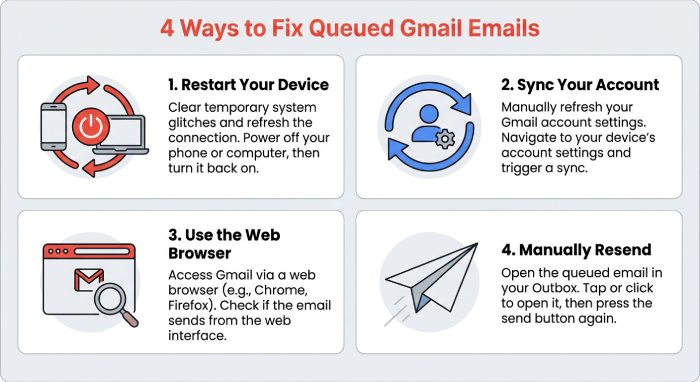
Restart Your Device
Restart your smartphone or computer to resolve temporary software bugs, refresh network connections, and restore background app processes. Then open Gmail to check whether the queued email was delivered.
Remove and Re-add Your Google Account
Account sync issues can sometimes keep Gmail from sending messages. Try removing your Google Account from your device, then adding it again. Before you do, make sure you know your sign-in details and that important information is synced or backed up. Removing the account may affect data stored on your device and other Google services.
Try Gmail Through a Web Browser
If messages remain queued in the Gmail app, open Gmail in a browser on your computer or mobile device. Sign in and check whether the message is still in the Outbox. If it sends successfully from the browser, the issue is more likely related to the mobile app, device settings, or synchronization—not a general account-level sending problem.
Check Your Outbox and Retry Sending
In Gmail, open the Outbox and select the affected message. Check the recipient address, subject, message content, and attachments. If everything is correct, confirm your internet connection is working and try sending it again. Before creating another copy, check whether the original message was delivered.
How to Prevent Gmail from Getting Stuck in Queued Mode
Although queued emails can usually be resolved through basic troubleshooting, following a few preventive practices can reduce the chances of experiencing the same problem again.
Consider these best practices:
- Maintain a stable internet connection: Use reliable Wi-Fi or mobile data when sending important emails.
- Monitor Google Account storage: Regularly review data storage usage and remove unnecessary files to free up space and maintain efficient storage management.
- Keep Gmail updated: Install application updates to maintain compatibility and performance.
- Manage attachment sizes: Use Google Drive links when sharing large files.
- Enable synchronization: Make sure Gmail background data and account synchronization are properly configured.
- Review battery restrictions: Avoid unnecessary background activity restrictions for Gmail.
- Check service availability: Monitor Google’s service status when widespread email problems occur.
These simple practices can improve Gmail reliability and help maintain consistent email communication.
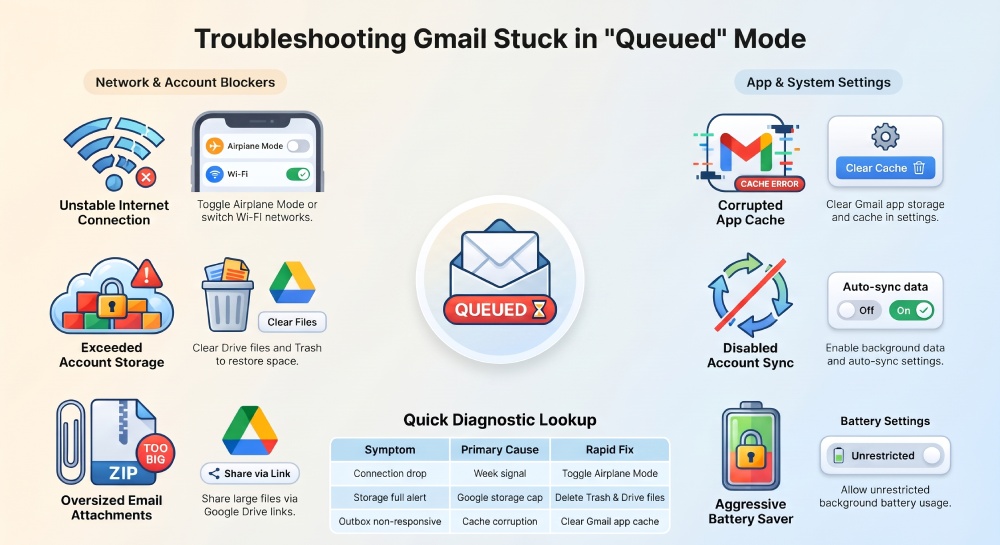
Gmail emails can remain queued when common issues disrupt delivery, including an unstable internet connection, low Google Account storage, an outdated app, restricted data synchronization, or a large attachment. Start by checking your connection, available storage, and Gmail Outbox. If messages are still queued, clear the app cache, update Gmail, review background data settings, and check Google’s service status. Keeping the app updated and managing account storage can also help reduce future problems.
General Manager
General Manager at DuoCircle. Product strategy and commercial lead across the email security portfolio.
Secure your email infrastructure
Protect, authenticate, and deliver. Contact our team to find the right solution.