How To Configure An SPF Record For Rackspace Email

Quick Answer
Learn how to configure an SPF record for Rackspace Email to authorize trusted mail servers, reduce spoofing risks, and improve email deliverability. This guide explains the correct SPF syntax, DNS setup, validation steps, and common configuration mistakes.
Email authentication is essential for businesses using Rackspace Email to protect legitimate messages from spam filtering, spoofing, and delivery failures. An SPF (Sender Policy Framework) record identifies the mail servers authorized to send email on behalf of your domain. For Rackspace Email users, correctly configuring the SPF record in DNS helps receiving mail systems verify that messages are coming from an approved source. This guide explains how to configure, verify, and maintain an SPF record for Rackspace Email while avoiding common DNS and authentication errors.
What an SPF Record Is and Why It Matters for Rackspace Email
An SPF record is a DNS-based email authentication control that tells receiving mail servers which systems are authorized to send email for your domain. SPF stands for sender policy framework, and it is published as a TXT record in your domain’s DNS zone.
For organizations using Rackspace Email, the SPF record is essential because Rackspace mail servers send messages on behalf of your domain. Without a correct SPF policy, receiving providers such as Microsoft 365, Google Workspace, Yahoo, and enterprise secure email gateways may treat legitimate messages as suspicious. That can hurt email delivery, increase spam placement, or cause outright rejection.
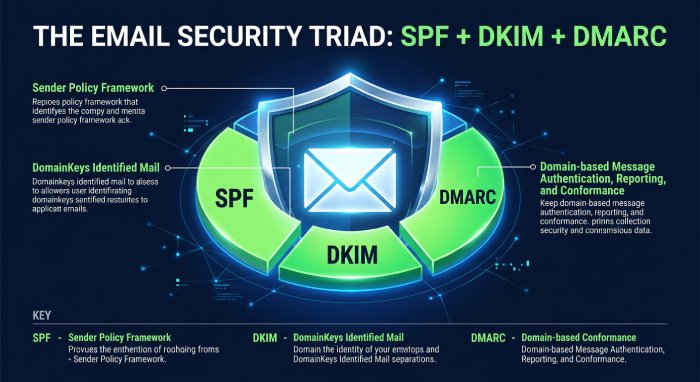
A proper sender policy framework configuration also helps reduce email spoofing, where attackers forge your domain in the “From” address to send phishing messages. SPF alone does not stop all impersonation, but it is a foundational part of email authentication when combined with DKIM and DMARC.
For Rackspace Email users, maintaining an accurate SPF record helps ensure that legitimate messages are recognized by receiving mail servers. If your domain also sends email through other platforms, those authorized senders should be included in the same SPF record.
Rackspace SPF Record Syntax and Required Include Mechanisms
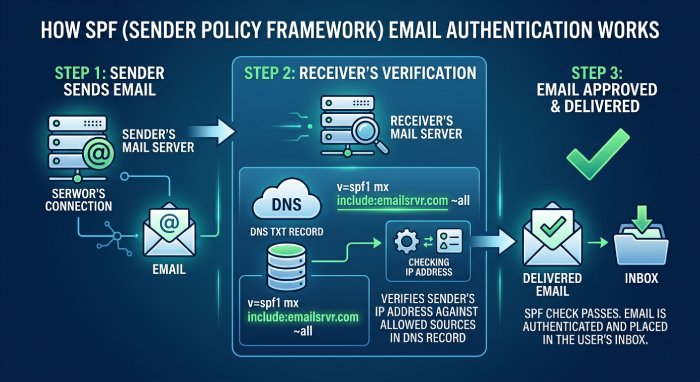
For most Rackspace Email customers, the recommended SPF record uses the Rackspace include mechanism:
v=spf1 include:emailsrvr.com ~allThis TXT record means:
v=spf1identifies the record as a sender policy framework record.include:emailsrvr.comauthorizes Rackspace’s email infrastructure to send email for your domain.~allapplies a soft fail SPF policy for senders not explicitly authorized.
The include:emailsrvr.com mechanism is the key Rackspace requirement. It allows your domain to inherit the SPF policy published by Rackspace, so when Rackspace updates its sending infrastructure, your SPF record can continue working without manually listing every IP address.
Required include mechanism for Rackspace Email
A basic Rackspace SPF record should look like this:
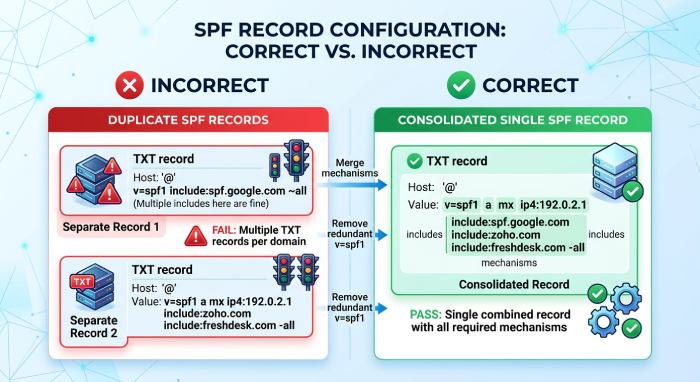
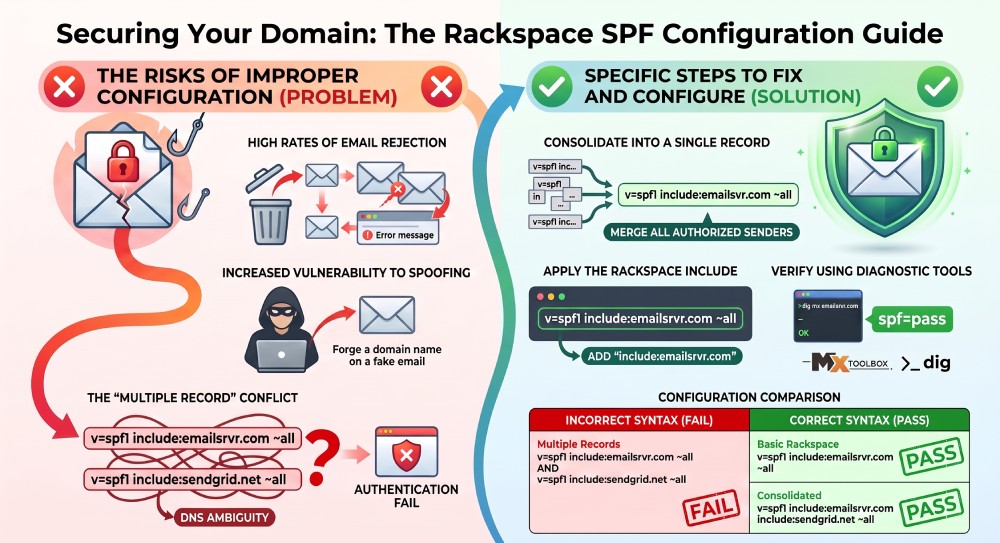
v=spf1 include:emailsrvr.com ~allIf your domain uses additional senders—such as a customer relationship management, marketing automation platform, transactional email service, website form plugin, or billing application—you must include those services in the same SPF record. A domain should normally have only one SPF record.
Example:
v=spf1 include:emailsrvr.com include:sendgrid.net include:spf.protection.outlook.com ~allAvoid publishing multiple SPF TXT records like these:
v=spf1 include:emailsrvr.com ~all
v=spf1 include:sendgrid.net ~all
Multiple SPF records create DNS ambiguity and can cause email authentication failures. Instead, consolidate all authorized email sender sources into one SPF policy.
Before You Edit DNS: Access and Ownership Checks
Before changing your SPF record, confirm where your domain’s authoritative DNS is hosted and make sure you have permission to edit its DNS settings. Depending on your setup, DNS may be managed through Rackspace or a third-party provider such as Cloudflare, GoDaddy, or another DNS host.
Before changing your SPF record, confirm where your domain’s authoritative DNS is hosted and make sure you have permission to edit its DNS settings. Depending on your setup, DNS may be managed through Rackspace or a third-party provider such as Cloudflare, GoDaddy, or another DNS host.
If you do not have access to your domain’s DNS settings, contact the person or team responsible for DNS management. The SPF record must be updated at the provider hosting your domain’s authoritative DNS.
How to Add or Update a Rackspace SPF Record in Your DNS Settings
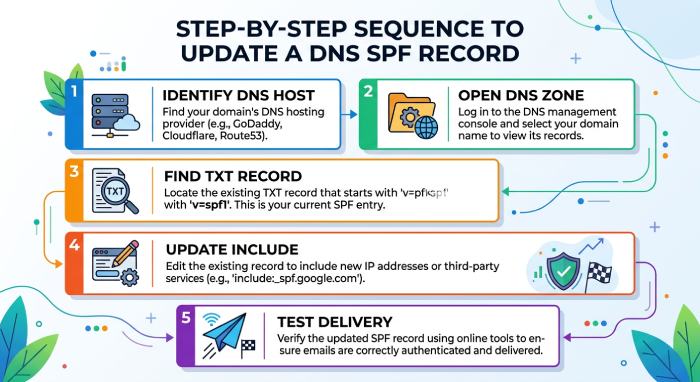
To configure the SPF record for Rackspace Email, follow these steps:
- Identify your DNS host Determine whether your DNS is hosted at Rackspace, Cloudflare, your registrar, or another provider. The correct DNS configuration must be made where the domain’s authoritative nameservers are managed.
- Open your domain’s DNS zone
Locate the DNS zone for the domain that sends mail. For example, if users send from
user@example.com, edit the DNS zone forexample.com. - Find the existing SPF TXT record
Look for a TXT record at the root of the domain, often shown as
@, blank, or the domain name itself. It may begin withv=spf1. - Add or update the Rackspace include
If no SPF record exists, create this TXT record:
If an SPF record already exists, edit it to include Rackspace:v=spf1 include:emailsrvr.com ~allv=spf1 include:existingservice.com include:emailsrvr.com ~all - Save the DNS configuration DNS updates may take several minutes to several hours to propagate, depending on Time-To-Live settings and your DNS provider.
- Test email delivery Send messages from a Rackspace email account to external recipients and verify that SPF passes in the message headers.
The host/name field for the TXT record should usually be @ for the root domain. If you are configuring SPF for a subdomain, such as mail.example.com, create the TXT record under that specific subdomain.
Cloudflare and external DNS providers
If you use Cloudflare, add the SPF policy as a DNS TXT record. Cloudflare proxy settings do not apply to TXT records, so there is no orange-cloud proxy option for the SPF record. Simply create or update the TXT record and save the change.
For most users, the SPF record can be added or updated directly through the DNS provider’s management interface. After saving the change, verify that the record is published correctly before testing email authentication.
How to Verify Your SPF Record and Troubleshoot Common Errors
After publishing your Rackspace SPF record, verify that the domain returns the expected TXT record. You can use tools such as:
- dig
- nslookup
- MXToolbox
- Google Admin Toolbox
- DMARC analyzers
- DNS provider lookup tools
Example command:
dig TXT example.comYou should see output similar to:
"v=spf1 include:emailsrvr.com ~all"Common SPF record problems include:
- Multiple SPF records: A domain should have only one SPF TXT record.
- Missing Rackspace include: If include:emailsrvr.com is absent, Rackspace may not be authorized.
- Incorrect host value: Publishing the TXT record under the wrong hostname prevents proper SPF evaluation.
- DNS lookup limit exceeded: SPF allows a maximum of 10 DNS lookups. Too many
include,a,mx, or redirect mechanisms can break the SPF policy. - Overly strict -all policy: A hard fail can reject mail from legitimate but forgotten systems.
- Propagation delay: Recent DNS configuration changes may not be visible everywhere immediately.
To troubleshoot email delivery, inspect full message headers and look for spf=pass, spf=fail, or spf=softfail. If email authentication fails, compare the sending IP with the authorized mechanisms in your SPF policy.
If the issue persists, open support tickets with Rackspace support and include the affected domain, timestamps, sending address, receiving address, bounce messages, and message headers. This helps Rackspace identify whether the problem is DNS, routing, sender reputation, or policy alignment.
Best Practices for Maintaining SPF, DKIM, and DMARC with Rackspace Email
SPF is important, but it should not be your only email authentication control. For stronger email security, maintain SPF, DKIM, and DMARC together.
Best practices include:
- Use one SPF record per domain Consolidate all authorized senders into a single TXT record.
- Keep the Rackspace include current
Use
include:emailsrvr.comrather than hard-coding Rackspace IP addresses. - Enable DKIM where available DKIM signs messages cryptographically, helping receiving systems verify that mail was not altered in transit.
- Publish a DMARC record DMARC tells receivers what to do when SPF or DKIM fails and provides reporting visibility.
- Start DMARC cautiously
Begin with a monitoring policy such as:
Then move tov=DMARC1; p=none; rua=mailto:dmarc@example.comquarantineorrejectafter confirming legitimate email sender sources. - Review SPF after vendor changes Update the SPF policy when adding new platforms for marketing, invoices, notifications, application alerts, or transactional email.
- Document ownership Record who manages DNS, email service settings, and support contacts so future changes do not break email delivery.
- Monitor reports and alerts
Use DMARC reporting, security services, and notification preferences to detect unauthorized senders and email spoofing attempts.
Operational Considerations for Larger Rackspace Environments
For organizations using Rackspace Email alongside other email services, keep DNS and email authentication settings organized and up to date. Make sure the appropriate team member manages the domain’s SPF record and reviews it whenever a new email-sending service is added or removed. This helps prevent authentication failures and keeps legitimate email authorized.
If your organization sends email through other applications or third-party services, make sure those authorized sending sources are included in the same SPF record. Review the SPF policy whenever you add or remove an email-sending service.
The safest approach is to treat the SPF record as a controlled production asset. Maintain change history, coordinate with managed operations, validate DNS after every update, and align SPF, DKIM, and DMARC with your broader Rackspace email security and data protection strategy.
General Manager
General Manager at DuoCircle. Product strategy and commercial lead across the email security portfolio.
Secure your email infrastructure
Protect, authenticate, and deliver. Contact our team to find the right solution.