How to Configure SPF for Network Solutions (NetSol)

Quick Answer
To configure SPF for Network Solutions, add or update a single SPF TXT record with the correct include statement. This authorizes Network Solutions mail servers, helps prevent spoofing, strengthens email authentication, and improves email deliverability.

Understanding SPF for Network Solutions
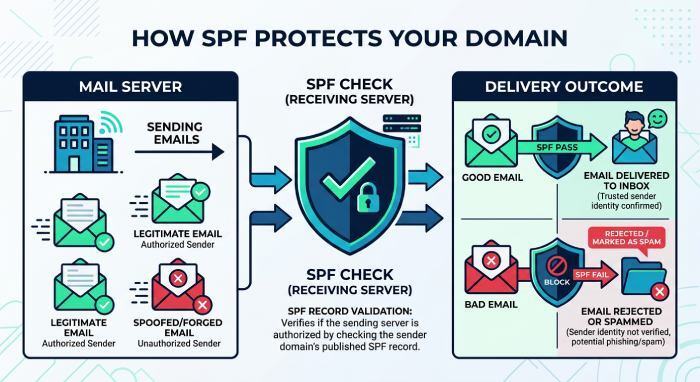
Sender Policy Framework (SPF) is an email authentication standard that helps domain owners specify which mail servers are permitted to send emails on behalf of their domain. As a critical component of email security, SPF helps prevent unauthorized senders from impersonating your domain. If you use Network Solutions as part of your email infrastructure, adding the appropriate SPF configuration helps improve email legitimacy and reduces the chances of messages being flagged as spoofed or fraudulent.
By authorizing Network Solutions within your SPF record, receiving mail servers can verify that emails sent through the platform are legitimate and originate from approved sources.
Before You Begin
Access your domain’s DNS management area and locate the domain name for which you want to enable SPF authentication.
The SPF record you create or update depends on whether an SPF record already exists for your domain.
If an SPF Record Already Exists
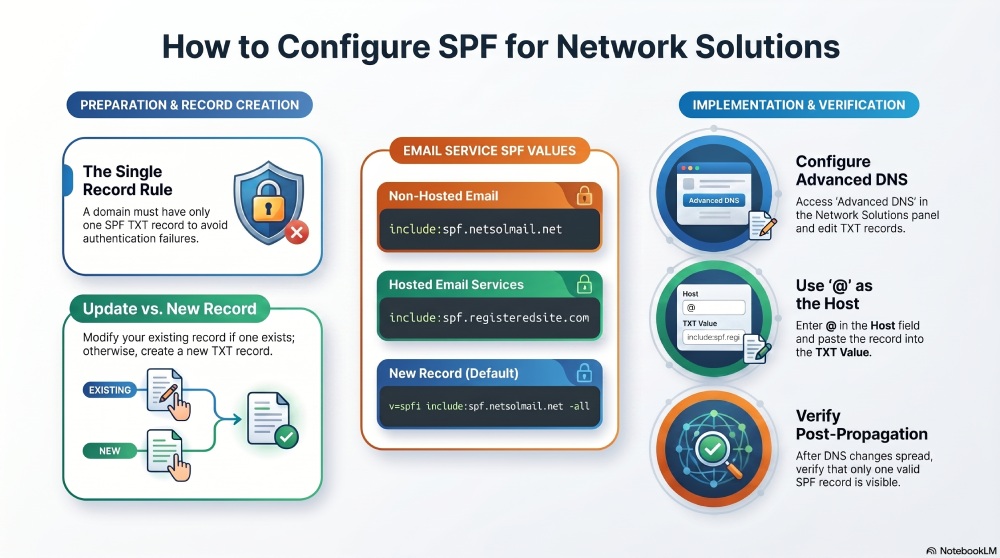
When a domain already has an SPF record, do not create a second one. Instead, update the existing record to include Network Solutions as an authorized sender.
For domains using non-hosted email through Network Solutions, add:
include:spf.netsolmail.net
For hosted email services, add:
include:spf.registeredsite.com
Example
If your current SPF record is:
v=spf1 include:_spf.google.com -allYou can modify it to:
v=spf1 include:_spf.google.com include:spf.netsolmail.net -allImportant Note
A domain should have only one SPF TXT record. Publishing multiple SPF records can cause authentication failures and negatively affect email delivery.
If No SPF Record Exists
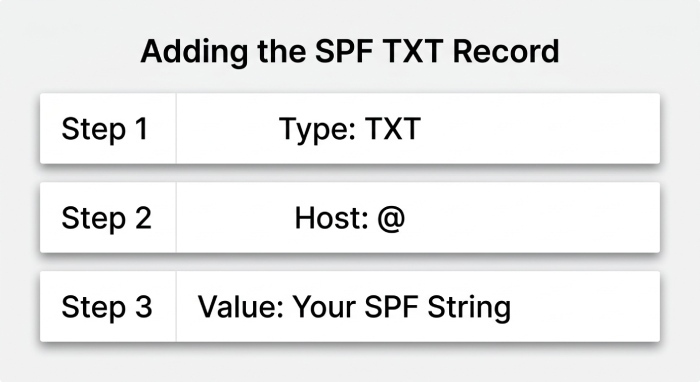
If SPF has not yet been configured for your domain, create a new TXT record containing:
v=spf1 include:spf.netsolmail.net-allThis record authorizes Network Solutions to send mail for your domain and instructs receiving servers to reject messages originating from unauthorized sources.
Adding an SPF Record in Network Solutions
Follow these steps to publish or modify your SPF record within the Network Solutions control panel:
- Sign in to your Network Solutions account.
- Open the domain management section.
- Locate the domain you wish to configure.
- Select the management option for that domain.
- Access the Advanced DNS settings.
- Choose the option to edit or create TXT records.
- Under the Host field, enter: @
- In the TXT Value or Text field, paste your SPF record.
- Continue through the prompts.
- Save the DNS changes.
Using Network Solutions Only as an Email Provider
If your domain’s DNS is hosted elsewhere and Network Solutions is used solely for email services, you should update the SPF record in your current DNS provider’s management console instead of the Network Solutions dashboard.
Simply add the appropriate Network Solutions include statement to your existing SPF record:
include:spf.netsolmail.net
or
include:spf.registeredsite.com
depending on your email setup.
Verify Your SPF Configuration
After publishing the record, allow time for DNS propagation. Once the changes have spread across DNS servers, verify that:
- The SPF record is visible publicly.
- Only one SPF record exists for the domain.
- The syntax is valid.
- Network Solutions is included as an authorized sending source.
A correctly configured SPF record strengthens email authentication, helps protect your domain from spoofing, and improves the likelihood that legitimate messages reach recipients’ inboxes successfully.
General Manager
General Manager at DuoCircle. Product strategy and commercial lead across the email security portfolio.
Secure your email infrastructure
Protect, authenticate, and deliver. Contact our team to find the right solution.