How To Verify DMARC Records For Multiple Domains From A Single Dashboard

Quick Answer
Verify DMARC records for multiple domains from a single dashboard to simplify email security management. Centralized monitoring helps track DMARC policies, identify authentication issues, detect spoofing risks, and ensure compliance across all domains, improving deliverability and protection.

Managing DMARC across multiple domains can quickly become complex, especially for organizations that operate several brands, regional websites, marketing domains, and email-sending platforms. Ensuring that every domain has a correctly configured DMARC record is essential for protecting against phishing, preventing email spoofing, and maintaining strong email deliverability.
A centralized dashboard simplifies this process by allowing administrators to verify, monitor, and manage DMARC records for all domains from a single location. This guide explains how to verify DMARC records across multiple domains efficiently, validate authentication settings, identify configuration issues, and maintain ongoing compliance with modern email security requirements.
Why DMARC Verification Matters Across Multiple Domains
Managing DMARC for one domain is straightforward; managing it across dozens or hundreds of domains requires structure, automation, and consistent visibility. Every domain that sends mail—or could be abused to send mail—should have a valid DMARC record published in DNS as a TXT record at the _dmarc hostname, such as _dmarc.example.com.
DMARC verification helps the domain owner confirm that email authentication is working as intended across SPF and DKIM. When a mail receiver such as Google, Yahoo, Microsoft, or another mailbox provider evaluates a message, it checks authentication results and DMARC alignment before applying the published DMARC policy.
Reducing phishing, spoofing, and unauthorized use
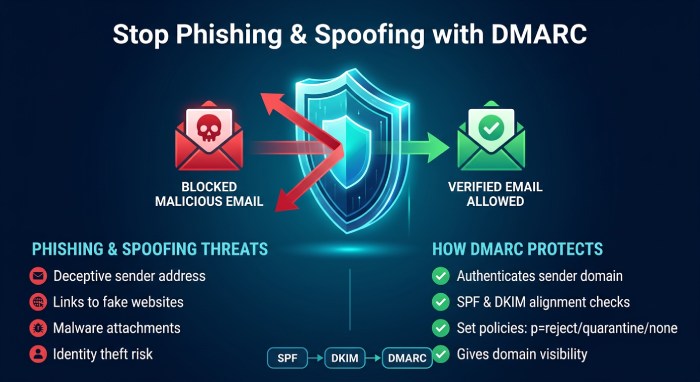
A valid DMARC record supports phishing protection and spoofing prevention by telling receiving systems how to handle messages that fail authentication. Without DMARC validation, attackers may attempt unauthorized use of lookalike or dormant domains. This is especially risky for organizations with multiple brands, regional domains, parked domains, or legacy infrastructure.
Using a DMARC Check across all domains ensures that each domain has a published DMARC policy, whether that policy is p=none, p=quarantine, or p=reject.
Meeting modern sender requirements
The Yahoo and Google sender requirements have made DMARC more important for organizations with active email programs. Bulk senders must maintain proper SPF, DKIM, and DMARC configuration to protect deliverability and maintain compliance.
A centralized DMARC Record Checker allows a domain admin to verify whether each domain meets these requirements and identify missing records, syntax errors, or misconfiguration before they affect production mail.
Preparing Your Domain List and Required DNS Access
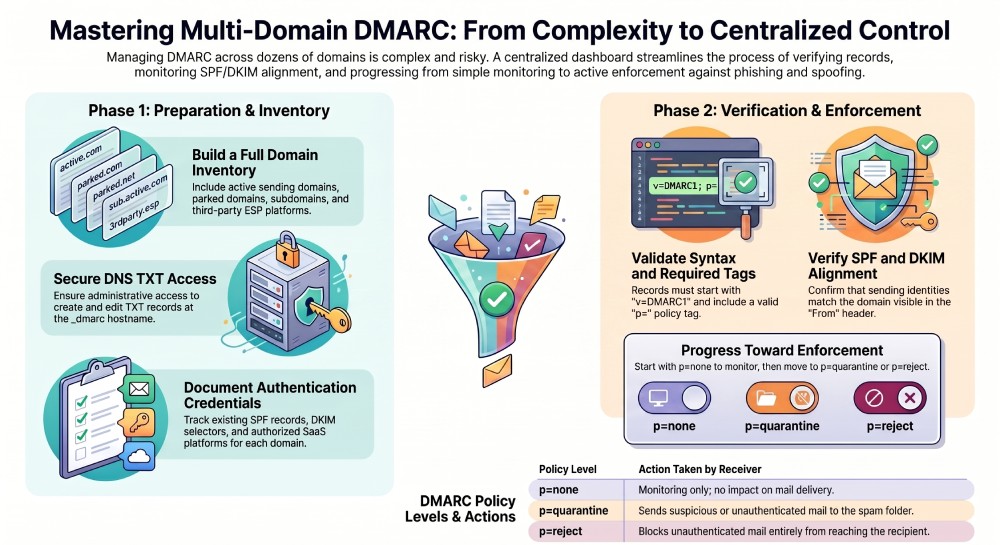
Before you validate DMARC records at scale, create a complete inventory of every domain and subdomain involved in your email program. Include active sending domains, parked domains, marketing domains, transactional email domains, and domains used by an Email Service Provider (ESP).
Building a complete domain inventory
Your domain list should include the root DOMAIN, any POLICY_DOMAIN used for organizational alignment, and subdomains that may inherit a PARENT_POLICY. For example, if example.com has a DMARC record, subdomains may inherit the organizational policy unless a separate subdomain policy is defined.
For each domain, document:
- DNS provider and account owner
- Current SPF record using Sender Policy Framework
- DKIM selectors used by DomainKeys Identified Mail
- DMARC record location, such as
_dmarc.example.com - ESPs or SaaS (Software as a Service) platforms authorized to send mail
- Reporting addresses for aggregate reports and forensic reports
Confirming DNS and TXT record access
To create or modify a DMARC record, you need access to the domain’s DNS zone. The DMARC record is published as a TXT record, sometimes shown in DNS portals as “TXT Record.” A DMARC Record Lookup queries DNS to confirm that the TXT record exists and is readable by mail receivers.
Required DNS permissions
At minimum, the domain admin should be able to:
- Add or edit a TXT record at
_dmarc - Review existing SPF and DKIM TXT record values
- Remove duplicate or conflicting DMARC records
- Update reporting destinations such as rua and ruf
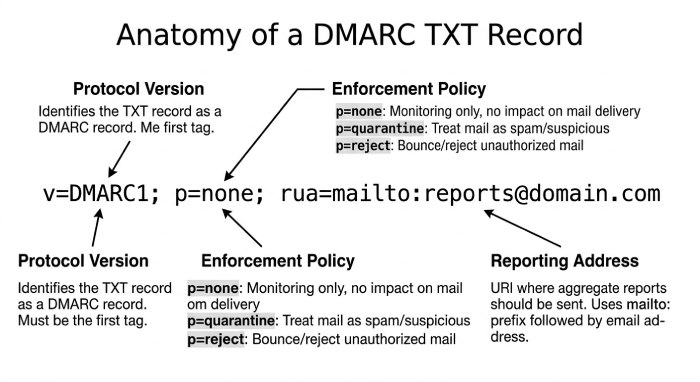
Example DMARC TXT record
_dmarc.example.com TXT "v=DMARC1; p=none; rua=mailto:dmarc-reports@example.com; ruf=mailto:dmarc-failures@example.com; pct=100; ri=86400"This TXT record includes a none policy, reporting addresses, a percentage tag, and a reporting interval.
Checking DMARC Records: Syntax, Policy, Alignment, and Reporting Tags
Once your domain inventory is ready, use a DMARC Record Checker or DMARC Record Lookup process to inspect each DMARC record. The goal is not only to confirm that a DMARC record exists, but also to verify whether the configuration follows RFC 7489 and supports your organization’s email security goals.
Validating syntax and required tags
A DMARC Check should confirm that each DMARC record starts with v=DMARC1 and includes a valid p= policy. Common values are:
- p=none for monitoring
- p=quarantine for suspicious mail handling
- p=reject for blocking failing messages
DMARC validation should also detect syntax errors such as missing semicolons, unsupported tags, invalid mailto formatting, or multiple DMARC records at the same DNS name. Even a small typo in the TXT record can cause a mail receiver to ignore the entire DMARC record.
Common syntax and configuration issues
A diagnostic tool should flag:
- More than one DMARC record for the same domain
- Missing
p= tag - Invalid rua or ruf destination
- Incorrect
_dmarchostname - Unsupported reporting format values
- Misconfiguration caused by copy-pasted records from another domain
A strong DMARC Record Checker should explain the issue clearly so the domain owner can correct the DNS configuration quickly.
Reviewing policy, alignment, and reporting
DMARC relies on SPF alignment and DKIM alignment. SPF checks whether the sending IP is authorized by the domain’s Sender Policy Framework record. DKIM checks whether the message has a valid DomainKeys Identified Mail signature. DMARC then confirms whether either SPF or DKIM aligns with the visible From domain.
Alignment mode can be relaxed or strict:
aspf=roraspf=sfor SPF alignmentadkim=roradkim=sfor DKIM alignment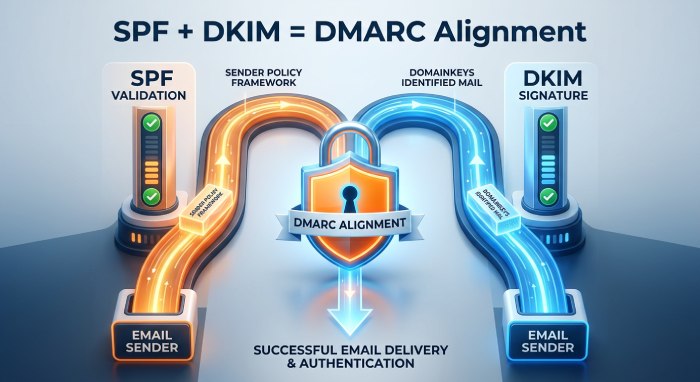
Reporting tags to verify
A complete DMARC Record Lookup should inspect reporting tags, including:
- rua for aggregate reports
- ruf for forensic reports or failure reports
- rf for report format, such as afrf or iodef
- pct for percentage tag enforcement
- ri for reporting interval
Aggregate reports are commonly delivered as XML reports and provide visibility into authentication results by source. Forensic reports are less widely supported by receivers, but they can still be useful in controlled environments.
Using a Single Dashboard to Monitor Verification Status and Issues
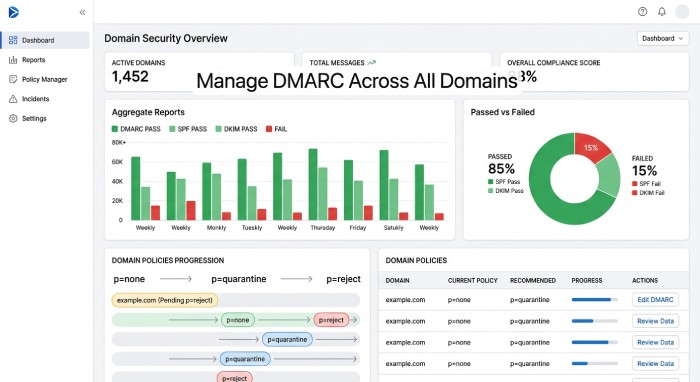
A single dashboard is the most efficient way to validate DMARC records across many domains. Instead of running a manual DMARC Check one domain at a time, a centralized diagnostic tool can automate DNS queries, record testing, policy review, and reporting analysis.
Centralized DMARC Check workflows
Platforms such as MXToolbox, dmarcian, EasyDMARC, and similar services provide DMARC Record Checker capabilities for multiple domains. Some include a DMARC Record Wizard, guided configuration checks, alerting, and a 30 day trial for evaluation.
A good dashboard should allow you to:
- Import a list of domains
- Run a DMARC Record Lookup for each domain
- Validate DMARC records against RFC 7489
- Identify missing TXT record entries
- Track policy changes from
p=nonetop=quarantineorp=reject - Monitor aggregate reports from Google, Yahoo, Microsoft, and other mail receiver networks
Prioritizing issues by risk
Not every DMARC validation issue has the same urgency. A dashboard should classify findings so the security team knows what to fix first.
High-priority issues include:
- No DMARC record found
- Invalid TXT record syntax
- Multiple DMARC records
- Reporting disabled or malformed
- Active sending domain stuck on none policy without monitoring
- SPF or DKIM failing alignment
Lower-priority issues may include missing optional tags, conservative percentage tag settings, or lack of forensic reports where mail receivers do not support them.
Dashboard metrics that matter
Look for dashboards that show:
- Verification status per domain
- DNS propagation status
- DMARC policy level
- SPF and DKIM pass rates
- Authentication results by source
- Reporting coverage and XML reports received
- Trend data for spoofing attempts
A single diagnostic tool should make DMARC validation repeatable, especially when new domains are acquired, delegated, or connected to a new ESP.
Best Practices for Ongoing DMARC Management and Compliance
DMARC is not a one-time setup task. To maintain email security, deliverability, and compliance, organizations should routinely validate DMARC records and monitor changes across every domain.
Operational best practices for multiple domains
Start with visibility. For active sending domains, begin with p=none while collecting aggregate reports. Use the data to identify legitimate senders, fix SPF and DKIM authentication gaps, and confirm alignment. After the email program is stable, move gradually to p=quarantine, and eventually to p=reject where appropriate.
For non-sending domains, consider publishing a restrictive DMARC policy immediately, often alongside SPF and DKIM controls that prevent abuse. This helps reduce unauthorized use, strengthens spoofing prevention, and protects the domain from phishing attacks that could damage brand reputation or mislead recipients.
 Recommended ongoing practices include:
- Run a scheduled DMARC Check for every domain
- Use a DMARC Record Checker after every DNS change
- Perform a DMARC Record Lookup before onboarding a new ESP
- Confirm rua reporting is active and monitored
- Review ruf, rf, afrf, and iodef only where supported and appropriate
- Track pct changes during enforcement rollouts
- Confirm ri values align with reporting expectations
- Review subdomain policy inheritance and overrides
- Maintain documentation for each domain owner and domain admin
- Validate DMARC records monthly or after mergers and acquisitions, rebrands, and migrations to ensure email authentication policies remain accurate and effective across all domains.
A single dashboard makes these best practices easier to enforce. It creates visibility across the full domain portfolio, improves record testing consistency, and helps teams detect DNS changes before they damage deliverability or weaken email authentication.
General Manager
General Manager at DuoCircle. Product strategy and commercial lead across the email security portfolio.
Secure your email infrastructure
Protect, authenticate, and deliver. Contact our team to find the right solution.