Power BI Dashboard Refresh Issues: Why Your Data Isn't Updating

Quick Answer
Power BI dashboard refresh issues can occur due to incorrect data source connections, gateway failures, credential errors, or scheduled refresh limits. Learn common causes and effective solutions to keep your reports updated and ensure accurate, reliable data.
Your Power BI dashboard still shows yesterday’s sales, even though the database contains today’s transactions. You refresh the browser, reopen the report, and check the data source, but the numbers haven’t changed. To make things more confusing, Power BI might even show a successful refresh status.
The problem isn’t always a failed refresh. Power BI updates semantic models, report visuals, and dashboard tiles through different processes, and each has its own refresh behavior. When one part falls behind, your dashboard can show outdated information even though the underlying database works correctly.
Why Your Power BI Dashboard Still Shows Old Data
A Power BI dashboard doesn’t necessarily retrieve fresh information from the database whenever someone opens it. The data users see depends on the semantic model, its storage mode, and the last successful refresh. Even if the source database contains newer records, the dashboard may not reflect those changes yet.
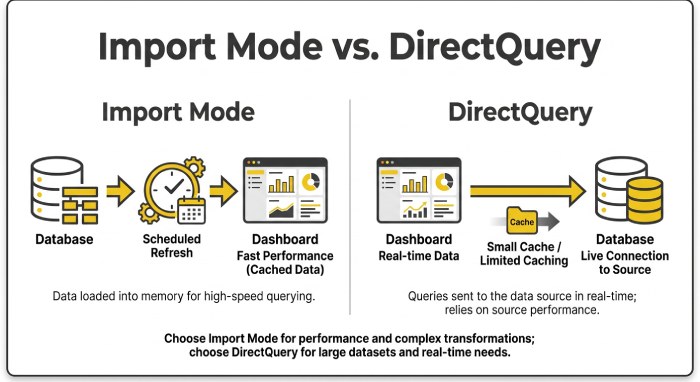
With Import mode, Power BI stores a copy of the source data inside its semantic model. Consider a sales dashboard that refreshes every morning at 7 a.m. By noon, the database might contain hundreds of additional transactions, but the dashboard still relies on records imported during the morning refresh. Nothing has failed; the model simply hasn’t retrieved the newer transactions.
DirectQuery works differently because Power BI queries the underlying source rather than importing all its data into the model. However, standard dashboard tiles can still display cached results until their next tile refresh, which generally occurs about every hour unless configured differently. Import models normally update their dashboard tiles during semantic model refreshes, so the reason for outdated information depends on the connection type. This is also why repeatedly refreshing the browser doesn’t necessarily change the numbers.
Why Scheduled Power BI Refresh Stops Working
Sometimes Power BI stops importing new information altogether, even though the refresh schedule previously worked without problems. Authentication changes, gateway failures, and disabled schedules are among the most common reasons.
Data Source Credentials Have Expired
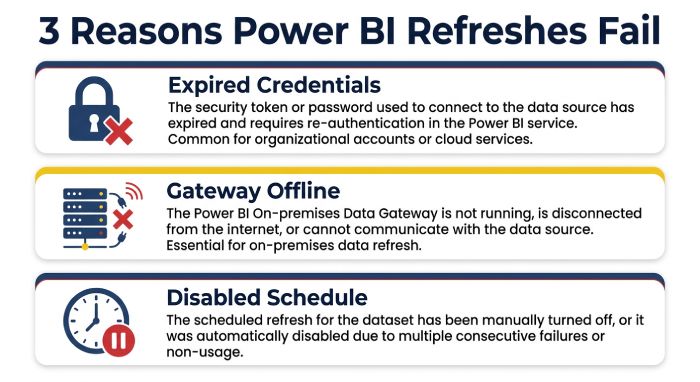
Power BI needs valid credentials to retrieve information from connected databases and cloud services. A changed password, expired authentication token, or updated security policy can interrupt that connection without affecting the database itself. Proper email authentication helps secure related email communications and reduce the risk of unauthorized access. The dashboard may remain accessible because it continues displaying previously imported data, while the semantic model’s refresh history records the authentication failure.
The On-Premises Data Gateway Isn’t Working
An on-premises data gateway lets Power BI communicate with databases and other sources not directly accessible from the cloud. If the gateway goes offline, loses connectivity, or has an incorrect data source mapping, scheduled refresh may fail even if the source system is available. Even an online gateway can cause problems when its configured connection details don’t match those used by the published semantic model.
Power BI Has Disabled Scheduled Refresh
Power BI automatically turns off scheduled refresh after four consecutive failures or when it encounters certain unrecoverable configuration errors. It can also pause scheduled refresh after two months without activity on reports or dashboards connected to the semantic model. The original connection problem might already be resolved, but the schedule may remain disabled until someone reviews the settings and resumes refreshing.
Why a Successful Refresh Still Shows Outdated Data
A successful refresh status confirms that Power BI completed a refresh operation, but it doesn’t guarantee that every recent business transaction was included. The source data, incremental refresh configuration, and report calculations can still affect the numbers displayed.
The Source Data Wasn’t Ready When Power BI Refreshed
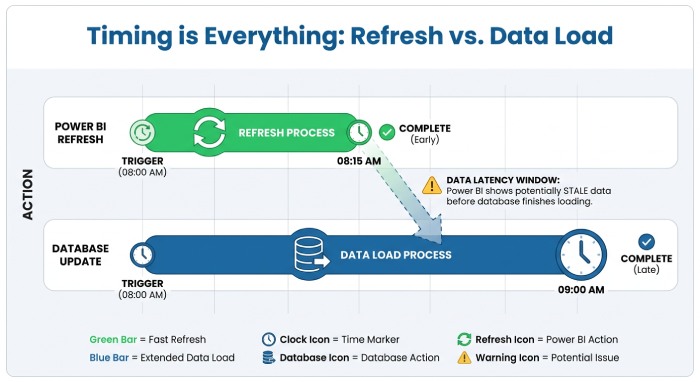
Imagine a reporting database that receives its daily sales records at 8 a.m. At the same time, the Power BI refresh starts at 7:45 a.m. Power BI imports the available records, but the latest transactions haven’t reached the database yet. The refresh history shows success, even though the dashboard remains one reporting cycle behind.
Incremental Refresh Skipped Historical Changes
Incremental refresh improves performance by updating selected data partitions instead of reloading the entire dataset. However, if a company corrects a three-month-old invoice while its refresh policy processes only the most recent seven days, that historical correction may never reach the model through regular refresh. The process completes successfully because Power BI refreshed the configured partitions, but the financial totals can still reflect outdated historical records.
DAX Measures or Report Filters Exclude New Records
Sometimes the semantic model contains fresh data, but a DAX measure or report filter prevents those records from appearing in the expected total. A sales measure might calculate revenue using order dates while the business expects figures based on payment dates, creating differences that resemble refresh problems. Another refresh won’t fix that calculation because the issue lies in the model’s reporting logic, not missing source records.
Signs That Help Identify a Power BI Refresh Problem
Different refresh failures leave different clues, so the dashboard’s behavior often shows where to start investigating. These indicators can help distinguish missing source records from outdated tiles or inconsistent report versions.
- Source records exist, but model tables still lack them.
- Model totals match, while pinned dashboard tiles remain outdated.
- Refresh history shows failures alongside authentication or gateway errors.
- A completed refresh precedes the upstream pipeline’s final load.
- Historical adjustments remain absent despite successful incremental refresh runs.
- Desktop displays corrections that the published service version lacks.
Why Power BI Desktop and the Published Report Show Different Data
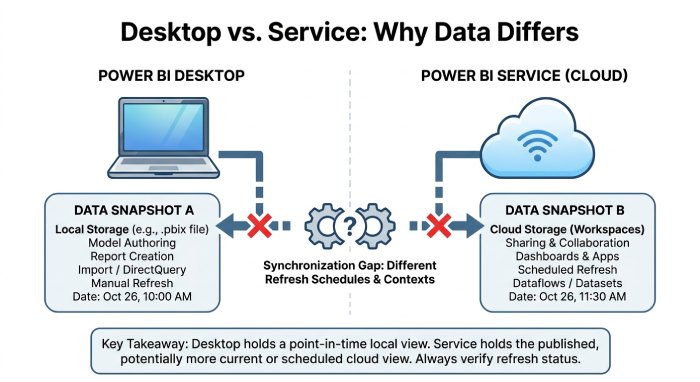
A report can show correct figures in Power BI Desktop while its published version still shows older information. That’s because refreshing a PBIX file locally doesn’t automatically refresh the semantic model published to the Power BI service. As a result, the two environments can contain different snapshots of the same source, even when the report design looks identical.
Connection settings can introduce another difference. A developer might connect Desktop to a production database while the published model still points to a staging environment, or the environments may use different Power Query parameters. Both connections can refresh successfully, but the records they retrieve won’t necessarily match. This is particularly easy to overlook when reports move between development, testing, and production workspaces.
Sometimes the difference isn’t caused by the underlying data. A developer may correct a DAX measure, modify a relationship, or update a Power Query transformation locally without publishing those changes. The service keeps using its existing model definition, so that a refresh won’t apply the revised calculations. You need to publish or deploy the updated model when the discrepancy comes from structural changes rather than missing transactions. Accurate monitoring helps identify email security issues and track authentication performance. Learn more about email security and ways to protect business communications.
How to Troubleshoot a Power BI Dashboard That Won’t Refresh
The most effective way to investigate refresh problems is to follow the data from its source to the dashboard. This approach helps you identify the failing component without changing settings that already work correctly.
Check Whether the Semantic Model Contains Fresh Data
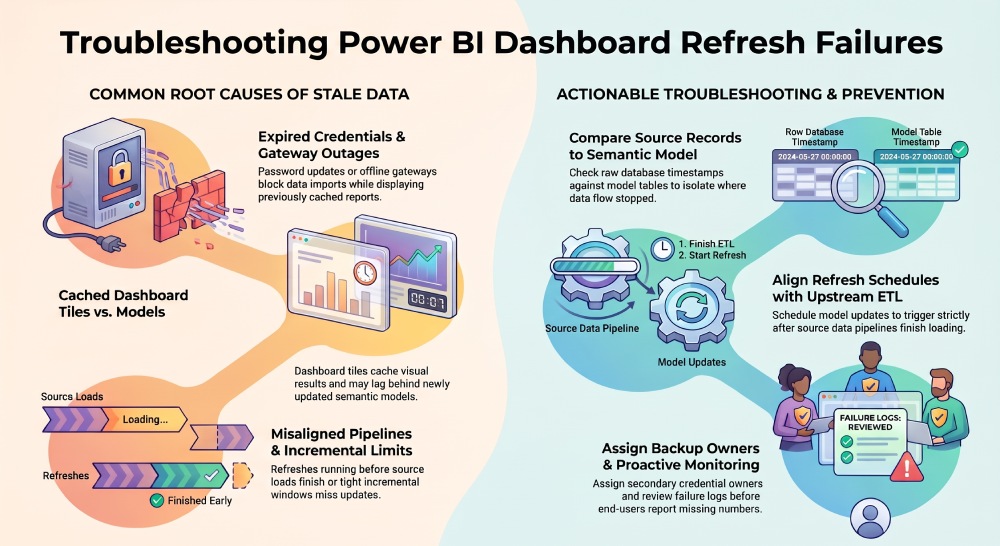
Compare a recent transaction in the source database against the same record in Power BI to identify where the information stopped updating. If the database contains the transaction but the semantic model doesn’t, the refresh process, source query, or incremental refresh configuration needs attention. The refresh history in the Power BI service can then reveal failed attempts, execution times, and error messages that explain why newer records weren’t imported.
Compare Dashboard Tiles With Their Source Reports
When the semantic model contains current data, the next useful comparison is between the dashboard tile and its source report. If the report shows updated figures while the pinned dashboard tile still shows older totals, the difference may be due to tile caching rather than a failed data import. For DirectQuery and live connection models, the dashboard tile refresh schedule deserves particular attention because tiles can retain cached results between refreshes.
Review Refresh Ownership and Connection Settings
If scheduled refresh remains disabled or you can’t update its configuration, the semantic model’s ownership and connection settings become relevant. A Power BI permission issue may prevent someone from changing refresh settings, although permissions alone don’t make the underlying data outdated. Users with Write permission can manually trigger semantic model refreshes, but only the semantic model owner can configure scheduled refresh and data source credentials. Ownership may therefore need to transfer when the original administrator no longer maintains the model.
How to Prevent Recurring Power BI Refresh Failures
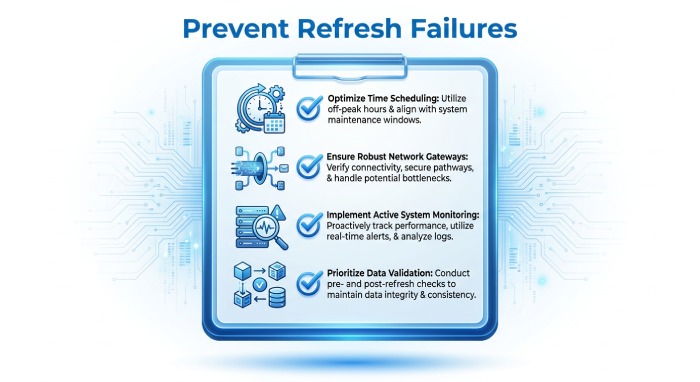
Resolving the immediate error gets the dashboard working again, but reliable updates depend on how you maintain the refresh process. The schedule must match upstream data availability, and gateway connections and credentials need ongoing attention.
- Schedule semantic model refresh after upstream pipelines finish loading.
- Assign backup owners for credentials, gateways, and refresh schedules.
- Monitor refresh failures before users report missing daily figures.
- Keep gateway software updated and regularly review connection mappings to ensure reliable email backup.
- Match incremental refresh windows to real historical correction patterns.
- Compare source timestamps with model freshness during routine checks.
Power BI dashboard refresh problems don’t always mean the refresh process has failed. The semantic model might contain older records, dashboard tiles may still be cached, or recent business changes may fall outside the configured refresh window. A successful refresh status alone cannot confirm that the displayed figures are current.
The distinction becomes clearer when you examine the source database, semantic model, report, and dashboard separately. Each stage shows where the data stopped updating and what needs attention. Once teams understand that difference, they can fix the actual problem instead of repeatedly refreshing a dashboard with nothing new to display.
Topics
General Manager
General Manager at DuoCircle. Product strategy and commercial lead across the email security portfolio.
Secure your email infrastructure
Protect, authenticate, and deliver. Contact our team to find the right solution.