Why Google Workspace Emails Pass SPF But Fail DKIM: Common Causes And Fixes

Quick Answer
Google Workspace emails may pass SPF but fail DKIM due to incorrect DNS records, missing selectors, or signing configuration errors. Learn the common causes and fixes to restore email authentication, improve deliverability, and protect domain reputation.
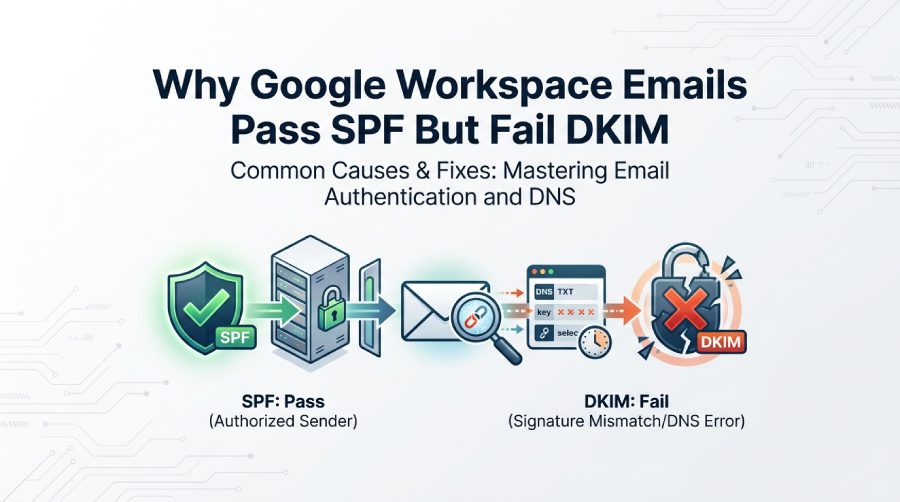
Google Workspace emails can pass SPF authentication but still fail DKIM, creating email deliverability and security challenges. This issue often occurs due to incorrect DNS records, missing DKIM keys, selector mismatches, or incomplete authentication settings. Understanding the common causes and applying the right fixes can help organizations improve email authentication, prevent spoofing, and maintain reliable email delivery.
SPF vs. DKIM in Google Workspace: Why One Can Pass While the Other Fails
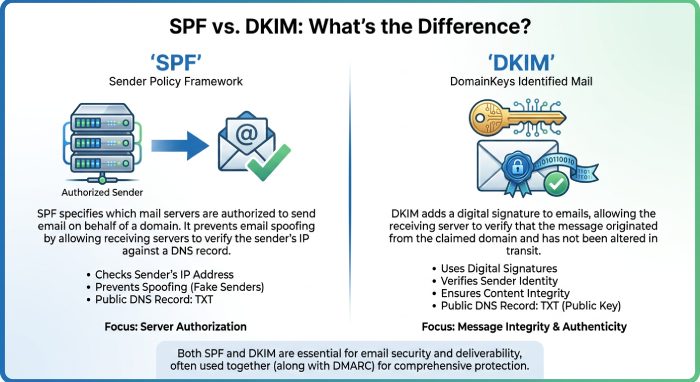
In Google Workspace, SPF and DKIM are separate email authentication mechanisms. SPF checks whether the sending email server or mail server is authorized to send for a domain. DKIM, by contrast, uses a cryptographic DKIM signature to prove that the message was signed with a private key and can be verified against a public key published in DNS.
That distinction explains why a message can pass SPF but fail DKIM. For example, Gmail may send mail from an approved Google LLC server, so SPF passes. But if the DKIM key is missing, the wrong selector is used, or the public key in the DNS TXT record does not match the private key used by Google Workspace, DKIM authentication fails.
How SPF can pass independently of DKIM
If your domain has an SPF TXT record that authorizes Google Workspace, such as include:_spf.google.com, Google Workspace messages can pass SPF even when DKIM is not configured correctly. A typical SPF record for a domain that sends email only through Google Workspace is:
v=spf1 include:_spf.google.com ~allIf your domain also uses third-party email services, include their authorized sending sources in the SPF record rather than publishing a separate SPF record.
What DKIM proves that SPF does not
DKIM proves message integrity. When Google Workspace signs a message, it adds a DKIM-Signature header to the email header. Receiving systems check the selector, locate the public key in the DNS TXT record, and verify that the DKIM signature matches.
SPF does not protect the message body or headers in the same way. That is why DKIM is important for email spoofing prevention and DMARC alignment. An aligned DKIM pass can help a message satisfy DMARC requirements. DKIM authentication also contributes to BIMI readiness, although BIMI requires additional conditions, including an enforced DMARC policy and a properly configured BIMI record.
Common DKIM Failure Causes: Missing DNS Record, Wrong Selector, or Propagation Delays
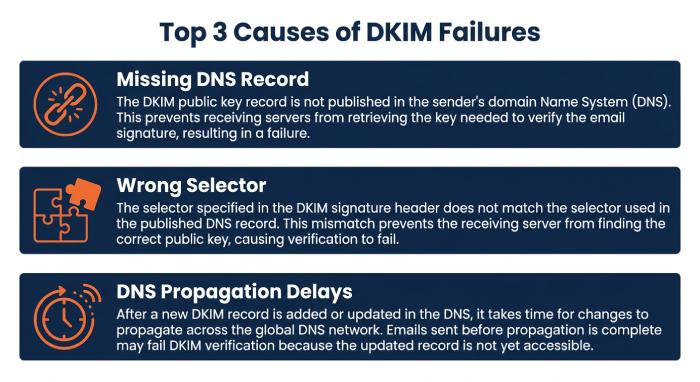
Most DKIM failures in Google Workspace come down to DNS. The Admin console may show that DKIM is enabled, but the receiving server cannot find or validate the required DNS TXT record.
A Google Workspace admin should first check whether the DKIM key was actually published at the domain provider or domain registrar. The public key must be placed in the correct TXT record, using the exact Host and TXT record value provided by Google.
Missing or malformed DKIM record
A missing DNS TXT record means receiving servers cannot find the public key. A malformed DKIM record means the TXT record exists but is broken, truncated, duplicated, or formatted incorrectly.
Common problems include:
- Publishing the DKIM key under the wrong Host name.
- Selecting the wrong record type instead of TXT.
- Copying only part of the TXT record value.
- Adding quotation marks incorrectly.
- Creating the record at the wrong domain host.
- Publishing a public key for a different domain.
A malformed DKIM record may cause the receiver’s Authentication-Results header to show dkim=fail, dkim=neutral, or no DKIM result at all. In a healthy configuration, you may see a DKIM pass result, sometimes displayed as DKIM=OK.
Wrong selector or prefix selector
The selector tells the receiving email server where to find the public key. In Google Workspace, the selector is commonly google, though admins may see this described as a prefix selector in the Admin console.
If the selector in the DKIM-Signature header does not match the selector used in DNS, the receiving mail server will query the wrong DNS TXT record. For example, if the DKIM signature references google._domainkey.example.com but the DNS TXT record was published under a different selector, DKIM fails.
DNS propagation delays
Even when the DNS TXT record is correct, DNS propagation can take time. Some domain registrar systems update quickly, while others may take several hours or longer.
During this window, one receiver may verify DKIM successfully while another still fails. If you recently added the DKIM key, wait for propagation before assuming the configuration is broken.
Google Workspace DKIM Setup Issues: Admin Console Configuration and Key Length Problems
Google Workspace DKIM is managed in the Admin console. A super administrator or an account with the Gmail Settings administrator privilege can generate DKIM key records, turn on DKIM, and verify DKIM status.
Older G Suite configurations may still have legacy DKIM settings, so administrators should review the current Google Workspace Admin Console rather than relying on old documentation or outdated DNS entries.
Generating and publishing the DKIM key pair
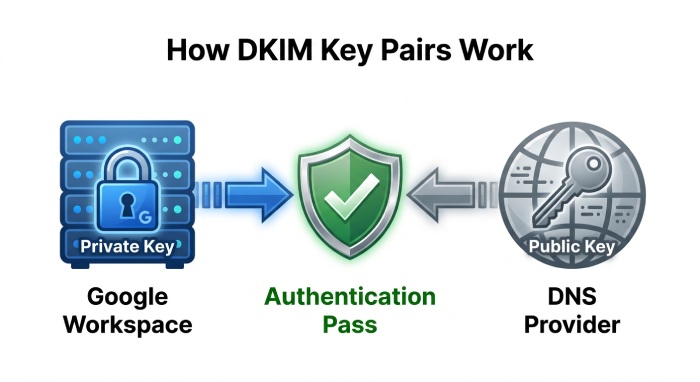
When you generate DKIM key data in Google Workspace, Google creates a key pair: a private key and a public key. The private key remains with Google and is used to create the DKIM signature on outbound messages. The public key is copied into a DNS TXT record so receivers can verify the DKIM signature. This relationship is critical. If the private key used by Google Workspace does not match the public key published in DNS, DKIM authentication fails. If you regenerate the DKIM key in the Admin console but forget to replace the old public key at your domain provider, messages may continue to fail DKIM.
2048-bit vs. 1024-bit DKIM keys
Google recommends using a 2048-bit key when the domain host supports it. A 2048-bit key provides stronger authentication than a 1024-bit key. However, some DNS providers historically had TXT record length limits, which caused problems when publishing long DKIM key values.
If your domain provider cannot handle the longer TXT record value, you may need to use a 1024-bit key or contact the domain provider for proper DNS formatting support. The key length must be supported both by Google Workspace and the DNS platform where the public key is published.
Admin console status does not always mean DNS is correct
The Admin console can help you verify DKIM, but admins should still inspect DNS directly. In some cases, the Admin console may show that a DKIM key was generated, but the DNS TXT record was never added. In other cases, the DNS record exists, but it belongs to another domain, subdomains are misconfigured, or the selector is wrong.
To authenticate email successfully and strengthen email security, Google Workspace must be able to sign outgoing mail with the private key, while receiving systems must retrieve the matching public key from the correct DNS TXT record.
Third-Party Senders and Forwarding: When SPF Passes but DKIM Breaks
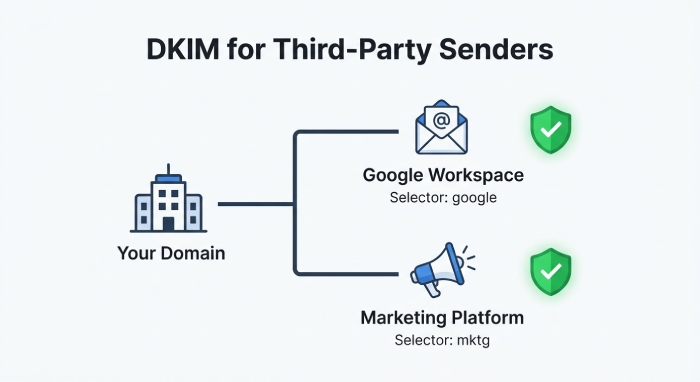
Third-party platforms complicate DKIM. If your organization uses customer relationship management (CRM) tools , marketing platforms, ticketing systems, or outbound gateways, those systems may send mail using your domain but not sign with your Google Workspace DKIM key.
Bulk senders are especially affected by Google’s Email sender guidelines, which emphasize SPF, DKIM, and DMARC alignment. BIMI also depends on strong authentication, so DKIM failures can prevent brand indicators from appearing in supported inboxes.
Third-party platforms need their own DKIM setup
A third-party email server cannot use the Google Workspace private key. Instead, the platform usually provides its own DKIM key, selector, and DNS TXT record. You must add that public key to DNS separately.
For example, your primary Google Workspace DKIM selector may be google, while your marketing platform uses another selector. Both can coexist under the same domain if each DNS TXT record is published correctly.
This is why a message sent through Gmail may pass DKIM, while a campaign sent through another provider fails. The domain is the same, but the DKIM key and private key are different.
Forwarding and message modification
Forwarding can also break DKIM. If a forwarding service modifies the subject line, footer, body, or certain headers, the original DKIM signature may no longer validate. SPF may also fail during forwarding unless the forwarder uses Sender Rewriting Scheme (SRS), but in some routed environments SPF can still pass while DKIM breaks.
Outbound gateway configurations can create similar issues. If an outbound gateway modifies messages after Google Workspace signs them, the DKIM signature may become invalid. In that case, configure the outbound gateway to preserve signed content or perform signing after modification.
Step-by-Step Fixes: Verify DNS, Regenerate DKIM Keys, Test Authentication, and Align DMARC
To troubleshoot DKIM issues, take a structured approach. Do not assume SPF pass means DKIM is working. SPF, DKIM, and DMARC should be tested separately.
1. Check the DKIM settings in the Admin console
Sign in as a super administrator or an admin with the Gmail Settings administrator privilege. In the Google Workspace Admin console, go to Gmail authentication settings and confirm whether DKIM is enabled for the domain.
If DKIM is not active, generate DKIM key data, publish the public key, then return to the Admin console and start authentication. This is the step that tells Google Workspace to begin signing mail with the private key.
2. Verify the DNS TXT record
At your domain registrar or domain provider, confirm that the DNS TXT record matches Google’s instructions exactly.
Check:
- Host value, such as
google._domainkey - Record type, which must be TXT.
- Full TXT record value, including the complete public key.
- Correct domain and any relevant subdomains.
- No duplicate or conflicting DKIM records for the same selector.
If the public key is incomplete or the DNS TXT record is published under the wrong Host, DKIM will fail even though the DKIM key exists in Google Workspace.
3. Regenerate the DKIM key if needed
If the DKIM key appears inconsistent, regenerate it in the Admin console. Google Workspace will create a new key pair. Replace the old public key in DNS with the new public key, then wait for propagation before selecting start authentication.
Regenerating the DKIM key is useful when the original TXT record value was lost, copied incorrectly, or associated with an old G Suite setup.
4. Test with message headers
Send a test message from Gmail to an external mailbox and inspect the email header. Look for:
- DKIM-Signature header
- Authentication-Results
- dkim=pass
- DKIM=OK
- SPF result
- DMARC result
If the Authentication-Results show DKIM fail, compare the selector in the DKIM-Signature header with the DNS TXT record. If there is no DKIM-Signature header, Google Workspace may not be signing mail, or DKIM may not have been turned on in the Admin console.
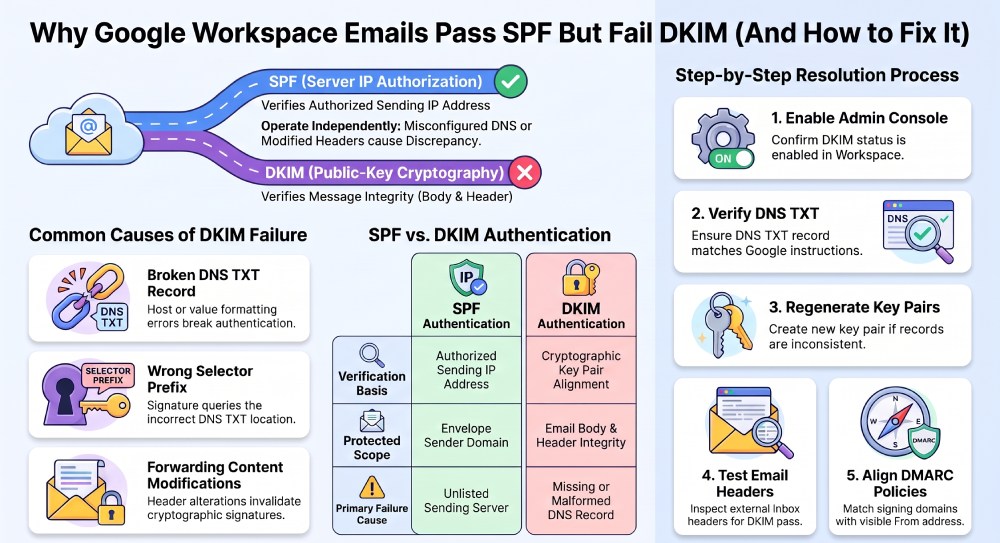
5. Align DKIM with DMARC and sender identity
DMARC checks whether SPF or DKIM aligns with the visible From domain. A message can pass DKIM technically but still fail DMARC if the signing domain does not align.
For strong email authentication, configure SPF, DKIM, and DMARC together. If you use third-party bulk senders, make sure each one can authenticate email with an aligned DKIM signature. For BIMI, alignment and consistent authentication are even more important.
When Google Workspace emails pass SPF but fail DKIM, administrators should investigate the entire authentication process. Check the DKIM signing configuration, DNS TXT record, selector, and public key to identify the source of the failure. Reviewing email headers and testing SPF, DKIM, and DMARC separately can help confirm whether the issue comes from DNS configuration, message modification, or an incomplete authentication setup.
Topics
General Manager
General Manager at DuoCircle. Product strategy and commercial lead across the email security portfolio.
Secure your email infrastructure
Protect, authenticate, and deliver. Contact our team to find the right solution.