Why Knowbe4 Phishing Simulation Emails Fail DKIM Authentication

Quick Answer
KnowBe4 phishing simulation emails may fail DKIM authentication due to incorrect DNS records, missing selectors, or misconfigured sending domains. Learn how to verify DKIM signatures, fix authentication errors, and improve email deliverability while maintaining effective security controls.
KnowBe4 phishing simulation emails can fail DKIM (DomainKeys Identified Mail) authentication for several reasons, including missing or incorrect DNS records, disabled DKIM signing, mismatched selectors or signing domains, and changes to signed message content during email delivery. These issues can prevent receiving mail servers from validating a message’s DKIM signature.
DKIM authentication and DMARC alignment are related but separate checks. A message can have a valid DKIM signature and still fail DMARC if the signing domain does not align with the domain in the visible From address and SPF does not provide an alternative aligned pass. Identifying the specific authentication result in the email headers helps administrators determine whether the problem involves DKIM configuration, message modification, or domain alignment.
How DKIM Authentication Works and Why It Matters for Phishing Simulations
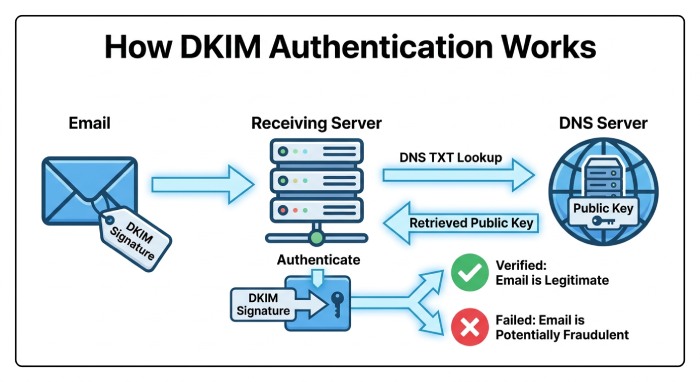
DKIM, short for DomainKeys Identified Mail, is an email authentication standard that allows a receiving mail server to verify that a message was authorized by the owner of a specific domain and was not altered in transit. DomainKeys Identified Mail works by adding a DKIM signature to the email headers. The receiving system then looks up a public key in DNS, usually stored as a TXT record, and uses that key to validate the message.
For KnowBe4 phishing emails and training emails, the process is especially important because simulated phishing often resembles real-world domain spoofing. Security gateways, Microsoft Defender, Egress, Microsoft 365, Exchange Online, and other filtering tools may treat simulated phishing emails cautiously unless DKIM verification, SPF, and DMARC alignment are configured properly.
What the DKIM Signature Actually Verifies
A DKIM signature validates selected portions of the message body and email headers. The sending system generates a hash of the signed message content and uses a private key to create a digital signature. The receiving server retrieves the corresponding public key from DNS using the selector and signing domain specified in the DKIM-Signature header, then verifies the signature. DKIM does not encrypt the email itself; it helps verify the signature and the integrity of the signed content.
When the recipient server receives the message, it retrieves the TXT record using the DKIM selector and signing domain listed in the DKIM signature. If signature validation succeeds, the recipient system has stronger evidence of email authenticity. If signature validation fails, the system may treat the message as spam or suspicious phishing.
For KnowBe4, this is why a custom DKIM signature is useful. A custom DKIM signature allows phishing emails and training emails to authenticate with a signing domain associated with your organization rather than relying only on KnowBe4-controlled infrastructure.
Common Reasons KnowBe4 Emails Fail DKIM Checks
KnowBe4 emails commonly fail DKIM checks because the DNS TXT record is missing, malformed, unpublished, or not aligned with the signing domain being used in the message. Another frequent cause is that administrators enable DKIM in the KSAT console but forget to complete the DNS settings at the DNS provider.
Missing, Incorrect, or Delayed DNS TXT Records
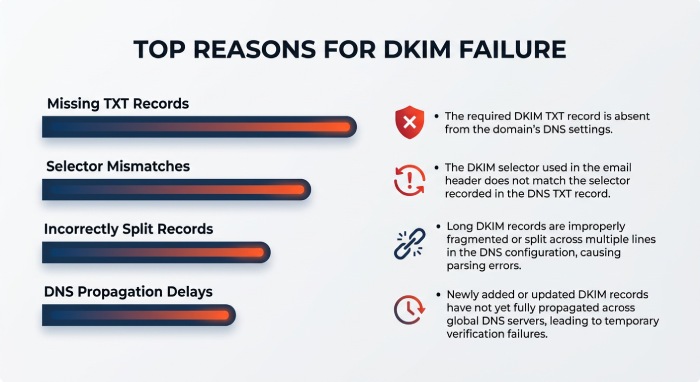
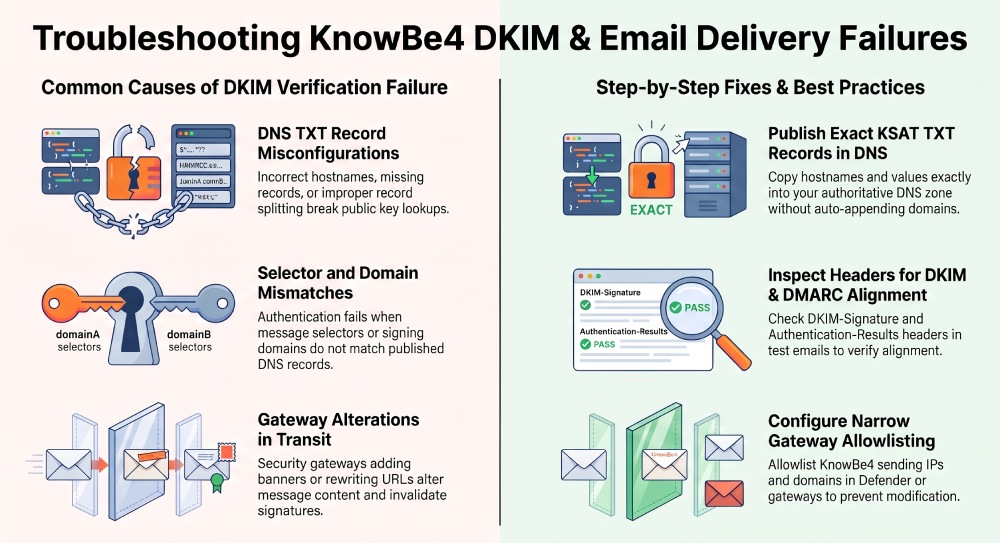
The most common reason for DKIM verification failure is an incorrect TXT record. When you enable DKIM, KnowBe4 provides a host name and TXT record value. You must copy host name details exactly and publish the DNS TXT record with your DNS provider. If the host name is truncated, the value is pasted into the wrong field, or the DNS provider modifies the formatting, the recipient server may be unable to locate the public key.
Some DNS platforms require administrators to split TXT record values if they exceed a character limit. A split TXT record must still resolve as one continuous value. If the TXT record is broken incorrectly, DomainKeys Identified Mail validation may fail even though the record appears to exist in the Admin Panel or DNS management interface.
DNS propagation can also delay authentication. After you add domain settings, create DKIM selector values, or publish a custom DKIM signature, it may take time before every recipient mail server can validate DNS TXT record information successfully.
Domain, Selector, and Signing Domain Mismatches
A DKIM selector tells the recipient where to find the public key. If the dkim selector in the message does not match the TXT record in DNS, the DKIM signature will fail. The same issue occurs when the signing domain in the DKIM signature does not match the custom domain configured in your KnowBe4 account.
For example, if the KnowBe4 account is configured to use your own signing domain but the DNS provider contains a TXT record for a different selector or subdomain, the verification process will fail. This is especially common when an administrator changes domains, adds a new allowed domain, or updates phishing settings and training settings without updating DNS.
Another issue occurs when organizations use multiple mail-related platforms, such as Microsoft 365, Exchange Online, PhishER, a secure email gateway, and third-party DNS or hosting providers such as Pagely. In these environments, a signing domain may appear valid in one system but still fail DKIM verification downstream because a Gateway, filtering service, or routing rule changes the message.
The Role of Envelope Sender, Header From, SPF, DMARC, and Email Forwarding
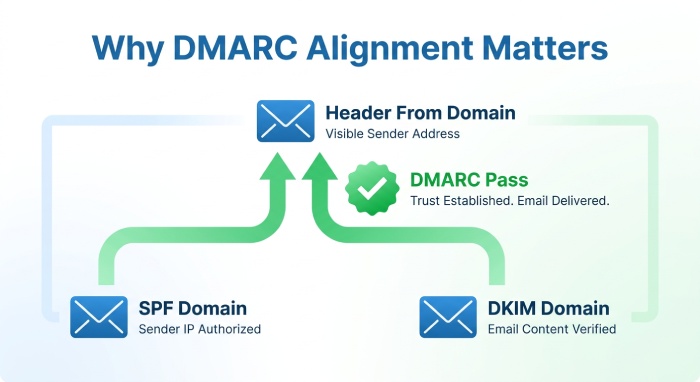
DKIM does not operate in isolation. Email authentication also includes SPF and DMARC. SPF checks whether the sending IP address is authorized by the envelope sender domain. DKIM checks the DKIM signature against DNS. DMARC then evaluates alignment between the Header From domain and either SPF or DKIM.
DMARC stands for Domain-based Message Authentication, Reporting and Conformance. It helps domain owners prevent abuse by instructing recipients what to do when email authentication fails. DMARC is essential for spoofing prevention, but it can also expose configuration problems in simulated phishing emails.
Why Alignment Matters for KnowBe4 Simulations
A message may pass DKIM technically but still fail DMARC if the signing domain does not align with the Header From domain. Likewise, SPF may pass for the envelope sender but not align with the visible Header From address. This is why dkim and dmarc considerations are important before launching a campaign.
In KnowBe4, phishing emails may use a spoofed display domain to simulate an attack. If the simulated Header From domain is not an allowed domain or is not configured for authentication, recipient systems may detect a domain spoof. A Domain Spoof Test can help identify whether your environment treats these messages as expected.
Forwarding can also cause problems. During email forwarding, SPF often fails because the forwarding server is not authorized by the original sender’s SPF record. DKIM should survive forwarding if the message body and signed email headers are unchanged. However, gateway behavior can break DKIM if a secure email platform appends banners, rewrites URLs, modifies attachments, or alters the message body.
How to Configure KnowBe4 DKIM Correctly in DNS and the KnowBe4 Console
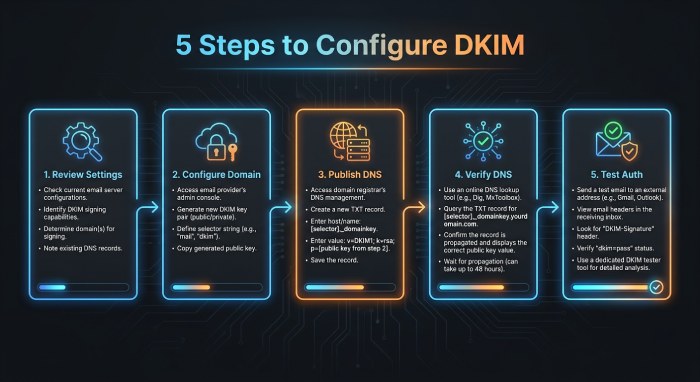
Configuring DKIM for KnowBe4 involves reviewing the relevant account settings, publishing the required DNS record, and verifying that email signatures authenticate successfully. The steps may differ depending on whether you are configuring phishing simulation emails or training emails.
Step-by-Step DKIM Configuration
1. Review KnowBe4 DKIM Settings
Sign in to the KnowBe4 Security Awareness Training (KSAT) console and review the account settings for phishing emails and training emails separately. Confirm which message types require DKIM signing and follow the applicable configuration instructions.
2. Configure the Signing Domain
If you use a custom DKIM signature, follow KnowBe4’s instructions to configure the appropriate signing domain and obtain the required DKIM selector and DNS record details. Make sure the domain and selector correspond to the configuration you intend to use.
3. Publish the Required DNS Record
Add the DNS record supplied by KnowBe4 to the authoritative DNS zone for the relevant domain. Check the record name, selector, record type, and value carefully to avoid configuration errors. Allow for DNS caching and propagation after making changes.
4. Verify the DNS Record
Use KnowBe4’s available verification options, along with an external DNS lookup if necessary, to confirm that the published record returns the expected public key. If the record cannot be found, check the hostname, DNS zone, and TXT record value.
5. Test DKIM Authentication
Send a test message and inspect its email headers. Review the DKIM-Signature and Authentication-Results fields to identify the signing domain, selector, and DKIM authentication result. If authentication fails, investigate DNS lookup errors, signature validation problems, or changes to signed message content.
Configuration Details That Commonly Get Missed
Administrators sometimes publish the TXT record under the wrong zone. For example, they may place the record under a subdomain zone when the signing domain expects it under the root domain zone. Others accidentally include the full domain twice in the host name because their DNS provider auto-appends the domain.
Another common issue is assuming that Microsoft 365 or Exchange Online DKIM settings automatically apply to KnowBe4. They do not. Microsoft 365 DKIM protects mail sent through Microsoft’s infrastructure. KnowBe4 requires its own custom DKIM signature, signing domain, and TXT record because KnowBe4 is the sending platform for the simulation.
If DKIM fails after configuration, inspect the email headers. Look for the DKIM signature, the selector, the signing domain, and the authentication-results header. These email headers usually reveal whether the issue is DNS lookup failure, body hash mismatch, selector mismatch, or DMARC alignment failure.
Best Practices for Troubleshooting KnowBe4 Email Delivery Issues
Ensuring successful KnowBe4 email delivery requires proper DKIM authentication, accurate DNS records, appropriate gateway settings, and regular monitoring. Even when DKIM is configured correctly, Microsoft Defender, Egress, spam filters, and other secure email gateways may block or modify phishing simulations and training messages.
Key Steps to Resolve Email Delivery Problems
- Verify DKIM Configuration: Check that DKIM is enabled in KnowBe4 Account Settings and that the correct signing domain is selected. Confirm that the TXT record provided by KnowBe4 is published correctly in your DNS provider. Use DNS lookup tools, KnowBe4 Support Tools, or the KSAT console to verify the record.
- Analyze Email Authentication Results: Examine the headers of delivered messages to determine whether DKIM, SPF, and DMARC checks passed. If authentication fails, compare the DKIM selector and signing domain with the published DNS record to identify configuration errors.
- Inspect Email Gateway Modifications: Security gateways may rewrite URLs, add warning banners, scan attachments, or alter message content. These changes can invalidate a DKIM signature. Review gateway policies and configure appropriate exceptions for authorized KnowBe4 simulations without compromising protection against genuine phishing attacks.
- Configure Safe Allowlisting: Ensure that the appropriate KnowBe4 sending domains and IP addresses are allowlisted in Microsoft 365, Exchange Online, Microsoft Defender, and any third-party email gateway. Apply narrowly scoped exceptions to support reliable email security while preventing legitimate training messages from being blocked and maintaining existing security controls.
- Escalate Persistent Delivery Issues: If the problem continues, contact KnowBe4 Support with the affected campaign details, complete email headers, signing domain, published TXT record, DNS provider information, and relevant configuration screenshots. For complex environments involving PhishER, Egress, Pagely DNS, or Microsoft 365 routing, document the entire email delivery path to help identify where authentication or filtering failures occur.
Topics
General Manager
General Manager at DuoCircle. Product strategy and commercial lead across the email security portfolio.
Secure your email infrastructure
Protect, authenticate, and deliver. Contact our team to find the right solution.