How to Configure SPF and DKIM for IONOS Email

Quick Answer
To configure SPF and DKIM for IONOS, identify your authoritative DNS provider, add the IONOS SPF mechanism to your existing SPF record, and publish the required DKIM CNAME records. Then verify DNS resolution and authentication results before configuring DMARC.
IONOS provides email hosting and related services that allow businesses and individuals to send messages using their own domains.
Two of the most important email security and authentication mechanisms are Sender Policy Framework (SPF) and DomainKeys Identified Mail (DKIM).
This guide explains how to configure SPF and DKIM for an IONOS domain, including situations where IONOS manages your DNS and cases where your DNS is hosted somewhere else.
Why SPF and DKIM Matter for IONOS Email
SPF allows a domain owner to publish a list of authorized email infrastructure in DNS.
When an email is received, the receiving server can compare the sending server with the information published in the domain’s SPF record.
DKIM works differently. It adds a cryptographic signature to outgoing messages. The receiving mail system can then retrieve the corresponding public key from DNS and use it to check whether the message was signed by an authorized system and whether the signed content has been altered.
Using both mechanisms gives receiving systems additional information when evaluating messages sent from your domain.
SPF and DKIM can also contribute to successful DMARC authentication and alignment, provided the relevant domain relationships are configured correctly.
Before You Begin
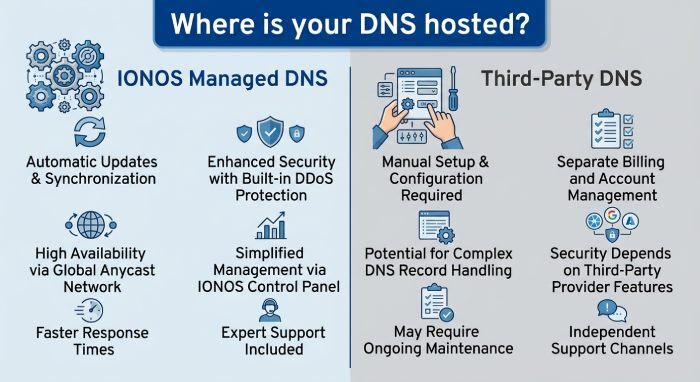
Before changing any DNS records, determine where your domain’s DNS is actually managed.
There are two common configurations:
- Your domain and DNS records are managed through IONOS.
- Your email service is IONOS, but your DNS is hosted by another provider.
This distinction matters because the location where you publish SPF and DKIM records must be the authoritative DNS provider for your domain.
Configure SPF for IONOS
SPF is published as a TXT record in DNS.
The configuration method depends on whether IONOS controls your DNS zone.
Option 1: Your DNS Is Managed by IONOS
If your domain uses IONOS DNS and IONOS is responsible for the relevant mail services, an IONOS SPF configuration may already be present.
If an SPF check is failing, however, inspect your domain’s DNS records to confirm that the appropriate SPF entry exists.
Step 1: Open Your IONOS DNS Settings
Sign in to your IONOS account and open the DNS management area for the domain you use for email.
Select the domain that sends your IONOS messages.
Step 2: Start Adding a DNS Record
Look for the option to create or add a DNS record.
Select the TXT record option or the available IONOS SPF configuration if it is presented as a predefined record.
Step 3: Select the IONOS SPF Configuration
If IONOS displays an SPF record specifically for its email infrastructure, select that configuration.
This can simplify the setup because the required IONOS SPF mechanism can be inserted into the domain’s DNS configuration.
Step 4: Save the DNS Configuration
Save the record and allow the DNS information to propagate.
If your domain already has an SPF record for other legitimate email senders, update the existing record to include IONOS rather than creating a separate SPF record or replacing the existing authorized sources.
Option 2: Your DNS Is Hosted Outside IONOS
You may use IONOS for email while keeping DNS management with another provider.
In this situation, the SPF record must be edited at your actual DNS provider.
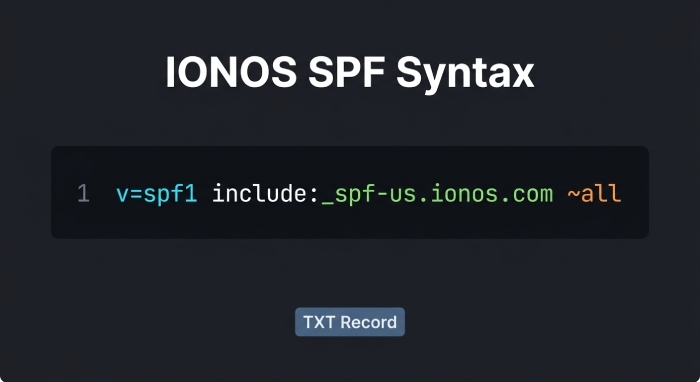
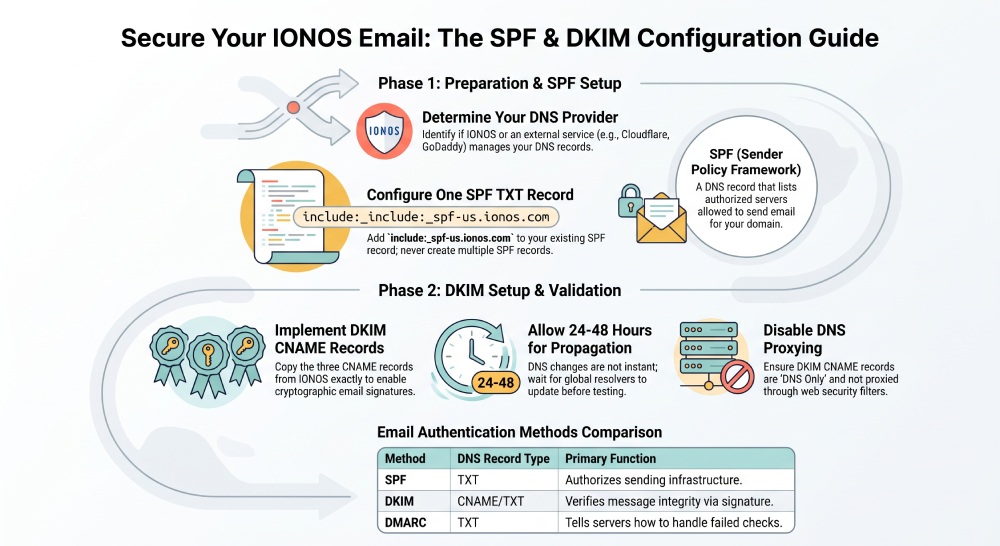
For IONOS, the SPF mechanism used in the configuration is:
include:_spf-us.ionos.com
If an SPF Record Already Exists
Suppose your existing SPF record looks like this:
v=spf1 ip4:192.0.2.10 include:example-mail.com ~allIf IONOS is also an authorized sending service, add the IONOS mechanism to the same SPF record:
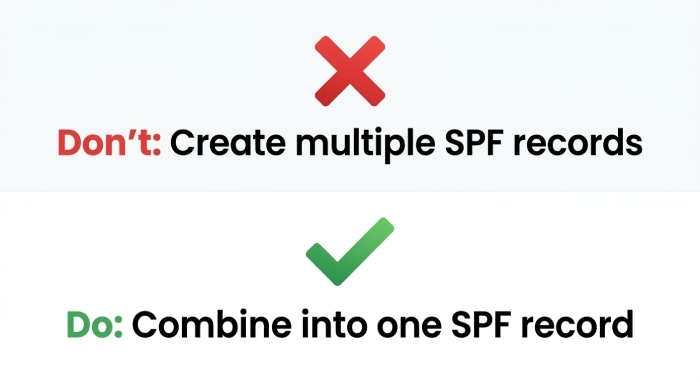
v=spf1 ip4:192.0.2.10 include:example-mail.com include:_spf-us.ionos.com ~allThe important point is to maintain one SPF record for the domain rather than creating separate SPF TXT records for different email-sending services. Add all legitimate sending sources to the existing SPF policy.
If Your Domain Does Not Have an SPF Record
Create a TXT record for the root domain with a configuration such as:
Record type:
TXT
Host/Name:
@
Value:
v=spf1 include:_spf-us.ionos.com ~allSave the record after entering the values.
Be Careful When Combining SPF Sources
If your domain sends mail through several platforms, all legitimate sending services need to be represented within the same SPF policy.
Do not create multiple SPF records simply because different systems send email for your domain.
Multiple SPF records can cause authentication problems.
You should also keep an eye on SPF DNS lookup usage when adding several third-party sending services.
Configure DKIM for IONOS
DKIM provides another layer of authentication by allowing outgoing email to carry a verifiable digital signature.
Unlike SPF, which evaluates the sending infrastructure, DKIM uses a public/private key pair.
The private key is used by the sending system to sign messages, while the public key is published through DNS.
For IONOS configurations, DKIM commonly uses CNAME records.
Option 1: Your DNS Is Managed by IONOS
If your domain uses IONOS name servers, the DNS records required for IONOS DKIM may already be configured automatically.
This means you may not need to manually create DKIM records in a normal setup.
Nevertheless, you should check the configuration if DKIM is failing or if the DNS records were previously removed or changed.
Recreating IONOS DKIM Records
If the necessary DKIM records are no longer present, you can restore them through your IONOS DNS settings.
IONOS provides the required DKIM CNAME information for the domain.
Step 1: Open the Domain’s DNS Management
Log in to your IONOS account.
Open the DNS settings for the domain used for your email.
Step 2: Create a CNAME Record
Choose the option to add a new DNS record.
Select:
CNAME
Step 3: Enter the First DKIM Record
Use the DKIM hostname and destination supplied by IONOS.
Enter the hostname in the appropriate name field and place the corresponding destination in the target or points-to field.
Save the record.
Step 4: Add the Remaining DKIM Records
IONOS may require multiple CNAME records for its DKIM configuration.
Repeat the same process for each additional DKIM record supplied by IONOS.
Make sure that every hostname and destination is copied accurately.
A single character mistake can prevent the DKIM record from resolving correctly.
Option 2: Your DNS Is Hosted by Another Provider
If IONOS handles your email but another company manages your DNS, you need to publish the IONOS DKIM records at that external DNS provider.
The required DKIM records should be obtained from the IONOS configuration for your domain.
In the typical setup described here, there are three CNAME records associated with the IONOS DKIM configuration.
Step 1: Open Your DNS Provider
Sign in to the service responsible for your domain’s DNS records.
Open the DNS zone for your domain.
Step 2: Add the First CNAME Record
Create a new CNAME entry.
Copy the hostname and destination supplied for the first IONOS DKIM record into the corresponding DNS fields.
Save the entry.
Step 3: Add the Other DKIM Records
Repeat the process for the remaining IONOS DKIM CNAME records.
Check each record carefully before saving.
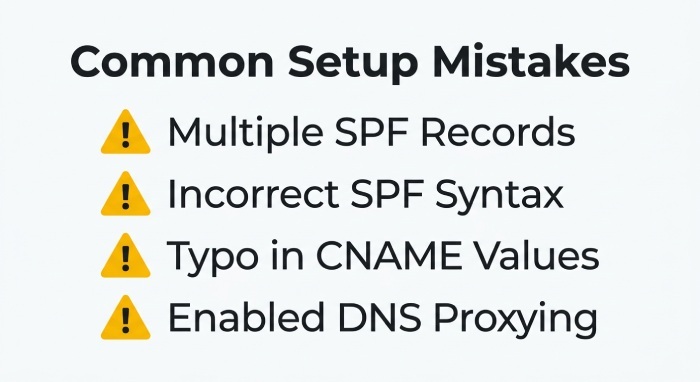
Step 4: Disable DNS Proxying When Necessary
If your DNS provider offers a proxy feature for CNAME records, ensure that the DKIM records are configured as ordinary DNS records rather than being routed through a web proxy.
DKIM depends on DNS resolution, so the published CNAME must resolve correctly to the destination provided for the email service.
SPF vs. DKIM: What Is the Difference?
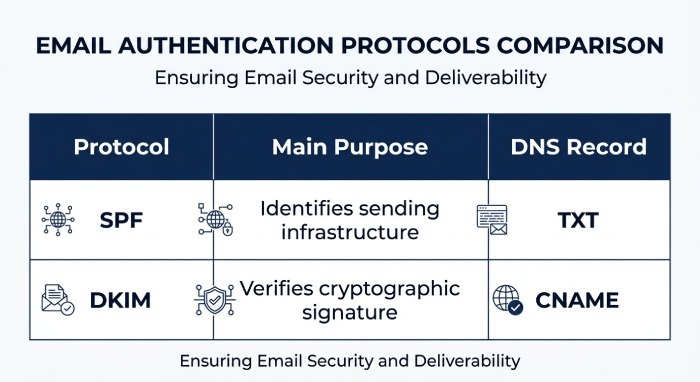
Although SPF and DKIM both contribute to email authentication, they perform different functions.
| Authentication Method | Main Purpose | DNS Record |
|---|---|---|
| SPF | Identifies permitted sending infrastructure | TXT |
| DKIM | Verifies an email’s cryptographic signature | CNAME/TXT depending on implementation |
| DMARC | Uses authentication results to apply a domain policy | TXT |
SPF essentially asks whether the sending infrastructure is authorized to send mail for the domain.
DKIM provides a signature that receiving systems can validate using a public key.
DMARC can then use SPF and DKIM results, along with domain alignment, when determining how authenticated messages should be handled.
Common IONOS SPF and DKIM Configuration Problems
Even after adding the correct records, authentication may not work immediately.
Several issues can cause SPF or DKIM failures.
1. Multiple SPF Records
A domain should not have several independent SPF TXT records.
If you have multiple email providers, combine their authorized mechanisms into a single SPF policy.
2. Incorrect SPF Syntax
An SPF record must follow the correct syntax.
For example:
v=spf1 include:_spf-us.ionos.com ~allExtra characters, incorrect mechanisms, or misplaced values can result in SPF errors.
3. Missing IONOS SPF Include
If your domain already has SPF but does not authorize IONOS, messages sent through IONOS may fail SPF authentication.
Review your existing record and ensure the appropriate IONOS mechanism is included.
4. Incorrect DKIM CNAME Values
DKIM records are sensitive to incorrect hostnames and destinations.
Copy the values exactly as provided by IONOS.
5. DNS Changes Have Not Propagated
DNS changes are not necessarily visible everywhere immediately.
After modifying SPF or DKIM, allow sufficient time for the new records to become available across DNS resolvers.
6. DKIM Records Were Removed
A domain using IONOS may have its DKIM records configured automatically.
If those records were deleted or modified, DKIM authentication can stop working until the configuration is restored.
7. DNS Is Managed Somewhere Else
One of the most common configuration mistakes is editing DNS in the wrong account.
If IONOS provides your email service but another provider hosts your DNS, SPF and DKIM records must be published through the authoritative DNS provider.
How to Verify Your IONOS SPF Record
After publishing SPF, perform a DNS lookup for your domain.
The lookup should return an SPF TXT record beginning with:
v=spf1
Confirm that the IONOS sending mechanism is included when IONOS is one of your authorized email sources.
Also check whether other legitimate email platforms are included in the same record.
If multiple SPF records are returned, correct the configuration before relying on the authentication result.
How to Verify IONOS DKIM
DKIM verification requires checking the selector associated with your IONOS email configuration.
Look up the relevant DKIM hostname and confirm that its CNAME resolves to the expected destination.
You can also send a test email to an external mailbox and inspect the authentication results in the message headers.
A successful test should provide evidence that DKIM was detected and validated by the receiving mail system.
After SPF and DKIM: Consider DMARC
SPF and DKIM are important components of domain authentication, but they are not the complete email authentication framework.
DMARC builds on these mechanisms by allowing a domain owner to publish instructions for handling messages that do not authenticate correctly.
A DMARC policy can also provide reporting information that helps domain administrators understand how their domains are being used for email.
Before enforcing a strict DMARC policy, review legitimate sending sources carefully.
This is particularly important when a domain sends email through multiple services, applications, marketing systems, support platforms, or transactional email providers.
IONOS SPF and DKIM Configuration Checklist
Use this checklist when authenticating your IONOS email domain:
- Confirm which provider controls your DNS.
- Check whether an SPF record already exists.
- Avoid publishing more than one SPF record.
- Add the IONOS SPF mechanism to an existing SPF policy when required.
- Create an SPF TXT record if none exists.
- Confirm that legitimate third-party sending services remain authorized.
- Check the IONOS DKIM configuration.
- Add the required DKIM CNAME records when they are missing.
- Verify every DKIM hostname and destination.
- Disable DNS proxying for DKIM CNAME records when applicable.
- Allow time for DNS changes to propagate.
- Test SPF and DKIM after making the changes.
- Review DMARC configuration after SPF and DKIM are working correctly.
Final Thoughts
Configuring SPF and DKIM for IONOS requires more than simply adding a few DNS records.
The first step is identifying where your domain’s DNS is managed. From there, you can determine whether IONOS handles the necessary records automatically or whether you need to publish the authentication records through another DNS provider.
For SPF, make sure IONOS is included within your existing authorization policy and avoid creating multiple SPF records.
For DKIM, ensure that the required CNAME records are present and resolve correctly.
Once SPF and DKIM are properly configured and verified, your domain has a stronger foundation for email authentication and can be prepared for broader DMARC deployment.
General Manager
General Manager at DuoCircle. Product strategy and commercial lead across the email security portfolio.
Secure your email infrastructure
Protect, authenticate, and deliver. Contact our team to find the right solution.