Network Solutions SPF Record: How To Add And Configure SPF

Quick Answer
Network Solutions SPF records help authorize legitimate email senders and reduce spoofing. To add one, access your Network Solutions DNS settings, create a TXT record with your provider’s SPF value, save it, and verify the record. Proper SPF configuration improves email security and deliverability.

Configuring an SPF record correctly is an important step in protecting your domain from email spoofing and improving email deliverability. For Network Solutions domains, SPF is added as a DNS TXT record that identifies the email servers and third-party services authorized to send messages on your behalf. This guide explains how SPF works, what to prepare before making DNS changes, how to add and configure an SPF record in Network Solutions, and how to avoid common issues such as multiple SPF records and incorrect DNS hosting. It also covers practical steps for verifying, troubleshooting, and maintaining your SPF configuration to ensure legitimate emails are properly authenticated.
What an SPF Record Is and Why It Matters for Network Solutions Domains
An SPF record is a DNS TXT record that tells receiving mail systems which servers are authorized to send email for your domain name. For Network Solutions domains, adding a correct SPF record helps prevent spoofing, improves email authentication, and supports better deliverability for business email, newsletters, customer relationship management(CRM) platforms, and other email hosting services.
SPF stands for Sender Policy Framework. When a recipient’s mail server receives a message claiming to come from your domain, it checks your DNS records for an SPF record. If the sending IP address or service is listed as authorized, the message is more likely to pass authentication. If not, the message may be flagged, quarantined, or rejected depending on your policy and the recipient’s filtering rules.
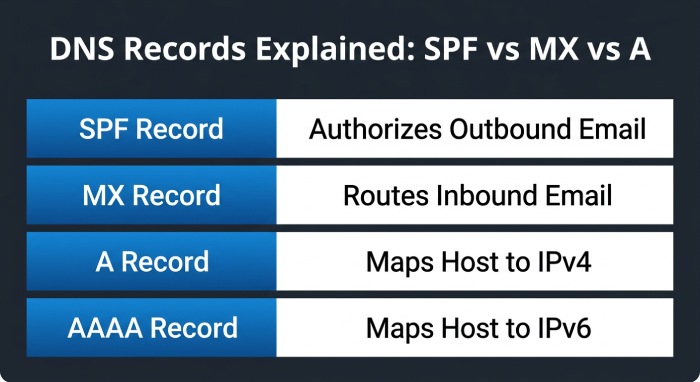 It is important to understand how an SPF record fits alongside other DNS records in Network Solutions. An A Record maps a hostname to an IPv4 address, while an AAAA Record, also called a Quad A Record, maps a host to an IPV6 Address. An MX Record controls mail routing and identifies the mail server that receives email for your domain. MX Record entries are also known as mail exchange records. An NS Record identifies the authoritative nameserver for the domain. By contrast, an SPF record does not route web or email traffic; it authorizes outbound senders.
For example, an A Record may point your website to a numeric IP address, an AAAA Record may point to an IPv6 address, and an MX Record may define your primary server and backup server for inbound mail. Your SPF record works separately by declaring which outbound mail sources are legitimate. This distinction matters because mail exchange records handle delivery to your inbox, while SPF helps receiving servers decide whether outgoing messages are trustworthy.
Before You Start: Gather Your Authorized Sending Sources
Before editing DNS records in Network Solutions, make a complete list of every platform that sends email using your domain. This may include your email hosting provider, marketing automation software, billing system, help desk, ecommerce platform, CRM, or internal mail server. Missing even one authorized source can cause legitimate messages to fail SPF.
You should gather:
- The sending service’s recommended SPF include statement
- Any dedicated IPv4 address or IPv6 address used for outbound email
- The hostname of your mail server, if applicable
- Whether a subdomain sends mail separately from the root domain
- Your current MX Record configuration and mail route details
- Any existing SPF record already published in your DNS records
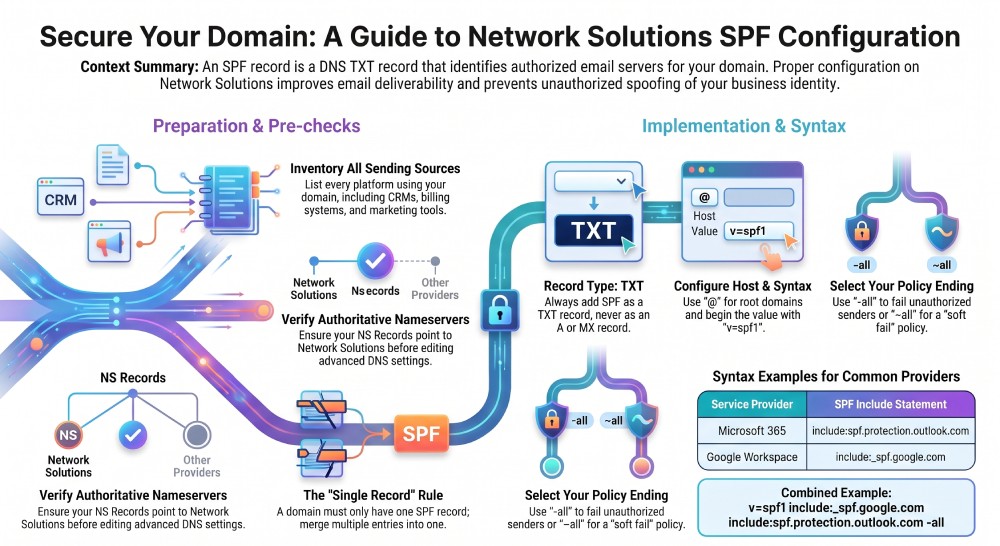
 Also check where your DNS is actually hosted. In Network Solutions, your domain may be registered there but using an external nameserver. The NS Record determines which DNS server is authoritative. If the nameserver is not Network Solutions, changes made inside Network Solutions Advanced DNS Records may not affect live DNS. In that case, use Manage Nameservers or edit nameserver records to confirm the authoritative DNS location.
This step is especially important for domains with separate domain hosting and email hosting. A website may use an A Record at Network Solutions, while email is handled through an external MX Record provider. Mail exchange records can point to one provider, while SPF includes another. The SPF record must include every authorized outbound sender, not just the provider listed in your MX Record, helping strengthen overall email security.
How to Add an SPF TXT Record in Network Solutions DNS
To add an SPF record in Network Solutions, sign in to your account and navigate to the domain details page for the domain you want to configure. Depending on your account interface, you may see a modern view or Classic View. The wording can vary slightly, but the process is generally the same.
Access Advanced DNS Records
From the domain details page, open Manage DNS. In some accounts, this appears in the left navigation under Advanced Tools. Look for Advanced DNS Records or a link such as Manage Advanced DNS Records. This is where Network Solutions allows you to manage DNS records such as A Record, AAAA Record, MX Record, NS Record, CNAME, and TXT entries.
If you are using Network Solutions Classic View, you may see separate sections for different DNS record types, including A, MX, and TXT records. Do not add your SPF record as an A, AAAA, MX, or NS record. SPF is published as a TXT record.
If your domain is parked, Network Solutions may also show an Under Construction Page or default domain hosting settings. That does not prevent SPF configuration, but you still need to ensure the nameserver and DNS records are authoritative before you update records.
Add the SPF TXT Record
Choose Add Record, then select TXT as the record type. For the host name, use @ if you are adding the SPF record to the root domain. If you are authenticating a subdomain, enter the subdomain value instead, such as mail, news, or billing.
A Microsoft 365 SPF record may look like this:
v=spf1 include:spf.protection.outlook.com -allFor Google Workspace, a common example is:
v=spf1 include:_spf.google.com -allIf your organisation sends email from a dedicated IPv4 address, you can include it in the SPF record:
v=spf1 ip4:192.0.2.10 include:_spf.google.com -allFor an IPv6 sending address, use the ip6 mechanism:
v=spf1 ip6:2001:db8::1 include:_spf.google.com -all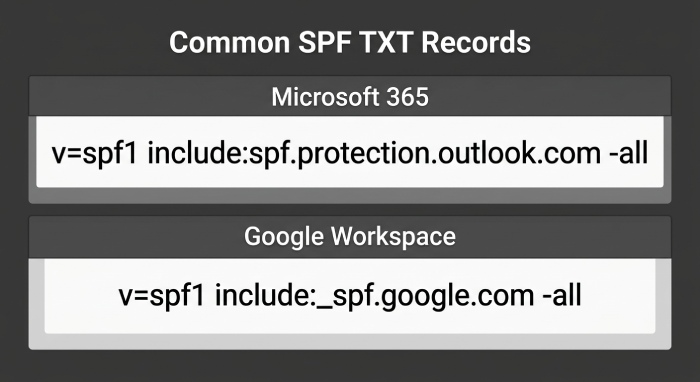 Note: The IP addresses above are examples. Replace them with the actual authorised sending IP addresses for your domain.
Set the Time to live (TTL) according to your requirements or leave the Network Solutions default. A shorter TTL can be useful while testing DNS changes, while a longer TTL may be appropriate once the SPF record is stable. After entering the record, select Save or Save Changes, depending on the Network Solutions interface, and review the record carefully before confirming the change.
How to Configure SPF Correctly: Syntax, Includes, and Common Examples
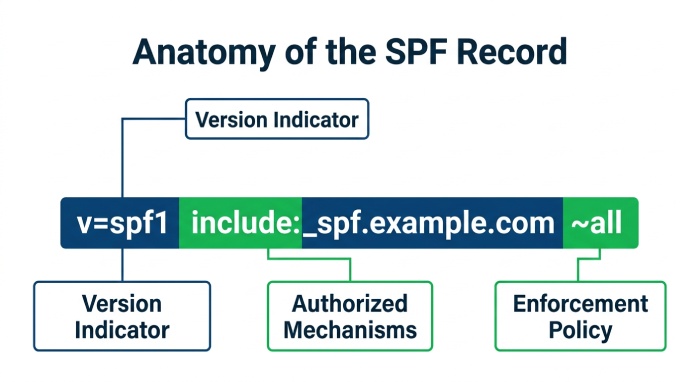
An SPF record always begins with v=spf1. After that, it lists authorized mechanisms such as include, ip4, ip6, a, or mx, and ends with a policy such as -all, ~all, or ?all.
SPF Syntax Essentials
Common SPF mechanisms include:
include: authorizes another provider’s SPF policyip4: authorizes an IPv4 addressip6: authorizes an IPv6 addressaauthorizes the IP address found in the domain’s A Recordmxauthorizes servers listed in the domain’s MX Record-allmeans fail unauthorized senders~allmeans soft fail unauthorized senders
The a mechanism refers to the A Record for the domain or host. If the A Record points to your web server but that server does not send email, avoid using a. Similarly, the mx mechanism refers to mail exchange records. If your MX Record points to inbound email infrastructure only, using mx may not authorize the correct outbound senders. Many organizations use separate mail exchange records for receiving mail and third-party platforms for sending mail.
Common SPF Examples for Network Solutions
A simple Microsoft 365 SPF record:
v=spf1 include:spf.protection.outlook.com -allA Google Workspace SPF record:
v=spf1 include:_spf.google.com -allA domain using Google Workspace plus a marketing platform:
v=spf1 include:_spf.google.com include:send.exampleplatform.com -allA domain using a dedicated mail server and one include:
v=spf1 ip4:198.51.100.25 include:_spf.google.com -allAvoid Multiple SPF Records
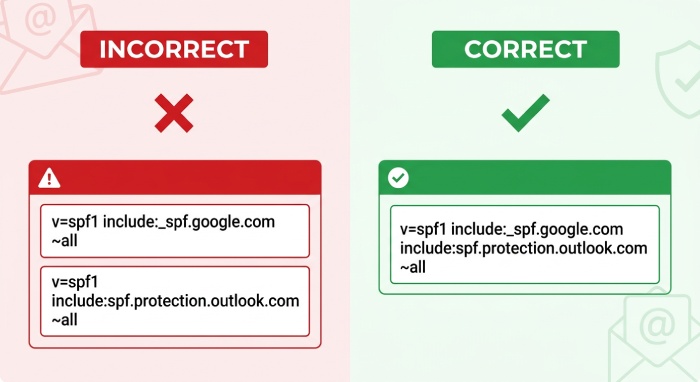
A domain must have only one SPF record. Multiple SPF TXT records can cause SPF permerror failures. If you already have an SPF record in Network Solutions Advanced DNS Records, do not add another one. Instead, use Edit Record and merge all authorized senders into the existing SPF record.
For example, do not publish both:
v=spf1 include:_spf.google.com -all
v=spf1 include:spf.protection.outlook.com -all
Use one combined SPF record:
v=spf1 include:_spf.google.com include:spf.protection.outlook.com -allThis is one of the most common SPF mistakes in Network Solutions DNS records.
How to Verify, Troubleshoot, and Maintain Your Network Solutions SPF Record
After you update records, allow time for DNS changes to propagate. The TTL affects how quickly resolvers refresh cached values, but some DNS server caches may take longer. Use an SPF lookup tool, DNS checker, or command-line query to confirm that your Network Solutions SPF record is visible publicly.
Check the following:
- The SPF record appears as a TXT record
- There is only one SPF record for the host
- The record starts with
v=spf1 - Includes are spelled correctly
- The correct IP address or numeric IP address is listed
- The domain’s authoritative nameserver is correct
- The NS Record points to the DNS provider where you made changes
- The MX Record and mail exchange records are not confused with SPF authorization
If the SPF record does not appear, return to Manage DNS and confirm you edited the correct domain. Then check Manage Nameservers. If the active nameserver is external, Network Solutions Advanced DNS Records will not control live DNS. You must make the same SPF record change at the authoritative DNS host.
 If mail still fails SPF, review your actual sending path. A message may be sent through a marketing vendor, application server, or backup SMTP relay that was not included. Also confirm that your mail server’s outbound IP address matches the value in the SPF record. An A Record or AAAA Record may identify a website host, but it does not automatically authorize email unless you explicitly use the a mechanism. Likewise, an MX Record and mail exchange records control inbound delivery, not every outbound mail route.
Maintain your SPF record whenever vendors change. If you add a new email hosting provider, replace a primary server, introduce backups, or move domain hosting, update the SPF record promptly. Periodically audit Advanced DNS Records, including the A Record, AAAA Record, MX Record, NS Record, and TXT records, to keep Network Solutions DNS records accurate and secure.
General Manager
General Manager at DuoCircle. Product strategy and commercial lead across the email security portfolio.
Secure your email infrastructure
Protect, authenticate, and deliver. Contact our team to find the right solution.