

Every verified email has an unseen signature that plays a crucial role in establishing trust, and this is where DKIM (DomainKeys Identified Mail) comes into action. In an era where cybersecurity threats, spoofing, and phishing are on the rise, implementing DKIM has evolved from a mere technical requirement to an essential component of email authentication. But what exactly goes on behind that signature?
In this article, we embark on an insightful exploration of DKIM implementation, revealing how cryptographic keys, DNS records, and email headers work together to confirm a sender’s authenticity. Whether you’re a marketer seeking improved email deliverability or a security expert enhancing your domain’s defenses, this journey will simplify the intricacies and highlight why DKIM is fundamental to building trust in modern email communications.
Why DKIM Matters: How signatures protect identity, deliverability, and enable DMARC alignment
DomainKeys Identified Mail (DKIM) is a cornerstone of modern email authentication. By using asymmetric cryptography to digitally sign outbound messages, DKIM asserts domain identity, preserves message integrity, and helps receivers evaluate sender reputation. The DKIM-Signature header is added to the message header by the sending system, proving that the signing domain controlled the private key at send time and that key details are anchored in DNS records the domain owner publishes.
- Identity and alignment: DKIM aligns with DMARC by binding the signing domain to the visible From address. When the signing domain matches or is a subdomain of the From address domain, DMARC alignment is achieved even if the MAIL FROM address (used by SPF) changes during mail flow.
- Deliverability: Providers weigh DKIM validation, SPF, and DMARC to determine trust. This reduces false positives and builds long-term email protection against spoofed senders.
- Security: Verified signatures make it harder for phishing attacks and business email compromise to succeed, and they raise the bar for ransomware lures that rely on forged messages.
Because DKIM keys are published as TXT records (or via CNAME records) at your domain registrar, receivers can independently verify signature authenticity. That chain of custody—from private key at the sender to public key in DNS—makes DomainKeys Identified Mail resilient and observable. For pragmatic guidance and tooling comparisons, many practitioners consult resources on email authentication and email security.
Peeking Inside a DKIM Signature: Tags, canonicalization, and the end-to-end verification flow
The DKIM-Signature header is a structured set of tags that tell verifiers how to reconstruct the hash and verify signature values. Each tag influences how the message header and body are processed.
Canonicalization and tags
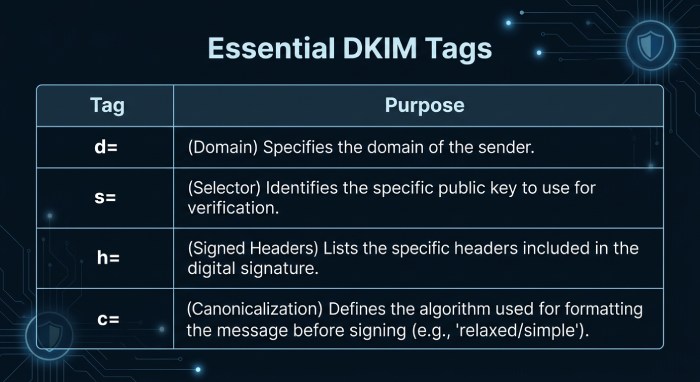
DKIM canonicalization controls how whitespace and header folding affect hashing. Common choices are relaxed/relaxed for both headers and body. Under RFC 6376, verifiers read the DKIM-Signature header and use tags such as:
- d= (signing domain)
- s= (selector)
- h= (signed header fields)
- bh= (canonicalized body hash)
- b= (the signature itself)
- v= and a= (protocol/version and algorithm, for example, rsa-sha256)
Core tags (v, a, d, s, h, bh, b)
- The signing domain (d=) ties the signature to your custom domain or a specific subdomain for marketing streams.
- The key selector (s=) identifies which public key to fetch from DNS. Typical hostnames look like selector1.domainkey.contoso.com or selector2.domainkey.cohovineyard.com.
- The h= list specifies which message header fields were included, such as From, Subject, and Date. Signing the From address in the message header is essential for DMARC alignment.
Verification flow
Here’s how receivers verify signature details end-to-end:
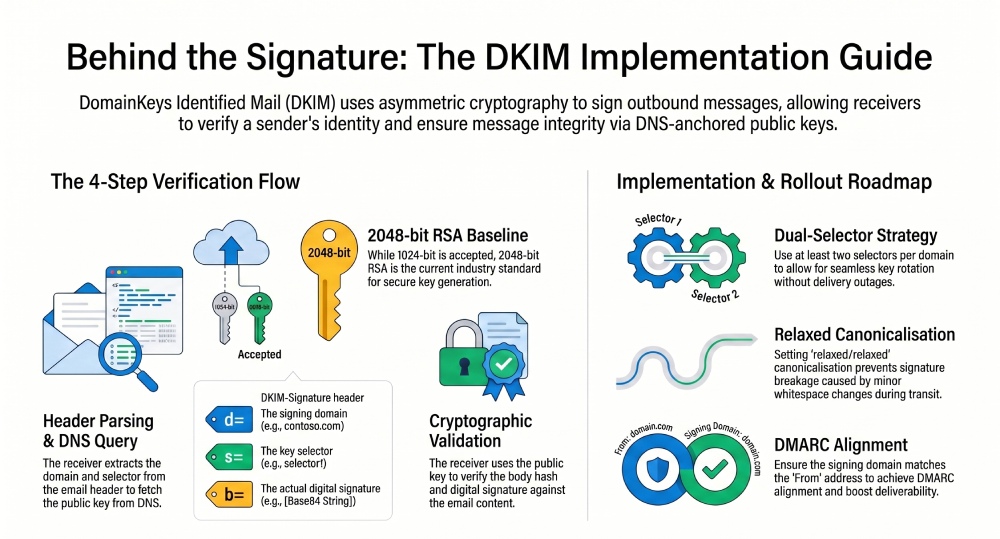
- Parse the DKIM-Signature header from the message header and read d= (signing domain) and s= (selector).
- Construct the DNS query to s._domainkey.d and look up the public key. Implementations may find either TXT records with the p= value or CNAME records that point elsewhere.
- Recreate the canonicalized header and body hashes, then use the public key to verify signature values in b= and bh=. If they match, the receiver can mark DKIM validation as pass and verify DKIM signing policy for DMARC.
- Apply local policy with DMARC, SPF, and other signals to score the mail flow.
A robust deployment ensures verifiers can always find a valid public key in DNS records, and that your systems digitally sign consistently across all outbound messages.
Planning Your Rollout: Domains, selectors, key sizes, rotation policy, DNS TTLs, and third-party senders
Thoughtful planning avoids outages and confusing failures.
Domains and selectors
- Inventory domains: List each custom domain and any subdomain that sends mail (for example, contoso.com, marketing.contoso.com, cohovineyard.com, cohowinery.com). Include parked domains you might enable later to prevent abuse by spoofed senders.
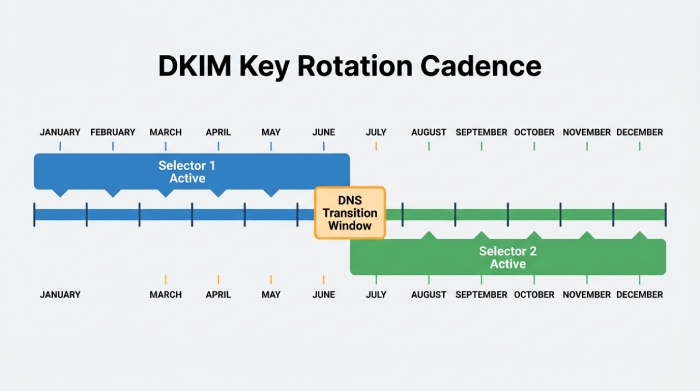
- Selector strategy: Use at least two selectors (for example, selector1.domainkey and selector2.domainkey) per signing domain to support seamless key rotation. Choose descriptive names that map to systems or eras.
- Third-party senders: Coordinate with bulk email services and CRMs. They often ask you to add DNS records at your domain registrar, usually as CNAME records that route lookups to their hosted keys.
Subdomains and parked domains
Using a dedicated subdomain per stream (for example, mail.marketing.contoso.com) keeps reputation segmented and simplifies future key rotation. Protect parked domains by publishing minimal TXT records or CNAME records that prevent unauthorized DKIM claims.
Rotation and TTLs
- Key sizes and algorithms: 1024-bit RSA remains accepted but 2048-bit RSA is the default baseline. Ed25519 is emerging in DKIM but verify receiver support before adopting.
- Rotation cadence: Establish a policy (for example, rotate every 6–12 months) and document the steps to enable DKIM on a new selector while you disable DKIM on the old one. Maintain a public-private key pair inventory and decommission workflows.
- DNS TTLs: Use moderate TTLs (e.g., 1 hour) for selector TXT records or CNAME records to make updates responsive without causing excess query traffic.
- Change control: Plan clearly labeled “enable signing” windows. Communicate Next Steps to stakeholders and stage changes in lower-risk subdomains first.
Crafting Keys and Publishing DNS: RSA vs Ed25519, OpenSSL commands, TXT record format, and length limits
Robust keys and accurate DNS records are the bedrock of DKIM.
- Key pair generation: For RSA, common OpenSSL commands are:
- Create DKIM keys: openssl genrsa -out dkimprivate.key 2048
- Derive public key: openssl rsa -in dkimprivate.key -pubout -out dkimpublic.pem
For Ed25519, use modern OpenSSL or provider tooling that outputs a compatible public-private key pair.
- TXT record format: Publish the public key in a TXT record at selector.domainkey.yourdomain, such as selector1.domainkey.contoso.com. The value includes v=DKIM1; k=rsa; p=BASE64… Split long p= values across quoted strings to honor 255-character segment limits. Many DNS providers also enforce 512-byte packet considerations.
- CNAME vs TXT: If a vendor hosts keys, they’ll instruct you to add DNS records as CNAME records so that the domainkey hostname Points to address under their zone. This keeps your DNS small and centralizes rotation.
- Hostname conventions: Keep selector names simple (alnum and hyphens). Ensure the _domainkey label is present and that the hostname is correct on every custom domain and subdomain you plan to sign.
- Auditing: After publishing, verify signature retrieval by querying DNS and confirming that recipients can verify signature values under load.
Always safeguard the private key, restrict file permissions on the signer, and validate that only authorized systems can digitally sign using that key. The public key must be stable, widely resolvable, and updated before you rotate to a new selector.
Wiring Up Your Signer: OpenDKIM with Postfix/Exim, Microsoft 365/Google Workspace, and cloud ESP integrations
Whether you run Exchange or cloud suites, wiring the signer correctly ensures every message gets a valid DKIM-Signature header.
OpenDKIM with Postfix/Exim
- Configure DKIM: Point OpenDKIM to per-domain key tables and signing tables so each signing domain uses the right private key and key selector. Enable signing on outbound messages only.
- Mail flow: Integrate milter chaining for Postfix/Exim so the signing happens after final header additions. Make sure the From address is stable before signing to keep DMARC alignment.
- Validation: Use test mailboxes to verify DKIM signing, confirm DKIM validation at receivers, and re-check that the message header set you sign (h=) includes From and essential fields.
- Rotation: Swap key selectors during maintenance windows and update DNS TXT records or CNAME records first, then reload OpenDKIM. Document the toggle value you’ll flip during cutover to avoid gaps.
Microsoft 365 specifics
Microsoft 365 provides multiple ways to enable DKIM at scale:
- Defender portal: In security.microsoft.com, go to Email authentication settings under Threat policies. The UI shows a status value per domain and common alerts like NoDKIMKeys or CnameMissing when DNS isn’t ready.
- CNAME design: For each custom domain (for example, contoso.com, cohovineyard.com), add CNAME records for selector1.domainkey and selector2.domainkey whose Points to address is dkim.mail.microsoft. The full target includes your InitialDomainPrefix (often derived from your Microsoft Online Email Routing Address on onmicrosoft.com) and may include a dynamic partition character. Microsoft documents both DynamicPartitionCharacter and InitialDomainPrefix in mapping guidance.
- Example hostnames:
- selector1.domainkey.contoso.com → selector1-contoso-com.domainkey.<InitialDomainPrefix>.microsoft>
- selector2.domainkey.cohovineyard.com → selector2-cohovineyard-com.domainkey.<InitialDomainPrefix>.microsoft>
Tenants like cohovineyardandwinery.onmicrosoft.com may influence how CNAME labels are constructed.
- PowerShell control: With Exchange Online PowerShell, you can enable DKIM, disable DKIM, and configure DKIM per domain. Use cmdlets to set the toggle value, schedule key rotation, and retrieve a status value during rollout.
- Verification: Send test outbound messages and verify signature results at major receivers. Monitor DKIM validation, DMARC, and SPF alignment across marketing.contoso.com and other subdomains.
- Operations: Use Defender for Office 365 reports to track spoofed senders detections, and ensure Threat policies aren’t rewriting headers post-signing. If a CNAME is mis-typed, the service will surface CnameMissing; if you haven’t published keys yet, expect NoDKIMKeys.
Note: Google Workspace follows a TXT-first model. You generate a selector and add DNS records (TXT) at your domain registrar for each signing domain, then enable signing in the admin console.
ESP and multi-sender integrations
Bulk email services commonly require you to add DNS records at the domain registrar:
- CNAME records for selector hostnames delegate the public key to the ESP.
- TXT records may be used when the ESP wants you to publish the public key directly.
- For each custom domain or subdomain, confirm the correct key selector, hostname under _domainkey, and that your provider will digitally sign every message. Coordinate key rotation windows and SLAs so receivers always find a valid public key and can verify signature details.
Next Steps
- Document key pair generation, storage, and rotation for every signing domain.
- Audit DMARC and SPF to maintain alignment with your DKIM-Signature header choices.
- Re-test mail flow after changes to headers or gateways, and continuously monitor and verify DKIM signing outcomes at receivers.
Choosing What (and How) to Sign
Header lists (h=): what belongs in your signature
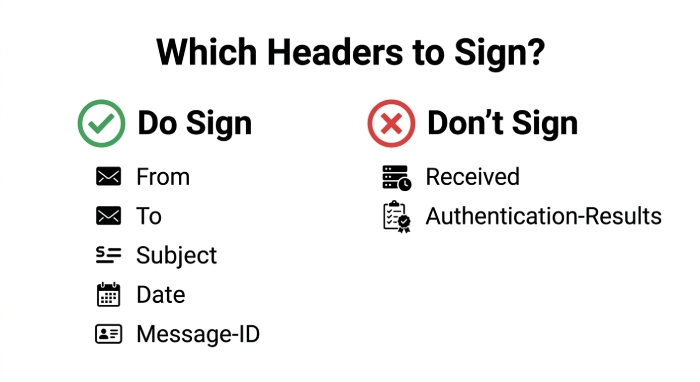
Your DKIM policy should start with deliberate choices about the header list (h=) you will digitally sign. Per RFC 6376, prioritize immutable and identity-carrying fields: From, To, Subject, Date, Message-ID, MIME-Version, and Content-Type. Including the From address is mandatory for DomainKeys Identified Mail and strengthens email authentication by binding the visible sender to the signing domain. For consistency across outbound messages from bulk email services and Exchange, also consider Reply-To and List-ID if your mail flow depends on them.
a. Practical header list for B2B mail
- Strong baseline: h=from:to:subject:date:message-id:mime-version:content-type.
- Add DKIM-Signature header last automatically; do not manually declare it in h=.
- If your templates rarely change, add Reply-To and List-Unsubscribe to bolster message integrity.
b. Avoid brittle or changing headers
Avoid signing Received, Authentication-Results, or other transit-added fields; they vary hop-to-hop. Overly aggressive h= choices can cause DKIM validation failures when intermediaries reorder or fold a message header. Keep the header list stable across each subdomain and custom domain to simplify auditing and key rotation.
Canonicalization (c=): relaxed vs simple
Canonicalization controls how whitespace and line-wrapping are normalized before you digitally sign. For most organizations, c=relaxed/relaxed offers resilience against minor transformations by gateways and mailing lists while preserving message integrity. Use c=simple/simple only when you own every hop of the path; it is brittle if a relay rewraps a message header or modifies MIME boundaries. If you operate multiple brands (contoso.com, cohovineyard.com, cohowinery.com), set a consistent canonicalization policy per signing domain and document it alongside the key selector.
Body length tag (l=): when to use it
The l= tag limits the signed portion of the body, reducing breakage if a downstream system appends a footer. However, it weakens protections against content injection. Use l= only when you must accommodate unavoidable additions, such as compliant mailing list footers, and ensure DMARC still aligns on the From address. When l= is used, test with various templates and verify signature outcomes against DMARC and SPF to sustain email protection and sender reputation.
Multi-signature strategies: chaining and dual-signing
Multi-signature messages are common and valuable. You can digitally sign with your primary custom domain and a relay’s subdomain to support phased migrations. For example, sign with selector1.domainkey.marketing.contoso.com and a relay’s selector at dkim.mail.microsoft for Microsoft Online Email Routing Address handling. During key rotation, dual-sign with selector1.domainkey and selector2._domainkey on the same signing domain so older relays can still verify signature data. Multi-signature approaches are especially helpful when consolidating bulk email services or introducing a new domain registrar.
Test, Verify, and Observe
Ground-truth testing validates DomainKeys Identified Mail across DNS records and transport layers.
- DNS lookups: Use dig or nslookup to confirm CNAME records and TXT records for each selector are published and reachable. For example, dig TXT selector1._domainkey.contoso.com and verify the public key matches your key pair generation artifact. When using Microsoft 365’s CNAME pattern, ensure the Points to address and hostname resolve to dkim.mail.microsoft with the correct InitialDomainPrefix and DynamicPartitionCharacter.
- Key checks: opendkim-testkey -d contoso.com -s selector1 verifies DNS records and public key formatting. A missing chain often reports CnameMissing; no content yields NoDKIMKeys as the status value.
- End-to-end SMTP: Use swaks to craft outbound messages across the MAIL FROM address, test different MIME types, and observe whether remote systems verify DKIM-Signature header values. This helps surface line wrapping issues that break the public-private key pair verification.
- Header inspection: In received mail, open the full message header and read Authentication-Results. Confirm dkim=pass with the expected signing domain and selector. Also check that DMARC alignment passes; failing alignment hints at From address versus MAIL FROM address divergence.
- Inbox checks: Validate diverse mailbox providers and regional relays. Compare pass rates for subdomain signers like marketing.contoso.com and cohovineyardandwinery.onmicrosoft.com. Document patterns where DKIM validation fails due to downstream content modification.
For broader operational guidance beyond DKIM, consider partnering with teams focused on email security, especially when rolling out controls to protect against spoofed senders, phishing attacks, ransomware, and business email compromise.
Ship It Safely
A careful rollout reduces breakage while protecting message integrity across brands and systems.
- Phased rollout: Start with non-critical streams or a testing subdomain. Enable signing for selector1.domainkey on low-volume outbound messages, measure impact, then expand to the primary custom domain. Always add DNS records and confirm propagation at your domain registrar before enabling controls on production streams.
- Dual-signing during rotation: When rotating keys, publish new CNAME records and TXT records for selector2.domainkey while keeping selector1._domainkey live. Dual-sign all egress to maintain verification during cache delays and DNS propagation. After verification windows close, retire the old public key and disable DKIM for that selector only if no residual systems depend on it.
- Monitor pass rates: Track dkim=pass/fail in SIEM or the Defender for Office 365 reporting surface. In Microsoft 365, the Defender portal (security.microsoft.com) exposes Email authentication settings under Threat policies where you configure DKIM, Create DKIM keys, and enable DKIM. The toggle value for enable signing should be confirmed per signing domain, and alerts should watch for status value changes like NoDKIMKeys or CnameMissing.
- Align with DMARC: Ensure the From address domain is the same organizational domain (or aligned subdomain) as the DKIM d= signing domain. This alignment, together with SPF, raises DMARC pass rates, strengthening email authentication and improving sender reputation. For parked domains, consider a restrictive DMARC policy, and either disable DKIM or keep minimal DNS records with no active selectors to prevent misuse.
Microsoft 365 specifics: Use Exchange Online PowerShell to verify DKIM signing state across domains, especially on onmicrosoft.com tenants like cohovineyardandwinery.onmicrosoft.com. The platform leverages CNAME records that point _domainkey hostnames to dkim.mail.microsoft; verify DKIM signing post-change. If your tenant uses InitialDomainPrefix and a dynamic partition character (DynamicPartitionCharacter), confirm the exact Points to address before you add DNS records at the domain registrar.
Troubleshooting the Tricky Stuff
- Content modification: Gateways that rewrap, translate, or append disclaimers can invalidate a DKIM-Signature header. Prefer c=relaxed, avoid signing volatile headers, and restrict l= usage. If a downstream system must edit content, consider dual-signing at the final relay to preserve DomainKeys Identified Mail verifiability.
- MIME quirks: Changing Content-Transfer-Encoding or boundary strings may corrupt canonicalization. Test HTML, attachments, and inline images with swaks; validate DKIM on the final message header.
- Line wrapping: Excessive header length can induce folding differences across relays. Keep Subject and custom headers modest; validate how Exchange and other MTAs wrap headers before they are digitally signed with the private key.
- DNS propagation: Stagger go-lives to account for TTL. Some resolvers cache CNAME records longer than expected, temporarily breaking public key discovery. Always publish TXT records for the new selector well before switching the signer.
- Mailing list footers: List managers often add footers or subject tags. Either avoid l= and accept some failures, or enable l= with disciplined DMARC policies. Where possible, allow the list to re-sign with its own subdomain, preserving downstream DKIM validation while clearly reflecting a different signing domain in the DKIM-Signature header.
Keep It Healthy
Sustained success with DKIM requires lifecycle management and automation.
- Key rotation cadence: Rotate your public-private key pair at least quarterly for high-risk brands and semiannually for lower-risk streams. Before rotation, publish the new public key via TXT records (or through CNAME records that indirect to provider-managed keys) and dual-sign for two weeks. Remove the old DNS records after all verifiers have aged out caches.
- Automation: Use CI, Terraform, or Ansible to template selectors, hostnames, and DNS records across each custom domain and subdomain. Codify key pair generation, add DNS records steps at the domain registrar, and verification steps that parse Authentication-Results to verify signature outcomes. Store the private key in a secrets manager with strict RBAC and auditing.
- Auditing: Maintain an inventory of selectors (selector, key selector), signing domain mappings, and expirations. Periodically sample outbound messages to verify DKIM signing and DMARC alignment, logging results by stream (e.g., marketing.contoso.com vs. invoices.contoso.com).
- Future-proofing: Track provider roadmaps for Ed25519 keys and ARC (Authenticated Received Chain) to preserve trust through forwarders. As Microsoft advances Exchange and Defender for Office 365, expect more automation in the Defender portal and Threat policies to streamline enable DKIM and verify DKIM signing. Plan Next Steps documents that outline how you’ll adopt new algorithms and how DynamicPartitionCharacter or InitialDomainPrefix changes affect dkim.mail.microsoft targets.
Operational tip for Microsoft tenants: When you configure DKIM in Microsoft 365, you may see CNAME-based selectors that map domainkey for contoso.com to provider endpoints. Validate that selector1.domainkey and selector2._domainkey resolve correctly, that the hostname format matches guidance, and that outbound messages show dkim=pass. Keep an eye on the Microsoft Online Email Routing Address paths when migrating from onmicrosoft.com branding to the final custom domain branding.
FAQs
Which headers should I include in the DKIM h= list?
Sign identity and stability: From, To, Subject, Date, Message-ID, and Content-Type. Avoid mutable transit-added fields to reduce the chance that a downstream relay breaks DKIM validation.
Should I use relaxed or simple canonicalization?
Choose c=relaxed/relaxed for most environments because it tolerates whitespace and folding changes. Reserve c=simple/simple for fully controlled pipelines where no intermediary modifies the message header or body.
How do I verify my DKIM DNS records and public key?
Use dig or nslookup to query selector._domainkey.yourdomain and confirm TXT records (or CNAME records pointing to provider keys) are present. Then run opendkim-testkey and send test emails, checking Authentication-Results for dkim=pass.
How often should I rotate keys and selectors?
Adopt a regular key rotation cadence (90–180 days) with dual-signing during transitions. Publish new selectors, verify signature passes across inboxes, and retire old keys only after DNS propagation has completed.
What’s the best way to roll out DKIM in Microsoft 365?
Create DKIM keys, add CNAME records at your domain registrar to the dkim.mail.microsoft Points to address, and enable signing in the Defender portal. Use Exchange Online PowerShell to audit status value per domain and watch for NoDKIMKeys or CnameMissing indicators.
How do mailing list footers affect DKIM?
Footer injections can change the body and break signatures, especially without l=. Either allow the list to re-sign with its own subdomain, or use l= carefully while maintaining DMARC alignment.
Key Takeaways
- Treat DKIM as a lifecycle: plan header choices, automate DNS records, and enforce routine key rotation with dual-signing.
- Verify end-to-end with dig/nslookup, opendkim-testkey, swaks, and Authentication-Results to confirm DomainKeys Identified Mail passes across providers.
- Align the DKIM signing domain with DMARC and SPF to strengthen email authentication, improve sender reputation, and block spoofed senders.
- In Microsoft 365, publish correct CNAME records, monitor Defender portal status, and use Exchange Online PowerShell to audit enable signing states.
- Document selectors per custom domain and subdomain, protect the private key, and prepare for Ed25519 and ARC as future Next Steps.