

What is the ‘Reverse DNS Does Match the SMTP Banner’ error, and how to fix it in 2026
Many email delivery problems happen not because of spam content, but because of small server configuration mistakes. One common example is the “Reverse DNS Does Not Match the SMTP Banner” error. This happens when the hostname linked to your sending IP address is different from the hostname your mail server introduces during the SMTP connection. Email providers treat this mismatch as a trust warning, which can cause emails to land in spam, get delayed, or even be rejected. To maintain stable email delivery, it is important to understand what this error means, why it appears, and how you can fix it quickly.
Why should reverse DNS always match the SMTP banner?
Ensuring that your reverse DNS (rDNS) record matches your SMTP banner hostname is a critical part of email server trust validation. Mailbox providers such as Gmail, Microsoft, and Yahoo perform multiple identity checks when receiving an email, and one of the most basic is whether the sending server’s IP address resolves to the same hostname the server presents in the SMTP banner. When these values match, it signals that the sending infrastructure is properly configured and legitimately controlled by the domain owner.

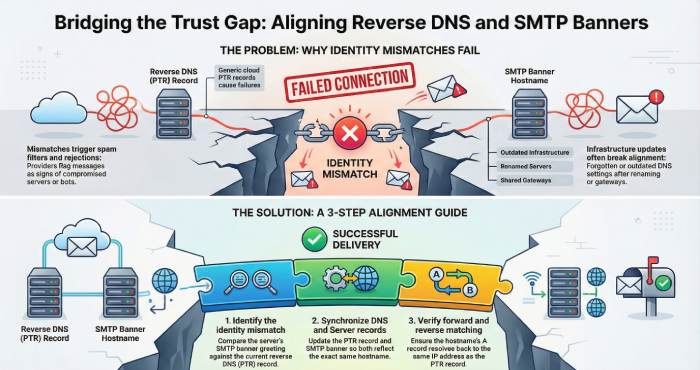
If the reverse DNS does not match the SMTP banner, receiving servers may treat the message as suspicious because mismatched identities are commonly associated with spam bots, compromised servers, or improperly configured mail systems. This can lead to emails being filtered into spam folders, temporarily deferred, or even rejected entirely. Errors such as “reverse DNS does not match SMTP banner” frequently appear in delivery logs when providers detect this inconsistency.
Common reasons for reverse DNS and SMTP banner mismatch
Even well-configured mail environments can accidentally create hostname inconsistencies, especially when infrastructure changes faster than DNS settings are updated. Below are the most common causes of reverse DNS and SMTP banner mismatches.
Server Hostname Changed, but rDNS Not Updated
When administrators rename a mail server or migrate to a new hostname, the SMTP banner may reflect the new name while the reverse DNS still points to the old one. Without updating the PTR record, receiving servers detect a mismatch.

Cloud or Hosting Provider Default PTR Records
Many cloud providers automatically assign generic PTR records to IP addresses. If the SMTP banner uses a custom domain name but the provider’s default PTR record remains unchanged, the identity check fails until the PTR record is manually updated.
Multiple Mail Servers Sharing One Outbound IP
Organizations sometimes route emails from several servers through a shared outbound gateway IP. If each server presents a different SMTP banner hostname but the IP has only one PTR record, mismatches occur during validation checks.
Improper Email Gateway or Relay Configuration
When emails pass through relays, gateways, or security appliances, the final sending IP may not match the hostname advertised in the SMTP banner. If the relay is not configured to present the correct hostname, alignment breaks.
DNS Propagation or Partial Configuration Updates
During infrastructure updates, administrators may correctly change the SMTP banner but forget to update DNS immediately, or propagation delays may temporarily cause mismatches. Even short-term inconsistencies can trigger delivery warnings or spam filtering.
How to fix the “Reverse DNS Does Not Match SMTP Banner” error
To solve this issue, you need to check both your DNS settings and mail server configuration so that they show the same hostname. Follow these steps to find and correct the mismatch.
1. Identify the mismatch
Use online testing tools to check the hostname your mail server shows in the SMTP banner. Compare it with your reverse DNS record. If the two names differ, a mismatch occurs. Also, review bounce messages or delivery logs, as they often include hostnames or DNS errors that help locate the issue.
2. Correct the reverse DNS record
Open your hosting or DNS control panel and check the PTR record assigned to your server’s IP address. Make sure it points to the same hostname used by your mail server. Then confirm that the hostname’s A record also resolves back to the same IP address. Forward and reverse records must match.

3. Update the SMTP banner hostname
Log in to your mail server settings and check the hostname displayed in the SMTP greeting. If it differs from the PTR hostname, update the server configuration so both values are identical.
4. Test after making changes
Send test emails to different providers and run DNS lookup tools again to confirm the mismatch warning is gone.
5. Check email headers for confirmation
Finally, open the full headers of a test email and verify there are no reverse DNS mismatch warnings. A clean header means the configuration is now aligned correctly.

Final words
The reverse DNS and SMTP banner should always show the same hostname because they confirm the identity of your sending server. When both match, mailbox providers can easily verify your infrastructure and trust your emails. By regularly checking your PTR record, A record, and SMTP hostname, you can avoid unnecessary delivery issues and protect your sender reputation. Even a simple alignment check after server or DNS changes can prevent major email problems and help your messages consistently reach the inbox. Check out the DuoCircle for gaining further insight.