

Email trust is no longer a background technical detail—it’s the foundation of how brands communicate, protect users, and preserve reputation in an increasingly hostile digital landscape. As phishing attacks grow more sophisticated and inbox providers tighten authentication standards, traditional approaches to DomainKeys Identified Mail (DKIM) are starting to show their age. “Trust by Design” isn’t just a concept; it’s a necessary shift in how organizations configure and manage DKIM to ensure integrity, alignment, and long-term deliverability.
In this post, we explore why modern email demands a rethink of DKIM settings—and how smarter, security-first configurations can turn a basic authentication tool into a strategic advantage.
Why “Trust by Design” matters: From compliance checkboxes to durable sender reputation
Trust by Design starts with intentional DKIM settings woven into your broader email authentication program, not bolted on at the end. DomainKeys Identified Mail (DKIM) is more than a compliance exercise; done well, it hardens email protection, improves deliverability, and builds a durable sender reputation for outbound messages over time.
From minimum viable compliance to measurable outcomes
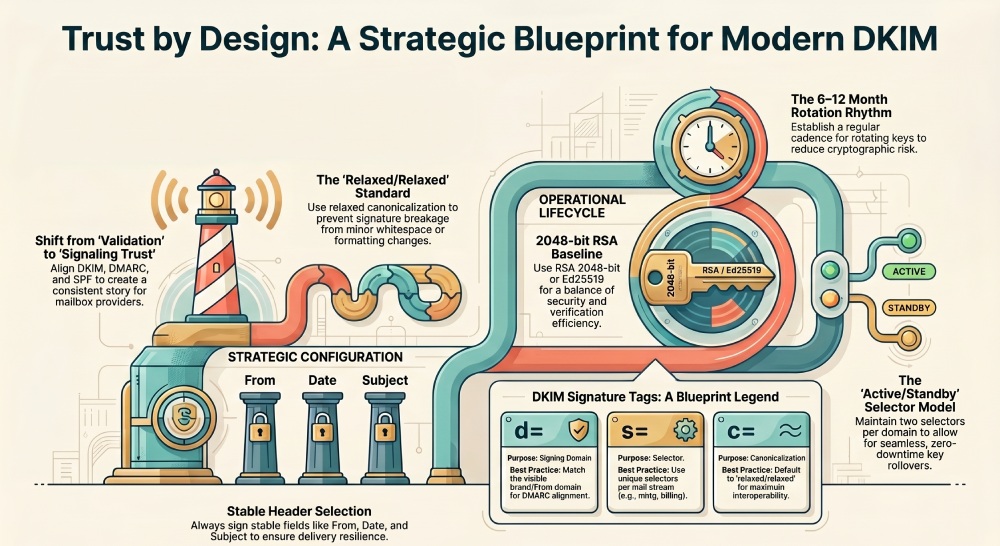
- Shift from “it validates” to “it signals trust.” With DKIM, DMARC, and SPF aligned, mailbox providers read a consistent story in each message header and dkim signature. That translates into inbox placement, fewer false positives, and better engagement.
- Design for resilience. Strong DKIM settings, clear selector hygiene, and planned key rotation ensure your signing domain remains reliable even during migrations, mergers, or vendor changes.
- Operationalize proof. Use the Defender portal and Exchange Online PowerShell to verify DKIM signing, track status value changes, and catch misalignment early—before a phishing wave or BEC attempt tests your defenses.
Business drivers that reward good engineering
- Brand protection: A consistent d= value tied to your custom domain and subdomain strategy improves DMARC alignment and reduces spoofed sender abuse.
- Regulatory expectations: Many frameworks now expect robust email authentication. Trust by Design demonstrates governance, from dkim configuration to threat policies in Microsoft Defender for Office 365.
- Ecosystem trust: Bulk email services and Email & collaboration platforms prioritize senders with predictable DNS records, valid CNAME records, and well-managed key pairs.
DKIM in the modern trust stack: SPF, DMARC, ARC, BIMI—and where settings intersect
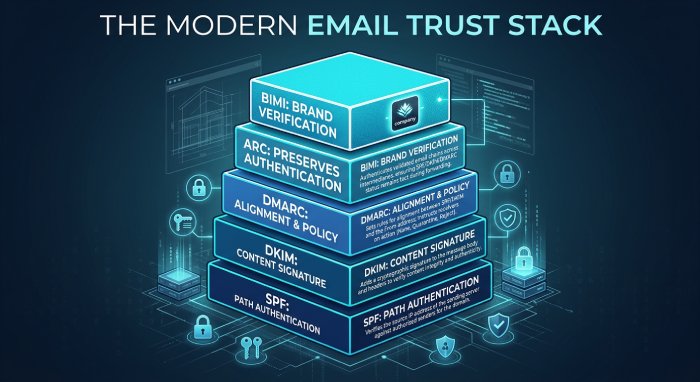
DKIM lives alongside SPF and DMARC, while ARC and BIMI layer on additional signals. The interplay matters, especially in Microsoft 365 environments that span multiple custom domains and sending streams.
SPF and DMARC alignment basics
- SPF authenticates the path; DKIM authenticates the content via a digital signature embedded in the message header. DMARC checks alignment between the mail from address (RFC 5321) and the From address (RFC 5322), using either SPF or DKIM results.
- Strong dkim settings with a stable d= value ensure DMARC passes even when forwarding breaks SPF. This is critical for outbound messages that traverse list servers or forwarders.
Practical alignment notes
- Keep the signing domain (d= value) within the same organizational domain as the visible From address. For example, sign marketing.contoso.com or contoso.com when the visible brand is contoso.com.
- Use TXT and CNAME wisely: DKIM depends on a published public key at a precise hostname. Misplaced dkim dns record entries become silent failures that erode trust.
ARC and BIMI considerations
- ARC preserves upstream authentication results; robust DKIM increases ARC’s usefulness when intermediaries modify the message body or headers.
- BIMI requires DMARC enforcement; reliable DKIM and unambiguous selectors help support logo display by ensuring consistent dkim-signed email.
Where settings meet policy
- Enforced DMARC plus correct DKIM and SPF yields high-confidence signals. Combine with threat policies in Defender for Office 365 to counter phishing and BEC at scale.
- Document dkim validation procedures—especially for parked domains—to prevent gaps when launching new campaigns or subdomains.
Inside a DKIM signature: selectors, tags (v, a, d, s, h, bh, b), and canonicalization choices
DKIM, standardized in RFC 6376, affixes a cryptographic proof to each message via the dkim signature. Understanding its fields is essential to set smart dkim settings.
Anatomy of the signature
- Tags: v (version), a (algorithm), d (signing domain), s (selector), h (signed header list), bh (body hash), b (signature value).
- d= value: The organizational domain or subdomain asserting responsibility. It should match your branding strategy and DMARC alignment plan.
- s= value: The selector that maps to a DNS location publishing the public key as a TXT record.
Tag and header strategy
- Choose which headers appear in h= to balance tamper resistance and interoperability. Always include From; consider Date, Subject, and Message-ID. Overly broad h= lists risk breakage from message alteration by gateways.
- Ensure the message header and message body are canonicalized consistently across your email service and relays.
Canonicalization and algorithms
- Canonicalization: relaxed/relaxed is common, tolerating minor whitespace changes in the message body, while simple/simple is stricter but brittle in transit.
- Algorithms: RSA remains widespread; Ed25519 offers shorter signatures and efficiency. Your dkim settings should specify a strong a= value and a predictable c= choice.
Publishing keys in DNS
- The selector plus the dynamic partition character and domainkey label form the hostname for your public key. For example: s1.domainkey.marketing.contoso.com.
- At that hostname, a TXT record holds the public key (p=). Ensure the record’s points to address and CNAME format are correct if you delegate to a provider.
Selector strategy and domain architecture: subdomains, multi-tenant designs, and stream isolation
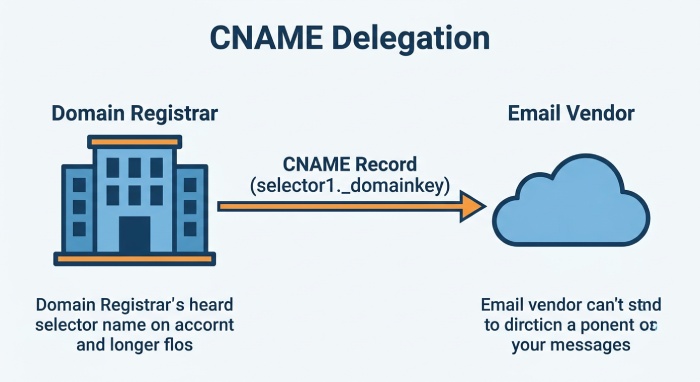
Selectors map keys to use cases. A deliberate selector plan helps you scale across brands, tools, and geographies in Microsoft 365 and beyond.
Designing per-stream and per-brand isolation
- Use one active selector per high-volume stream (e.g., s=mkting for marketing.contoso.com, s=billing for invoices.cohoWinery.com). Separate keys reduce blast radius and simplify key rotation.
- Multi-tenant patterns: For Microsoft 365 tenants like contoso.onmicrosoft.com or cohovineyardandwinery.onmicrosoft.com, ensure each custom domain and subdomain has its own selectors and DNS records. Keep the d= value consistent with each stream’s visible identity.
Delegation and provider models
- Many organizations host keys via CNAME records that delegate to a SaaS signer. In Microsoft 365, the CNAME records often resolve back to the onmicrosoft.com domain. Verify the hostname syntax and CNAME format recommended by Microsoft.
- Where the domain registrar supports automation, use APIs to manage dkim dns record updates as you create DKIM keys, rotate, and retire selectors.
Microsoft 365 specifics
- In the Defender portal, navigate to Email authentication settings, DKIM tab, and toggle value to enable dkim signing for each custom domain. If you see NoDKIMKeys or a client error dialog, run Exchange Online PowerShell to Create DKIM keys and confirm the CNAME “points to address” records exist.
- In the portal, the status value indicates active selector vs inactive selector. Plan an inactive selector ahead of rotation so you can switch seamlessly.
Special cases: parked domains and shared services
- Parked domain posture: For Parked domains like cohovineyard.com without active mail, publish SPF “-all,” a minimal DMARC quarantine/reject policy, and either no DKIM or a locked-down selector to prevent misuse.
- Shared tools and Bulk email services: Ensure each email service uses its own selector, with dkim settings and dkim configuration documented per vendor, and alignment validated in staging.
Key management that scales: RSA vs Ed25519, key length, rotation cadence, and safe rollover
Key management turns good policy into predictable operations. Treat your DKIM key pair like any other production cryptographic asset.
Algorithm and key length
- RSA 2048-bit remains the baseline; RSA 3072-bit is prudent for long-lived keys. Ed25519 reduces DNS bloat and speeds verification, but confirm broad receiver support before standardizing.
- Publish the public key succinctly to avoid DNS UDP fragmentation. Split long TXT values as needed; some receivers are strict.
Building a rotation rhythm
- Establish a key rotation cadence (e.g., 6–12 months) per selector and signing domain. Rotate more frequently for high-risk streams or when personnel change.
- Maintain at least two selectors per domain: one active selector and one standby. When rotating, prepublish the new public key, flip the signer to the new s= value, then retire the old key.
Safe rollover and verification
- Safe rollover steps:
- Precreate DNS records for the new selector.
- Update the signer’s private key and s= value.
- Monitor dkim validation, DMARC aggregate reports, and receiver feedback loops.
- Decommission the old selector only after consistent pass rates.
- In Microsoft 365, enable dkim signing per domain, verify dkim signing in message traces, and confirm the d= value matches your DMARC policy domain. Use Exchange Online PowerShell for scripted checks across many custom domains and subdomains.
Troubleshooting patterns and governance
- Common pitfalls: no dkim keys published, wrong CNAME records, mismatched hostname, or stale DNS caches. These cause silent DKIM failures and weaken email authentication outcomes.
- Governance: Record all dkim settings, selectors, and key history. Include RFC 6376 references, rotation logs, and a rollback plan in your Email & collaboration runbook. Align with Threat policies and Microsoft Defender for Office 365 for continuous monitoring.
- For Microsoft tenants such as cohowinery.com and cohovineyard.com, document onmicrosoft.com domain mappings and the specific CNAME records per selector to avoid outages during migrations.
If you are building or overhauling your program, centralize policy, tooling, and monitoring across SPF, DMARC, and DKIM—and enlist providers that prioritize email security at scale.
What to sign and how: header lists, body length (l=), relaxed vs simple, and avoiding breakage
Choose the right header fields for robust signatures
For domainkeys identified mail to hold up across gateways, your dkim settings must explicitly include stable fields in the message header. Always sign From, Date, Subject, MIME-Version, Content-Type, and To. Optional fields like Reply-To or List-Id can be included if your outbound messages are consistent, but avoid fields frequently rewritten by downstream systems. The dkim signature lives in the message header; if intermediaries reorder or add headers, a conservative header list prevents signature failure.
- Prefer predictable, canonical fields to keep the dkim signature intact across outbound messages and mailing lists.
- Ensure the d= value (the signing domain) matches your organizational policy, and confirm the s= value (the selector) points to the correct public key in DNS.
a. Header list best practices
- Prioritize headers that rarely change end-to-end to minimize message alteration risks.
- When in doubt, test with your bulk email services and Microsoft 365 transports to verify dkim signing survives downstream processing.
b. Protecting the body with l= length
The l= tag can cap the verified portion of the message body. It offers resiliency if footers are appended by a gateway but weakens integrity checks. Under RFC 6376, use l= only when you know a specific footer is injected predictably. Most organizations omit l= for stronger email authentication and rely on relaxed body canonicalization instead.
Canonicalization choices: relaxed vs simple
Relaxed canonicalization tolerates whitespace and minor formatting changes, making it ideal for heterogeneous gateways and email service platforms. Simple canonicalization is strict and fails easily if even a space changes. For most dkim settings in Microsoft 365 and partner platforms, choose relaxed/relaxed to keep the dkim signature valid across outbound messages. This balances email protection with practical deliverability.
a. Avoiding breakage in real-world pipelines
- Don’t sign volatile headers that might be rewritten by a downstream email service.
- Ensure disclaimers added by Microsoft 365 transport rules or a secure email gateway don’t modify signed parts of the message body.
- Keep your private key safe and rotate it periodically; a compromised private key invalidates trust even if the public key and dns records remain correct.
Alignment that delivers: tuning DKIM settings for DMARC alignment across brands and use cases
DMARC alignment modes and the d= value
DMARC alignment hinges on the d= value in the dkim signature matching (relaxed or strict) the From domain. For relaxed alignment, a subdomain d= value like marketing.contoso.com can align with From: user@contoso.com. For strict alignment, the d= value must be the exact organizational domain. Configure dkim settings to ensure the signing domain reflects your brand’s visible from address and satisfies DMARC alongside SPF.
- Combine DMARC and SPF with domainkeys identified mail for layered email authentication across all custom domain traffic.
- When using the onmicrosoft.com domain internally or for testing, confirm the From domain presented to recipients aligns with your production custom domain strategy.
Cross-brand and subdomain design
In multi-brand environments such as contoso.com, contoso.onmicrosoft.com, and marketing.contoso.com, align dkim settings per brand. Use unique selectors per subdomain, ensure cname records route to the platform that holds the public key, and confirm the d= value references the intended signing domain. For parked domain properties, disable production sending or publish DMARC p=reject to block spoofed sender attempts.
- Example: cohovineyard.com and cohovineyardandwinery.onmicrosoft.com may need different selectors, d= values, and distinct dns records to maintain clean alignment; similarly for cohowinery.com if it is an active brand.
- Audit every custom domain and subdomain that sends outbound messages to verify dkim signing and prevent gaps attackers can exploit for phishing or BEC.
Working with vendors and shared IPs: coordinating DNS, CNAMEs, and per-platform selectors
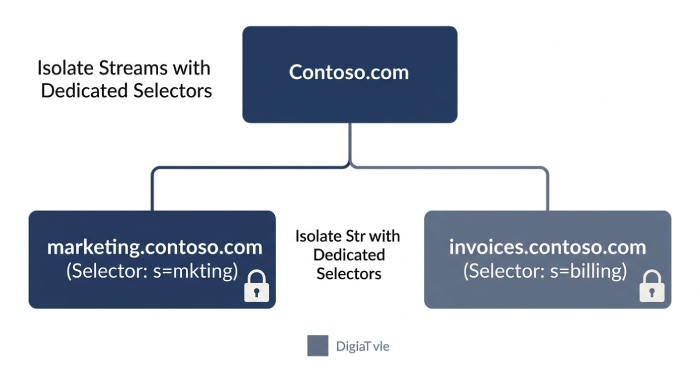
Vendor coordination, selectors, and key rotation with CNAMEs
When working with bulk email services or shared IP platforms, coordinate selectors and CNAME delegation up front. Many providers require you to publish cname records such as selector1._domainkey.marketing.contoso.com that points to address values at the vendor. This delegates the dkim dns record to the vendor while you retain control at the domain registrar.
- Standardize the cname format across Selectors so the hostname is predictable and aligns with your governance model; the dynamic partition character underscore in selector1._domainkey is defined by RFC 6376.
- Plan key rotation per platform, maintaining an active selector for current signing and an inactive selector ready for roll-over. Update the s= value in the platform, publish the new public key via DNS, and retire the old private key once traffic shifts.
- In Microsoft 365, enable dkim signing via the Defender portal or Exchange Online PowerShell, which creates or references CNAME and TXT records under each signing domain. If you see NoDKIMKeys or no dkim keys status value in the DKIM tab, use Create DKIM keys to generate the key pair and publish the dns records.
Coordinate carefully if the email service amends the message header or message body. Validate the final dkim signature after all routing steps to confirm DKIM validation passes at inbox providers.
Observability and resilience: pre-deployment testing, ongoing monitoring, and troubleshooting
Testing, monitoring, and troubleshooting that prevent surprises
Before changing production dkim settings, send dkim-signed email from staging to a variety of receivers and analyze the Authentication-Results message header. Verify the d= value, s= value, selector, and canonicalization choices. In Microsoft 365, use the Defender portal’s Email & collaboration dashboards and Microsoft Defender for Office 365 reporting to verify dkim signing and watch for failures tied to specific subdomain senders or outbound messages.
a. Pre-deployment and monitoring checklist
- Use Exchange Online PowerShell to script checks across every custom domain and subdomain, confirming CNAME records and txt record existence for each hostname.
- Inspect DKIM status value and toggle value in the Defender portal; if a client error dialog appears, recheck dns records, TTLs, and propagation.
- Employ threat policies to alert on spikes in authentication failures that could indicate message alteration, spoofed sender attempts, or vendor misconfiguration.
- Troubleshoot dkim validation failures by confirming the public key in DNS matches the private key on the signer, the dkim configuration uses the correct selector, and that intermediaries haven’t modified signed headers.
If you must delegate via CNAME, ensure your points to address targets are current and that the vendor’s certificate and key management align with your policies. Keep logs of enable dkim signing events, key rotation changes, and any inactive selector to active selector transitions. For broader resilience and layered defenses, invest in continuous email security monitoring that correlates DMARC, SPF, and DKIM analytics.
Implementation blueprint: a step-by-step DKIM settings playbook and governance checklist
Step-by-step playbook
1) Inventory senders and domains
- Catalog every custom domain and subdomain that emits outbound messages, including Parked domains. Map each to a signing domain and required selector. Confirm From and mail from address behavior across systems.
2) Create and publish keys
- Create dkim keys as a 2048-bit key pair per platform and per brand. Publish the public key via DNS using CNAME or TXT, depending on platform guidance. Keep the private key secured in an HSM or equivalent.
3) Configure platforms
- In Microsoft 365, open Email authentication settings in the Defender portal or use Exchange Online PowerShell to configure dkim settings for each custom domain. Use the DKIM tab to enable signing; if NoDKIMKeys appears, select Create DKIM keys and follow the prompts. Confirm CNAME and TXT values match the required hostname and points to address.
4) Validate and observe
- Send test messages and verify dkim signing in headers end-to-end. Confirm DMARC alignment between the d= value and the visible From. Track metrics across brands and bulk email services. Document rfc 6376 canonicalization choices and l= usage, if any.
5) Rotate and retire
- Establish key rotation every 6–12 months. Stage a new selector, publish its public key, switch the signer to the new s= value, then retire the old private key. Maintain at least one inactive selector for fast rollback.
Governance checklist
- Policy: Define organization-wide email authentication requirements that specify domainkeys identified mail, DMARC, and SPF for all outbound messages.
- Controls: Mandate platform-specific procedures for enable dkim signing, selector naming, and CNAME records delegation.
- Assurance: Quarterly audits to verify dkim dns record integrity, status value, and successful dkim validation for each signing domain.
- Response: Playbooks for phishing and BEC incidents that include rapid revocation of a compromised private key and emergency updates to threat policies.
By consistently applying these dkim settings across Microsoft 365 and partner platforms, you ensure every dkim signature is anchored to the correct d= value, backed by a valid public key, and resilient to routine message header and message body handling. This is the foundation of reliable email authentication for modern, multi-brand enterprises.
FAQs
What headers should I include in a DKIM signature?
Always sign stable headers such as From, Date, Subject, MIME-Version, Content-Type, and To. Avoid volatile headers that may be rewritten, which can cause the dkim signature to fail across outbound messages.
Should I use the l= body length tag?
Use l= only if a predictable footer is added downstream and you need resiliency against small changes. Most organizations omit l= to maximize integrity under domainkeys identified mail and to minimize message alteration risks.
How do I ensure DMARC alignment with DKIM?
Match the d= value in the dkim signature to the organizational From domain (strict) or a related subdomain (relaxed). Validate alignment for each custom domain and subdomain to ensure DMARC passes even when SPF may not.
How do CNAME records help with vendors?
Vendors often require CNAME records so your selector hostnames delegate to their infrastructure. This lets you keep control at your domain registrar while the vendor manages the public key and signing service.
What is the role of Microsoft 365 in DKIM?
Microsoft 365 can generate keys, publish DNS guidance, and sign mail; use the Defender portal or Exchange Online PowerShell to configure dkim settings. Check the DKIM tab for status and use Create DKIM keys if needed.
How often should I rotate DKIM keys?
Plan key rotation every 6–12 months, maintaining an active selector and an inactive selector for rollover. Update the s= value, publish the new public key, and securely retire the old private key.
What should I check when DKIM fails suddenly?
Confirm dns records (TXT or CNAME) are correct and propagated, verify the public key matches the private key in use, and inspect whether a gateway changed a signed message header or message body. Also review recent platform updates or toggle value changes that could affect signing.
Key Takeaways
- Design dkim settings to favor relaxed canonicalization, stable header lists, and strict key management for resilient email authentication.
- Align the d= value with each brand’s From domain across every custom domain and subdomain to satisfy DMARC.
- Coordinate selectors, CNAME records, and key rotation schedules with vendors and bulk email services to prevent breaks.
- Use Microsoft 365 Defender portal and Exchange Online PowerShell to enable, verify, and monitor DKIM signature health at scale.
- Continuously test, validate dns records, and govern private key custody to defend against spoofed sender, phishing, and BEC.