
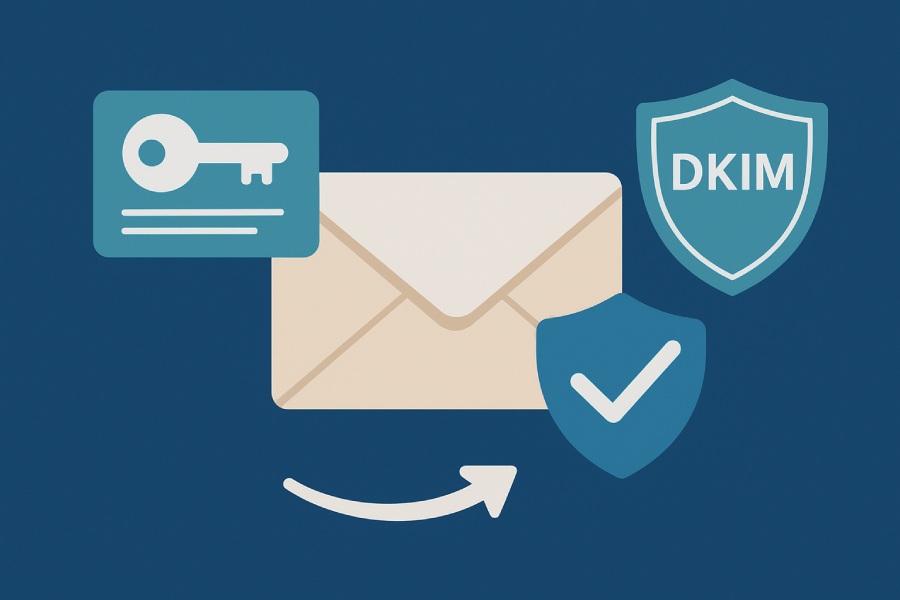
DomainKeys Identified Mail (DKIM) is one of the most robust email authentication methods, helping organizations defend against email spoofing, phishing, and spam. By using cryptographic digital signatures and distributing public keys through DNS records, DKIM verifies that outgoing emails are authorized and tamper-free, which is critical for brand protection and maintaining user trust.
In this section, we explore seven practical DKIM examples, beginning with foundational implementations and advancing to configurations that enhance security and email deliverability for diverse environments.
Example 1: Implementing a Basic DKIM Record for a New Domain
Deploying a basic DKIM record is an essential first step for any organization establishing a new domain name. This foundational DKIM example demonstrates the core elements of authentication and spam prevention.
Key Generation and Cryptographic Setup
Begin by generating a public/private key pair using standard cryptographic algorithms—most modern configurations recommend RSA with a minimum key length of 1024 bits, though 2048 bits is now the best practice for stronger encryption and alignment with public key infrastructure (PKI) guidelines. Many Email Service Providers (ESPs) and mail server platforms, including Postfix, SendGrid, and Google Workspace, offer built-in key generation or integrate with third-party services for this step.
- Private key: Securely stored on your outbound email server or with your ESP, it is used to create the DKIM signature attached to each outgoing message.
- Public key: Shared via DNS records so that receiving mail servers can verify the DKIM signature.

Publishing the DKIM TXT Record in DNS
Next, publish the public key as a DKIM record in the DNS management console provided by your domain registrar. The DKIM record is typically a TXT record, named using a combination of a selector and your domain (e.g., `selector1._domainkey.example.com`).
Sample DKIM TXT record for example.com:
“`
Name: selector1._domainkey.example.com
Type: TXT
Value: v=DKIM1; k=rsa; p=MIGfMA0GCSq… (public key value here)
“`
- The selector (e.g., `selector1`) allows for key management, supporting rotation and multiple active keys.
- Set the `p=` tag to contain your full base64-encoded public key value.
- The `v=DKIM1` tag defines the record version.
Be attentive to syntax errors and ensure that the TXT record does not introduce extra spaces or line breaks, which could break verification and degrade email deliverability.
Integrating with the Outbound Mail Server
Configure your email server or ESP to use the selector, reference the stored private key, and apply digital signatures to outbound email. For on-premise mail servers like Postfix or Exchange, this may involve updating configuration files or leveraging additional modules. For cloud-based services, consult the provider’s documentation for a streamlined setup process. Google Workspace and Office 365 offer intuitive interfaces to facilitate this configuration process for new domains, which is essential for organizations migrating to or launching cloud-based email communications.
Verifying the DKIM Setup
After publishing the DKIM record, validate your configuration using widely recognized DKIM verification tools—such as MXToolbox, DKIMCore, and Google Apps Toolbox. These tools query your DNS for the published public key and assess the DKIM signature on test emails, allowing rapid troubleshooting before introducing the solution to production.

Best Practices for a New Domain:
- Always use a 2048 bits key length for strong security.
- Test with multiple verification tools to ensure consistency.
- Combine DKIM with SPF and DMARC for layered email authentication, maximizing trust and brand protection.
Example 2: Configuring DKIM with Multiple Selectors for Email Rotation
Rotating DKIM keys periodically is a cornerstone of key management and email security, especially for enterprises with complex outbound email sources and configurations. Using multiple selectors enables seamless cryptographic key rotation, minimizing downtime and mitigating risks of compromised keys.
Why Multiple Selectors Matter
Multiple DKIM selectors allow the coexistence of current and future public keys within your DNS records. This configuration supports uninterrupted email authentication, even during transitions between active keys.
Scenario: Rolling Key Rotation
Suppose your domain, example.com, sends outbound emails from both its primary office server and a third-party ESP, such as MailChimp.
- Selector1: Used by your in-house mail server.
- Selector2: Used by MailChimp; configured through their management portal.
Both selectors have corresponding DKIM records (TXT records) in DNS:
“`
selector1._domainkey.example.com TXT “v=DKIM1; k=rsa; p=…”
selector2._domainkey.example.com TXT “v=DKIM1; k=rsa; p=…”
“`
Executing a Key Rotation
For best practices, rotate DKIM keys every six months, updating the public key for a given selector or introducing a new selector (e.g., `selector3`). During this period, both existing and new DKIM signatures will authenticate successfully, ensuring no impact on email deliverability or user experience.
Key Steps:
- Generate a new private/public key pair (use 2048 bits minimum).
- Publish the new public key as an additional DKIM TXT record with a new selector.
- Update the corresponding mail server or ESP to sign with the new selector.
- Retire the old key after verifying successful DKIM signature validation on live outbound email.
Verifying Key Rotation
Command line tools such as `dig` and online utilities like MXToolbox can confirm the presence and correctness of all active DKIM selectors. Sending test emails and examining the DKIM headers in the recipient’s inbox—particularly in Gmail or Office 365—ensures that both old and new DKIM signatures are correctly applied.

Example 3: Setting Up DKIM in Office 365 for Enhanced Security
Microsoft’s Office 365 ecosystem (now known as Microsoft 365) is a leading cloud platform for business email communications. Out-of-the-box email authentication is supported, but explicit DKIM configuration offers deeper security and more granular brand control. This DKIM example addresses both technical and operational requirements for configuring DKIM within Office 365.
Office 365: Understanding Built-in DomainKey Options
Office 365 signs messages with default DKIM records using the `onmicrosoft.com` domain, but this does not maximize brand protection or leverage the full benefits of custom DKIM signatures.
Custom DKIM for Your Domain Name
To ensure that all outbound email is signed using your custom domain (e.g., `example.com`), you must publish two specific CNAME records as part of your DNS records. Each CNAME entry points from your domain to Office 365’s signing service.
-
CNAME for selector1:
“`
selector1._domainkey.example.com CNAME selector1-example-com._domainkey.onmicrosoft.com
“` -
CNAME for selector2:
“`
selector2._domainkey.example.com CNAME selector2-example-com._domainkey.onmicrosoft.com
“`
This CNAME record approach offloads DKIM key management and digital signature generation to Microsoft, leveraging the underlying PKI infrastructure for secure email authentication.
Step-by-Step DKIM Setup Process in Office 365
- Access the Office 365 Security & Compliance Center.
- Navigate to Threat Management > Policy > DKIM.
- Select your custom domain and enable DKIM signing.
- Follow prompts to publish the required CNAME records in your DNS zone at your domain registrar.
- Allow propagation and verify status.
If your DNS management is handled via third-party providers like Cloudflare, DNSimple, or Fortinet, ensure that changes replicate reliably across global DNS infrastructure.
Technical Support and Verification
Should problems arise during the configuration process—such as issues with DNS propagation, public key value, or Office 365 account permissions—consult Microsoft technical support or community resources. Tools like MXToolbox and Google Apps Toolbox are invaluable for validating the presence and correctness of DKIM records and signatures for your domain.
Advancing Security with Multi-Layered Authentication

For the most robust results, it’s essential to augment your DKIM deployment with SPF and DMARC records. This triple-layer approach not only improves email deliverability—ensuring your emails avoid the Spam Folder—but also strengthens overall email security against phishing attacks.
Proper DKIM setup in Office 365 protects both your organization’s brand and your end-users. By implementing CNAME entries with precise public key values, avoiding syntax errors in DNS records, and regularly verifying your DKIM signature through recognized tools, you foster best practices in authentication methods and enhance the user experience for both inbound and outbound email flows.
These practical DKIM examples illustrate foundational and advanced deployment tactics for securing your email domain with DomainKeys Identified Mail. Thoughtful use of key length, selector management, careful publishing of TXT or CNAME records, and regular verification form the basis of an effective, future-proof DKIM strategy for any business.
Example 4: DKIM Signing for Subdomains to Segregate Email Flow
Isolating Email Streams with Subdomain-Based DKIM
For organizations that operate multiple business units, product lines, or campaigns, segmenting email authentication per subdomain is a DKIM best practice. By creating distinct DKIM records for each subdomain, such as `marketing.example.com`, `support.example.com`, and `alerts.example.com`, administrators can segregate outbound email flow, isolate authentication methods, and simplify troubleshooting.
This approach provides significant advantages for email deliverability and brand protection. If a single subdomain is compromised or experiences reputation issues, its impact on the parent domain or other subdomains is minimized. Separating DKIM signing environments also allows teams to implement key rotation, update key lengths (such as moving to 2048 bits for improved encryption), and configure public key infrastructure (PKI) settings independently. For example, the marketing team might use MailChimp as their Email Service Provider (ESP), while transactional emails could be routed via SendGrid with their own DKIM records.
Configuring Subdomain DKIM Records
Each subdomain should have its own DKIM selector and associated DNS records. A selector, like `s1`, is appended in the DNS TXT record, resulting in entries such as `s1._domainkey.marketing.example.com`. The public key value is published in the appropriate TXT record, while the private key is securely stored on the relevant mail server or ESP configuration.
Some ESPs, such as Google Workspace or Office 365, provide automated DKIM setup processes for subdomains, which reduce the risk of syntax errors commonly encountered in DNS record entries. Workflow tools such as Google Apps Toolbox and MXToolbox can verify correct propagation and functioning. Employing DKIM for each subdomain is essential for robust spam prevention, personalized user experience, and better overall email security.
Example 5: Troubleshooting DKIM Failures and Common Pitfalls
Diagnosing DKIM Signature Verification Failures

DKIM signature mismatches are a common problem, leading to failed email authentication and messages routed to spam folders. Key causes include misconfigured DKIM records, mishandling of email headers, outdated public keys in DNS, and improper key generation or storage. For example, a mismatch between the public key in the TXT record and the signing private key on the outbound email server will cause verification to fail.
Email verification tools such as DKIMCore, MXToolbox, and Google Apps Toolbox can assist in diagnosing issues by parsing email headers and displaying the state of DKIM signatures. Additionally, command line tools, such as the `dig` command, are useful for checking whether the correct DKIM TXT record is reachable from the internet.
Resolving Common DKIM Implementation Issues
- DNS Propagation Delays: New or updated DKIM records can take time to propagate across global DNS servers, causing temporary failures. Use DNS management interfaces provided by domain registrars like Cloudflare or DNSimple to monitor updates.
- Syntax Errors: Misplaced semicolons, line breaks, or incorrect public key values in the DNS TXT record often lead to broken DKIM records. Always copy and paste the public key directly and validate the syntax.
- Selector Problems: Specifying the wrong selector in your DKIM signature can prevent email receivers from finding the correct DKIM record.
- Key Length Issues: Modern encryption standards recommend 2048 bits for DKIM keys. Shorter keys may be rejected by providers like Gmail or Microsoft.
- CNAME Record Confusion: Some third-party services set up DKIM by requiring a CNAME entry instead of a TXT, which points to a managed DKIM public key. Misconfiguration here can break authentication.
Thorough email authentication testing before going live is recommended for any major change, and technical support from your ESP or domain registrar is often only a support ticket away.
Example 6: Integrating DKIM with DMARC and SPF for Complete Coverage
Synergizing Email Authentication Protocols

DKIM works best in tandem with other email authentication methods—namely, SPF (Sender Policy Framework) and DMARC (Domain-based Message Authentication, Reporting & Conformance). These protocols complement one another for robust protection against email spoofing, phishing, and spam.
SPF verifies whether the sending mail server IP address is authorized to send on behalf of the domain name, as specified in an SPF TXT record. DKIM, in contrast, authenticates emails using digital signatures based on cryptographic algorithms, using a public key published in DNS. DMARC brings it all together, instructing receiving mail servers how to handle messages that fail DKIM or SPF checks, and providing insight through aggregate and forensic DMARC reports via third-party services.
Implementation Workflow and Best Practices
To implement comprehensive protection:
- Generate DKIM Key Pairs using a recommended key length of 2048 bits, then publish the public key in your domain’s DNS TXT record.
- Configure SPF Records that include all legitimate email servers, such as those used by Google Workspace, SendGrid, or Office 365.
- Publish a DMARC Record that references both DKIM and SPF, and set policies for reporting and enforcement (e.g., reject or quarantine failed messages).
- Monitor Results using dashboards from tools like DMARC Report, and periodically audit your DKIM signatures for consistency.
Implementing all three measures delivers maximum email security, improves outbound email deliverability, keeps your emails out of the Spam Folder, and protects users from inbound threats.
Example 7: Monitoring DKIM Results and Automating Alerts for Forged Emails
Proactive Monitoring to Combat Email Forgery
Setting up DKIM is not a one-time event; proactive monitoring is crucial to maintaining email authentication health and identifying email spoofing attempts. Automated email verification solutions can continuously scan your domain’s DKIM signatures and DNS records for misconfigurations or attacks. ESPs and security vendors offer alerting systems that notify administrators if emails fail DKIM or if sudden changes to key management, selectors, or DNS entries are detected.
By integrating real-time reporting from tools such as DMARC Report, you gain visibility into authentication success/fail rates and any attempts to forge your domain’s email communications. Regularly reviewing DMARC and DKIM reports helps identify suspicious patterns of inbound or outbound email, supporting rapid incident response and strengthening brand protection.
Automating Responses and Alerting
- Alerting and Remediation: Configure automation rules to trigger alerts via email, SMS, or dashboard notifications when DKIM validation fails, a key is unexpectedly rotated, or unauthorized changes are made to DNS records.
- Integration with Security Operations: For enterprises, connecting DKIM monitoring with security information and event management (SIEM) systems allows deeper correlation with other threats, further improving email security.
- Scheduled Audits: Automate periodic audits of DKIM key length, public key infrastructure (PKI) health, and the status of subdomain DKIM records. Automated scripts using the dig command or API integrations with DNS providers like Cloudflare help ensure consistency and compliance.
With robust monitoring and alerting in place, organizations ensure higher email deliverability, minimize the risk of phishing, and offer a better user experience throughout all email communications.

FAQs
How does DKIM protect against email spoofing?
DKIM (DomainKeys Identified Mail) uses a digital signature, generated with a domain’s private key, to sign outbound emails. The recipient’s server verifies the signature using the public key from the publisher’s DNS record, preventing attackers from forging emails that claim to be from your domain.
What is a DKIM selector and why is it important?
A DKIM selector is part of the DKIM signature and DKIM record, acting as a label to identify which private/public key pair is used. This is crucial when using multiple keys for different email streams, subdomains, or during key rotation.
How can I check if my DKIM record is working properly?
Use verification tools like MXToolbox, DKIMCore, or Google Apps Toolbox, or run the dig command in your terminal to query your DKIM public key. These can analyze your DNS records and test live email headers for valid DKIM signatures.
What key length should I use for DKIM key generation?
Current best practices recommend a minimum DKIM key length of 2048 bits to ensure strong encryption and prevent brute-force attacks. Most modern mail servers and ESPs support this standard.
What should I do if my emails are going to spam folders even with DKIM?
Check that your DKIM, SPF, and DMARC records are correctly configured and aligned, and confirm there are no syntax errors in your DNS TXT record. Review your sender reputation, email content, and monitor DMARC reports for authentication failures.
How often should DKIM keys be rotated?
Key rotation is a key management best practice; many organizations rotate DKIM keys every 6 to 12 months. Automated key rotation is supported by some ESPs and helps reduce the risk if a private key is compromised.
Can I set up DKIM for Google Workspace or Microsoft 365 easily?
Yes, both Google Workspace (Gmail) and Microsoft Office 365 provide step-by-step guides and technical support for adding DKIM records via your domain registrar. Both recommend using 2048-bit keys and provide default selectors for easy configuration.
Key Takeaways
- Utilizing DKIM signing on separate subdomains allows for isolated email flow, tailored key management, and risk mitigation across business units.
- Regular monitoring and automated alerting for DKIM failures are essential for email security, enhanced deliverability, and rapid response to email spoofing.
- Integrating DKIM with SPF and DMARC creates a robust triple-layer email authentication framework to prevent phishing and maximize brand protection.
- Correct configuration of DNS records—especially DKIM TXT/CNAME records—and using recommended key lengths and best practices, directly impacts email communications’ trust and deliverability.
- Leading tools (MXToolbox, Google Apps Toolbox, DKIMCore) and periodic audits are vital for ongoing compliance and security in DKIM setups.